File locking
Feature availability
Supported platforms: Windows 10 (x64) and newer (v4.1.0 and newer), macOS 26 Tahoe or newer (v6.0.0 and newer).
Not supported platforms: arm-based Windows, other platforms, including mobile devices.
Types of locks: Asynchronous (v4.1.0 and newer), Synchronous file locking in Enterprise Hybrid Work. macOS Agent supports only synchronous file locks.
Functionalities covered: Synchronization, File Caching, Hybrid Work and Enterprise Hybrid Work jobs.
File locking enables efficient collaboration on shared files in a job, preventing data loss and conflicts. It allows users to lock files while they're being edited, ensuring that other users cannot modify them until the lock is released.
Resilio features standard, asynchronous file locking, which is available in Hybrid Work, File Caching and Synchronization jobs, and synchronous file locking, which can be enabled in Enterprise Hybrid Work jobs.
Synchronous file locking
Note
Synchronous file locking is available in Resilio 6.0 and newer, in Enterprise Hybrid Work Jobs.
Synchronous locking mechanism implements a centralized approach to file locking, solving a number of issues related to concurrent access and ensuring data consistency. Advantages of synchronous file locking include:
- Lock acquisition conflicts mitigation – In synchronous file locking, file access is blocked until the lock server confirms the lock acquisition, eliminating potential lock acquisition conflicts.
- Data loss prevention – Synchronous locking ensures that end users collaborating on the same project always access the most up-to-date version of the file, preventing data loss and inconsistencies.
- Cloud storage objects and network shares support – Synchronous locking also enables imposing locks on cloud storage objects and network shares.
Resilio file locking and Nasuni GFL
File locks are recognized and maintained when users access the same data across Resilio and Nasuni Edge Appliances (including across appliances). This allows mitigating potential file conflicts when select users access shared files directly from a Nasuni Edge Appliance while others access the same files through Resilio.
To prevent Resilio from locking specific files or folders, add them to the ignore list when creating the Job.
Install driver and configure files locks in a job
File locking in Resilio 6.0
- Resilio 6.0 Agents install the file locking driver automatically during the installation.
- We do not recommend disabling file locking when creating Enterprise Hybrid Work Jobs in Resilio 6.0.
- You cannot enable or disable file locking after creating an Enterprise Hybrid Work Job.
To install file locks driver and enable file locking in Resilio 5.0.9 and older:
-
Install the Agent on each device, using an account with administrative privileges. Make sure to include the Share locks driver feature.
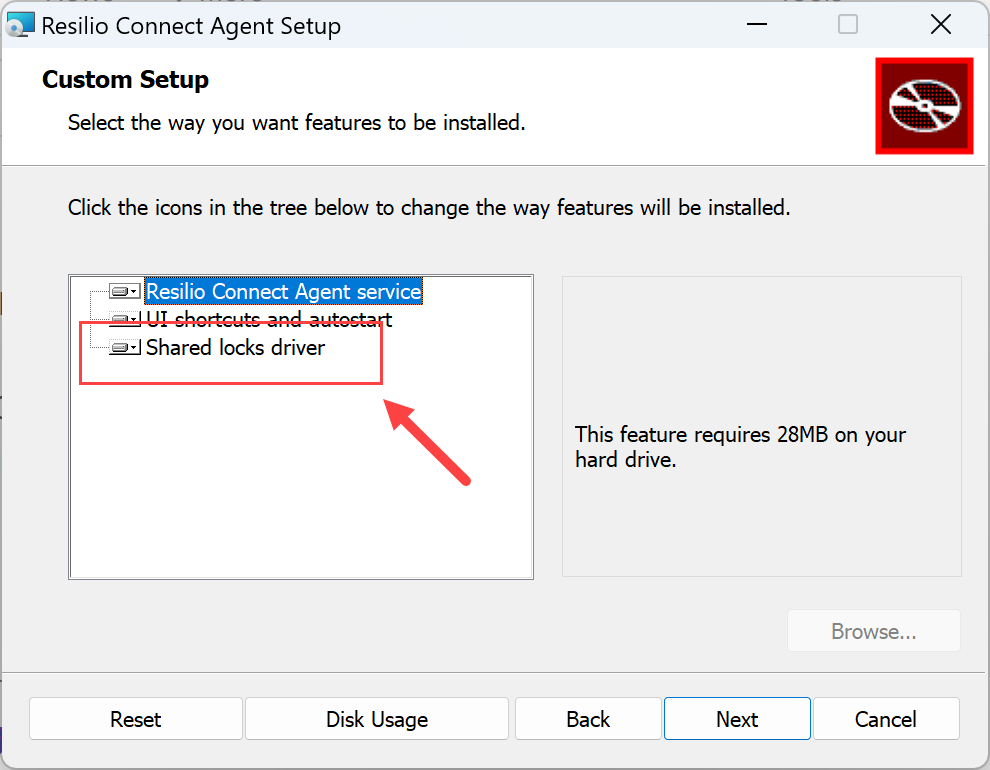
Driver availability for different Windows accounts
By default, further use of the driver is available for Agents running as SYSTEM account or an account from Administrators group. To utilize the functionality with the Agent running with a non-system, non-admin account, download and run this script before creating jobs passing the desired account_name as parameter. For example:
-
to configure access to the driver for userA run:
configAccessToDriver.ps1 userA -
to configure access to the driver for any user run:
configAccessToDriver.ps1 everybody
Two Resilio Agents installed on same computer
In the setups with two Resilio Agent services installed and running on the same device, only one of them maintains communication with the file lock driver and can perform file locking in a job - the first one which was added in a job with File locking enabled.
-
-
In Management Console, click Jobs and select the Configure Jobs tab.
- Locate and click the job for which you want to enable file locking.
-
In the Settings tab:
- Select the File Locking option.
Note
For Resilio Agents older than 4.1.1, enabling or disabling file locking feature requires restarting the Agent service.
- (Optional) Change the time after which the lock server will release a locked file.
-
(Optional) Change the default locked files update interval. For optimal performance, we recommend leaving the default value unchanged.
-
Select files access level when the lock server is unavailable:
- No - No access to all files in the job.
- Read-only - Only ability to read files.
- Full - Read and write access to files.
- In the Ignore locks for these files and folder text input area, provide regular expressions (PCRE2 syntax) to match files and folders that you want to exclude from locking. Add each regular expression in a separate line. No need to restart the Agent or relaunch the job after that.
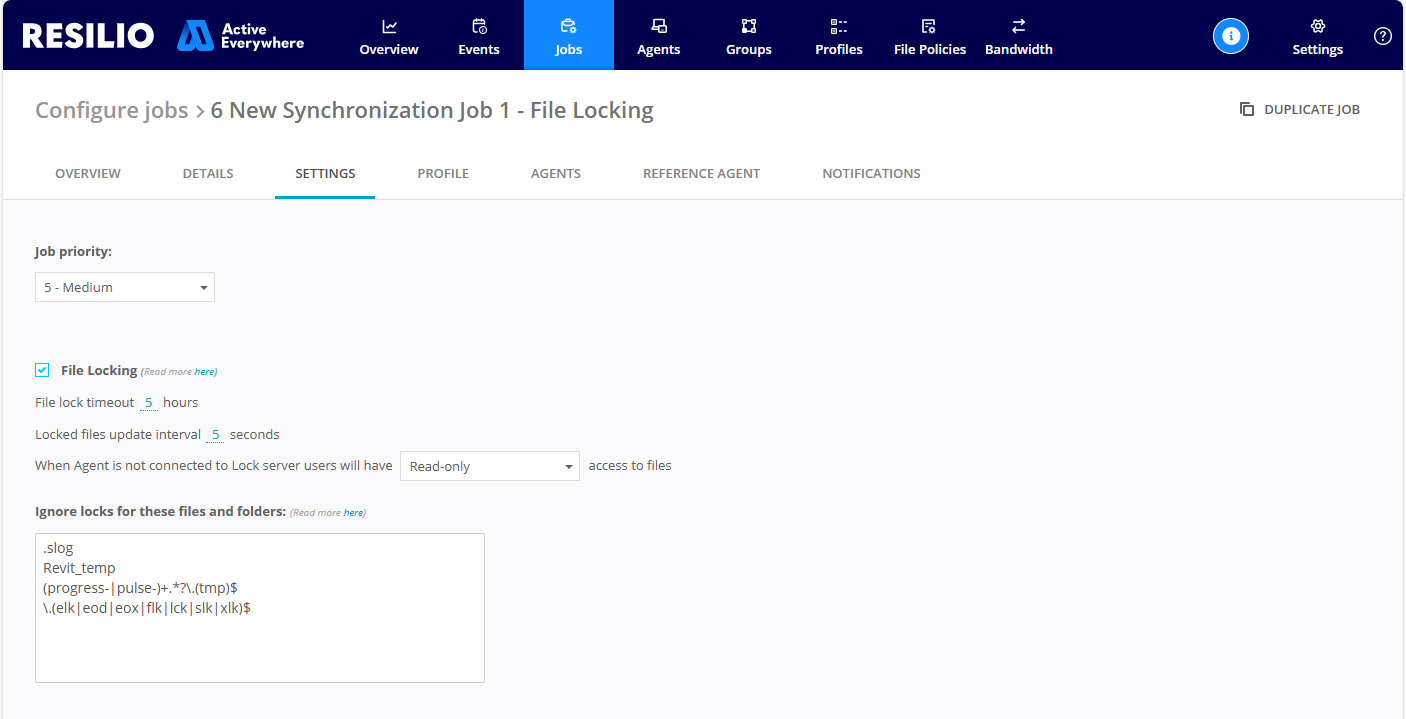
Agents participating in a Job with file locking
File locking is available in Resilio Active Everywhere 4.1 or newer, by Agents running on Windows x64 (synchronous and asynchronous locks) and macOS (synchronous locks). Agents running on other operating systems and platforms, can participate in a Job with file locking enabled, without imposing locks on files.
High availability groups and file locking
High availability (HA) groups incompatible with Resilio's asynchronous file locking feature. Windows Agents, being a part of a high availability group in a job with enabled locks do not impose the locks on open files, and files remain accessible for editing for other users.
Lock server and its role in the job
Lock server manages all metadata of locked files in the job and distributes it to others. To ensure continuous lock metadata availability, set up the Agent acting as the lock server in a high availability group.
Note
To enforce the locks on workstations, even without an Agent installed there, the Agent has to be set up on the source server, pointing to the physical location of the folder that's being shared.
The following Agents can take the role of a Lock Server in Hybrid Work, File caching and Synchronization Jobs:
- Windows, Linux and macOS Agent. Additionally, Windows Lock server can also act as a lock client and impose lock on locally opened files.
- An Agent synchronizing a cloud storage can be selected as a lock server, locks are not imposed on objects though.
In Enterprise Hybrid Work Jobs, the Primary Storage Agent assumes the role of the lock server.
Presence and online status of the Lock server is essential for the file locking functionality to work. All communication between Agents and the Management Console regarding the locked files is done through the Lock server. Agents will report an error and limit access to local files if:
- They're not connected to the Lock server.
- Lock server is paused.
- The Agent itself is paused.
- The job itself is paused.
- Lock server is unlicensed.
Monitor and manage locked files
You can monitor and manage file locks in the Job runs File locks tab. This tab provides details on locked files such as associated processes, Agents, or lock type.
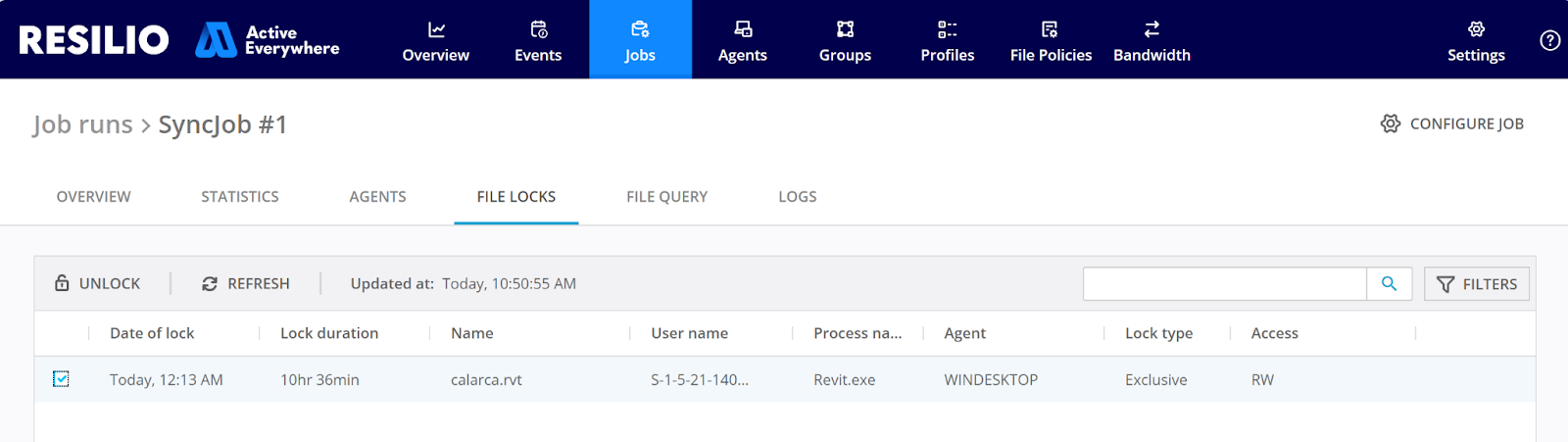
Important
Lock information is stored on the Lock Server and it's sent to the Management Console upon request. If the Lock Server is not currently connected to the Management Console, no lock information will be available.
macOS Agents file lock reporting
macOS Agents don't report username and process name for locked files.
Lock type depends on the application with which the file is opened. Not all applications implement requested access to the files or only implement full access. To interpret the lock type and app's requested access, refer to the following table:
| Lock type | Access (requested) | Shared access |
|---|---|---|
| Transfer lock | empty | RWD |
| Shared lock | R | RW, RWD |
| Deletion lock | D, RD, WD, RWD | any |
| Exclusive lock | W, RW | any |
RWD
RWD stands for Read-Write-Delete.
Unlocking files
- Lock is released automatically when the lock owner closes the file on their device or the lock times out (5 hours by default from the time the file was last accessed).
-
Resilio administrator can release the lock manually from the Management Console. To release the lock:
- Select Jobs > Job runs.
- Locate and click the Job run with the locked file.
- In the File locks tab, select the locked file and click Unlock.
Note
- Files remain locked even if the lock owner is removed from the job, until the administrator unlocks them manually or the locks time out.
-
File unlock may fail sometimes for a generic reason. In this case, try again a minute later.
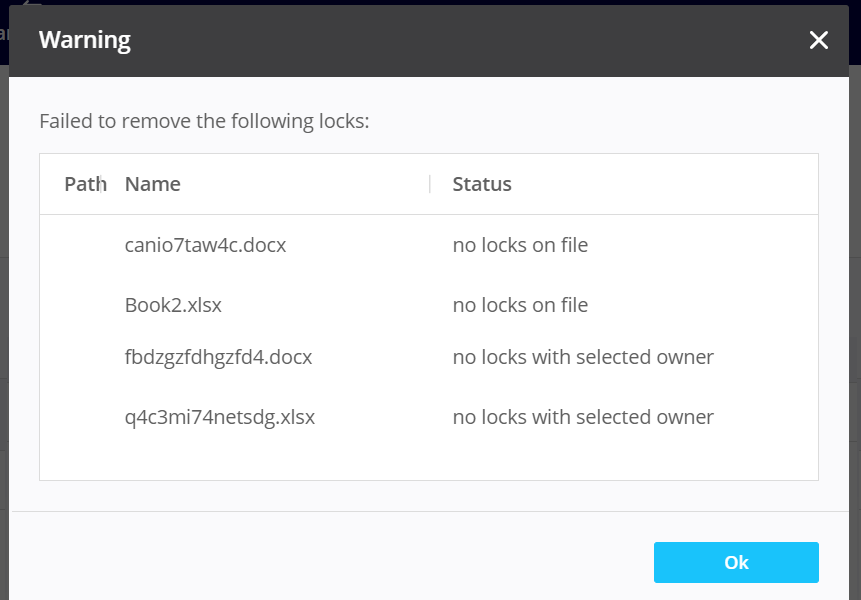
File lock conflicts
In Resilio 5.0.9 and older, file lock conflicts may occur if the same file is opened on multiple Agents within the lock propagation timeframe. The first Agent that confirms the file open with Lock server becomes the lock owner. Other Agents in the Job report the conflicting access error and the files are not available for them for editing. Depending on the application, they may or may not receive a warning about it. File access conflicts are not detected for the Agents working under high load.
Manage the driver
Resilio lock driver is installed in C:\Program Files\Resilio Connect Agent\rsldrv directory and registers itself in the system as driver.
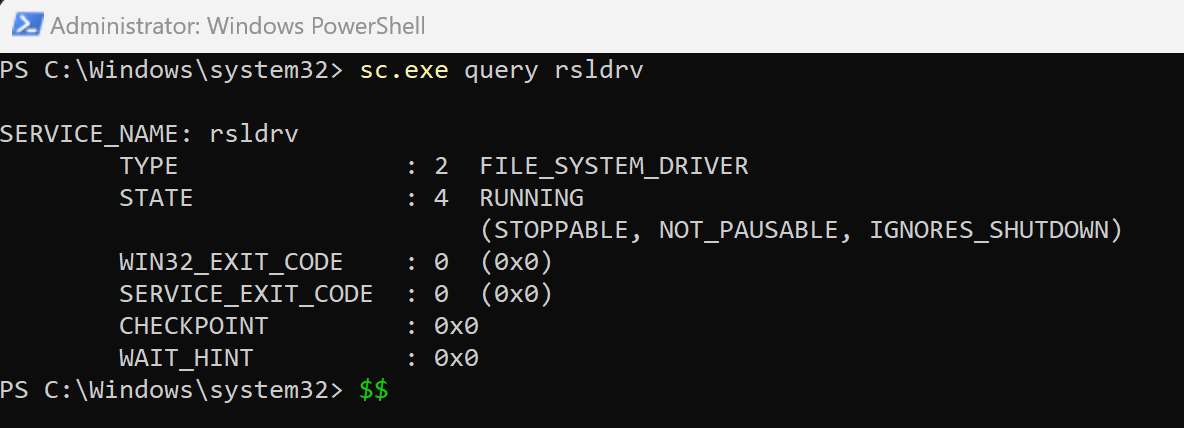
Ensure the Resilio File locking driver is running by querying its state in elevated Command Prompt or PowerShell using the command: sc.exe query rsldrv. Other commands are sc.exe query/start/stop rsldrv.
Each Agent version must match the driver version for compatibility. Be sure to install the driver together with the updated Agent.
If the driver is not running or the driver version is not compatible with the installed Agent, the Agents will report the corresponding error in the Jobs.
In the system registry the driver keeps the key records of the Job folders with enabled file locking features (HKEY_LOCAL_MACHINE\SYSTEM\CurrentControlSet\Services\rsldrv\Shares).
The corresponding key entry is removed from the registry after removing the Job. If the Job is removed ungracefully from the Agent and the entry remains, this might affect further usage of the directory and manual deleting the entry from the registry is recommended. Contact support for assistance.

Peculiarities and limitations
Asynchronous file locking
- Not supported for Windows Agents in a Windows cluster.
- Files that were opened before the Job was created are not locked and are not reported as locked in the Management Console. Same applies to functionality "Restart the job on the Agent".
- Microsoft Word files located on USB drives do not impose locks.
- Agent and driver must be running together for the functionality to work. If the Agent process is stopped, while the driver is working, the user won't have access to any file in the Job folder. If you need to stop the Agent for a reason, make sure to stop the driver as well.
-
Renaming of the locked files on remote devices works with peculiarities and may lead to edit conflicts. Try to avoid renaming the locked files and their parent directories. Examples include, but are not limited to:
- If a file is opened on a device A, and a different file with the same name is moved (not copied) in its place on device B, the file is replaced without any error.
- Similarly, such a file can be renamed on device B, and it will be propagated to remote devices.
- Similarly, on device B renaming of a file that is not locked to a file that is locked works without any errors.
-
If a file is accessed through SMB and SMB connection is dropped, the file gets unlocked.
-
For files accessed over SMB (for example, in File Caching jobs) on the Locked files tab:
- No process is reported, it's unknown.
- The user SID reported is the user who was authorized while mounting SMB share, the same user name as returned in net files command executed on SMB server.
- The Agent reported is the Caching gateway server in the job.
-
Files accessed over SMB require additional time to set and release locks. It may be up to 10 seconds.
- On Windows Server 2016, if a file is deleted while being locked, it remains locked. Unlock it manually or rescan the folder.
Synchronous file locking
- macOS Agents don't report username and process name for locked files.
- If the Primary Storage Agent often restarts, it's advised to lower the
shared_locks_lock_timeoutvalue, because lock server reset results in acquiring a new lock, resetting the timeout timer. - There may be a short time window (up to a few seconds) when the file is unlocked while it's moved from the temporary location to its destination path.
- The file locking ignore list must be the same on all Agents participating in the Job. It should also take into account the global Files and Folders filter. Discrepancies in configuration may result in unexpected file synchronization or file locking behavior.
- File locks do not lock the parent folder itself on the storage. As a result, for example, if a file is opened and locked directly on the disk, an end user can still rename its parent folder. The rename operation will be processed after the file is closed. Similarly, the end user can delete the parent folder; the deletion will be processed after the file is closed on the storage.
- If the Primary Storage Agent is restarted while a new file is still being uploaded by an end user Agent, the file may no longer be locked through the disk. Normally, while the file is being uploaded, other users cannot open it through an Agent or directly from the storage device because the file is locked. After Primary Storage Agent restarts, this lock may not be restored for files that were not opened through an Agent.
- There can be a race condition with some applications while opening files that have been newly added to the Job folder and they (that first try to open a file with the write (W) permission and if it fails they try accessing it with the read-only (RO) permission). When end user opens a file that hasn't been uploaded to the Primary Storage Agent yet, 'file is opening with W permissions the server doesn't have the actual file version, so the request is denied. The application retries to access the file with RO permissions and between these two requests the file can be uploaded to the server, resulting in a successful RO lock.