No TSS Items In The Context Menu On macOS Agent
Transparent Selective Sync (TSS) allows end-users to work with files in a job folder without downloading them first. It provides a seamless experience where files appear as if they are present locally, but they are actually downloaded on-demand when accessed.
Files can be downloaded or cleared using context menu items: Always keep on this device, Free up space.
If they are missing for a local folder for which Transparent Selective Sync is enabled, try the following troubleshooting procedures.
-
Verify storage path
Verify that the letter case in job path on the Management Console fully matches the one in Finder. If not, update the path on the MC, save the job and check the context menu again.
-
Reset Finder Extensions
macOS 13 and newer
- In System Settings, select General > Login Items & Extensions.
- In the Extensions section, click By Category.
- Locate File Providers category and click the info icon to manage file providers extensions.
- Disable Resilio Connect Agent extension, then click Done.
- (Applicable to Resilio 6.0 and newer) Locate File System Extensions category and click the info icon to manage file system extensions.
- (Applicable to Resilio 6.0 and newer) Disable Resilio Connect Agent FS extension, then click Done.
- Relaunch Finder: Press Alt and right-click Finder in the Dock, then select Relaunch, or click the Apple icon, select Force Quit, then click Finder.
- Re-enable Resilio Connect Agent and Resilio Connect Agent FS extensions, then relaunch Finder again.
-
In the Terminal, run the following commands to verify if the Finder extensions have been enabled:
pluginkit -vmA | grep "com.resilio"pluginkit -m -v -p "com.apple.FinderSync"
macOS 12 and older
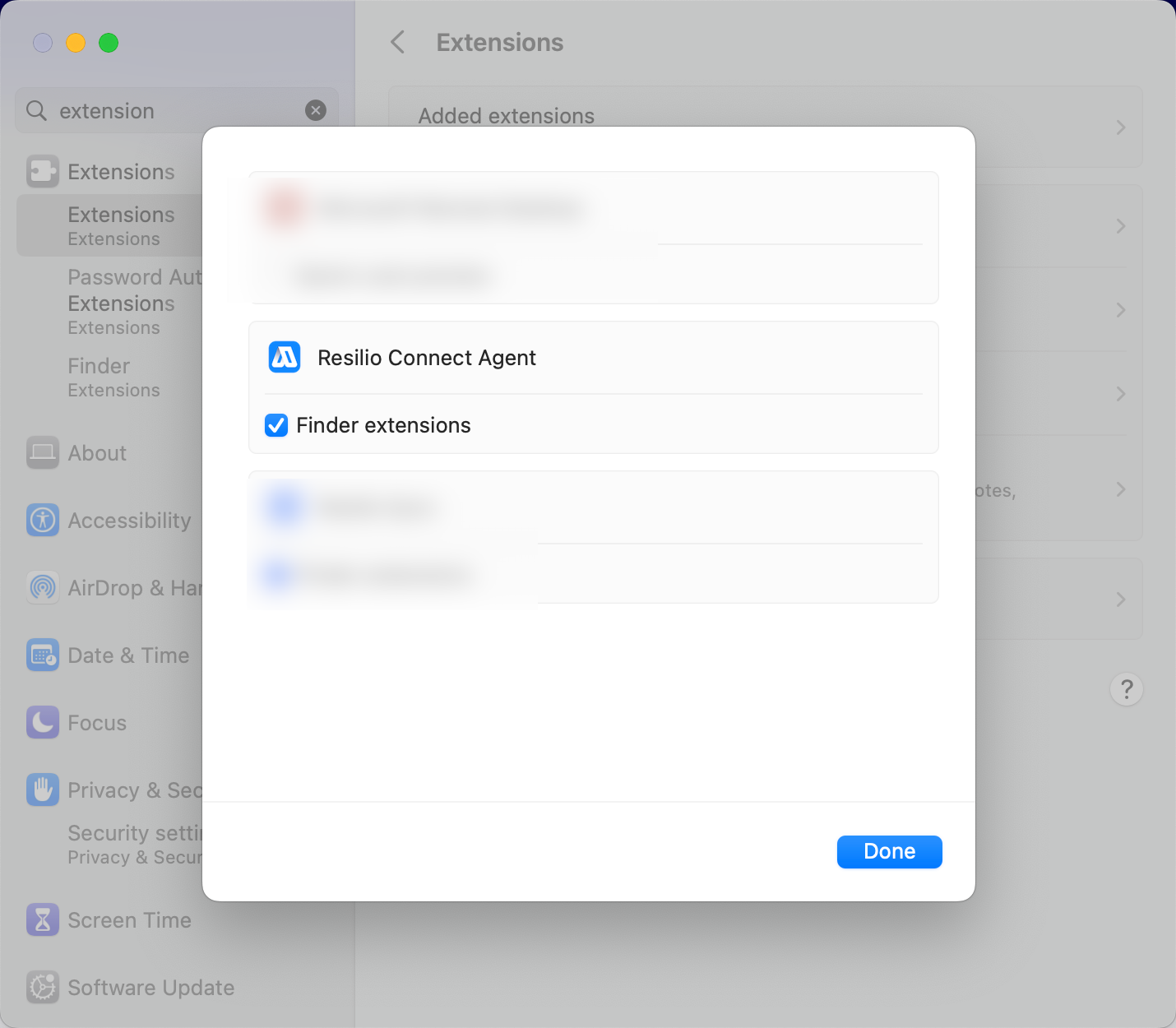
- Go to System Preferences > Extensions > Added Extensions.
- Uncheck Finder extensions for Resilio Connect Agent.
- Relaunch Finder: Press Alt and right-click Finder in the Dock, then select Relaunch, or click the Apple icon, select Force Quit, then click Finder.
-
Navigate to Extensions and enable Finder Extensions for Resilio Connect Agent, then relaunch Finder again.
-
In the Terminal, run the following command to verify if the Finder extensions have been enabled:
pluginkit -vmA | grep "com.resilio"Tip
The leading
+in the output means that the Finder extensions are enabled.+ com.resilio.ConnectAgent.FinderExtension(1.0) 62713271-A18D-4F18-AD16-C0040D64BFCD 2025-08-01 16:23:00 +0000 /Applications/Resilio Connect Agent.app/Contents/PlugIns/FinderExtension.appex
-
Enable Finder Extensions manually using the Terminal
In the Terminal, run the following commands:
pluginkit -a "/Applications/Resilio Connect Agent.app/Contents/PlugIns/FinderExtension.appex" pluginkit -e use -i com.resilio.connect.agent.FinderExtension -
Disable extensions for other applications
Uncheck other apps' extensions and again relaunch Finder, restart the Agent.
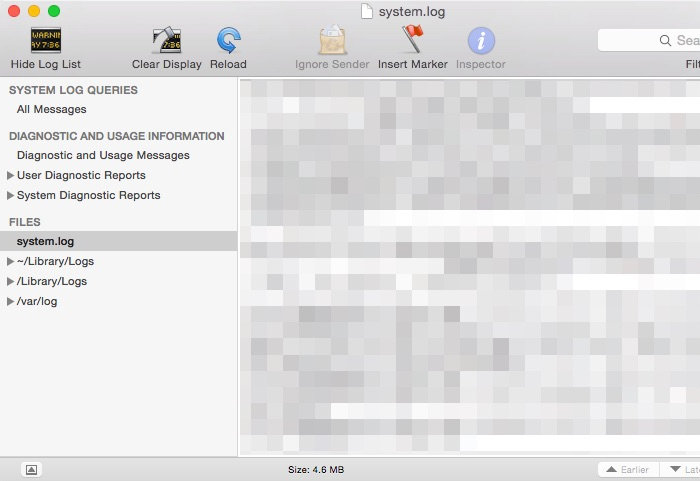
If neither tip helped, contact support and submit debug logs from the Agent. Also, collect the system.log file and send that to tech support as well. To
collect system.log:
- Open Console.app.
- Reproduce the problem with context menu.
-
Select
system.login the left pane, select the content, then copy-paste it to a text document.