Events
Overview
Agents record events related to the Jobs they're participating in. These events are stored in the storage folder\events directory and uploaded to the Management Console where they can be viewed and analyzed.
Note
- The Management Console receives events that are enabled in the Event filter parameter in the Agent profile, but it is possible to fetch all logs from an Agent. For details, see Tip: Fetch all event log entries.
- In Resilio Active Everywhere deployments 5.0.7 and older, Management Console stores the events data in
.dbSQLite database files instorage folder\data\reporting\filesandstorage folder\data\reporting\dailyfolders. There's a set of.dbfiles for each day whose name contains start and end timestamps in the Unix time format. By default, the data is stored for 14 days before it's removed. To change the default time period, addttlvalue to thereportingobject in the Management Console's configuration file. Thettlvalue is expressed in milliseconds, for example 604800000 is 7 days.
Access event logs
You can access event logs:
- In the Events view
- On the Agent's details page
- On the Job run's details page
- On the Agent's details page in a specific Job run
Tip
For most frequent Events error messages, see Resilio Active Everywhere error codes.
Events view
The Events view is a central location for browsing all logged events.
To access Events, log in to the Management Console and select Events.
Advanced events analytics in Resilio 6.0
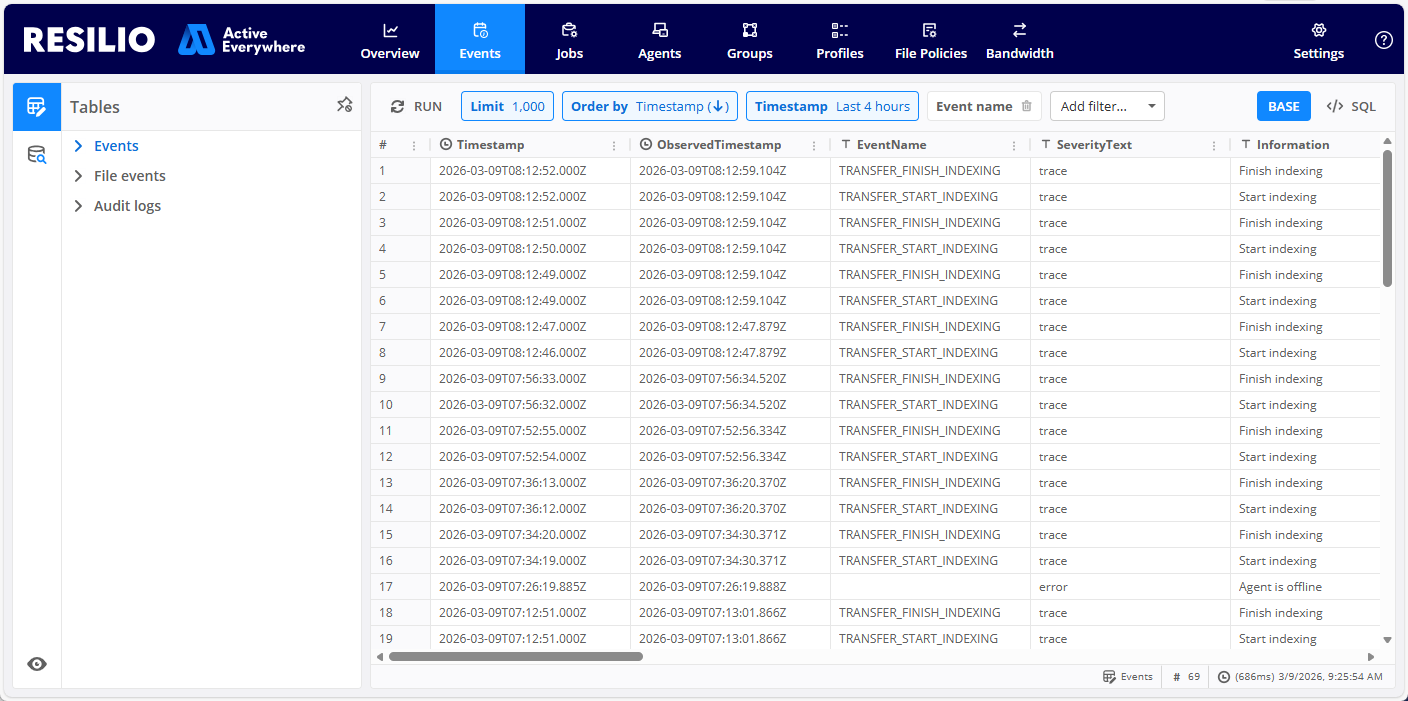
For more information on events analytics in Resilio 6.0, see Analytics.
Events

Events log information
- Source can be Management Console itself or an Agent, depending on where the error appeared. Clicking on an agent name opens the agent's details view.
-
Component can be "Global" or a specific job.
Component "Global" means that the event affects the overall Agent's misconfiguration. For example, agent's listening port if busy by another progress.- If the error affects a job execution, corresponding job run name appears as Component.
- Component can be empty for "Management Console" source.
Agent's details page
To view Agent's events:
- Select Agents.
- Locate and click the Agent whose logs you want to view.
- Select LOGS.

Job run's details page
To view events related to a specific Job run.
- Select Jobs.
- On the JOB RUNS tab, locate and click the desired Job run.
- Select LOGS.

Agent's details page in a specific Job run
To view events related to a given Agent for a specific Job run:
- Select Jobs.
- On the JOB RUNS tab, locate and click the desired Job run.
- Select AGENTS.
- On the AGENTS tab, locate and click the Agent whose logs you want to view.
- Select LOGS.

Tip: Fetch all event log entries
Note
On-demand logs fetching is available in Resilio Active Everywhere 5.1 and older.
The Management Console receives event that are enabled in the Event filter parameter in the Agent profile. To fetch all events related to specific Agent in a given Job run:
- From the SHOW drop-down list, select On demand events (All).

- (Optional) Use the FOR drop-down list options to fetch events from a specific time period.
- Click Load.
- Click Continue to download the data.
- (Optional) Click Download to download a compressed archive with event log entries.

Related topics: