Getting help and contacting support
If you need help with Resilio product, there are several ways to find answers or contact the Resilio Support team.
Help Center
Resilio Help Center provides a knowledge base with articles and guides to help you configure and troubleshoot your Resilio deployment.
To access Resilio Help Center, from the Management Console click in the top-right corner, then click Open Help Center.
Open a ticket with the Technical Support team
If you have any technical questions about Resilio or issues with your deployment, submit a support request. You can do this either from the Management Console, a web form or from the Resilio end-user Agent installed on your computer.
Important
Before contacting support, make sure that debug logging is enabled for Agents in the Agent Profile and the problem you're having has been reproduced with the logging enabled.
Management Console
To submit a support request from the Management Console:
- Click in the top-right corner, and in the Contact Support section, click Create support case.
- Follow the wizard to fill in the details and select the Agents and Jobs that your support request relates to.
- Upload the support request to Resilio team.
- Automatically
Select Automatically upload to Resilio to have the logs uploaded automatically once you submit your request.
Note: Logs upload honors the bandwidth limits defined in the Scheduler. -
Manually
Deselect the Automatically upload to Resilio option, then click Save request. After the support request bundle is created, download it locally and upload it using Resilio's support upload site.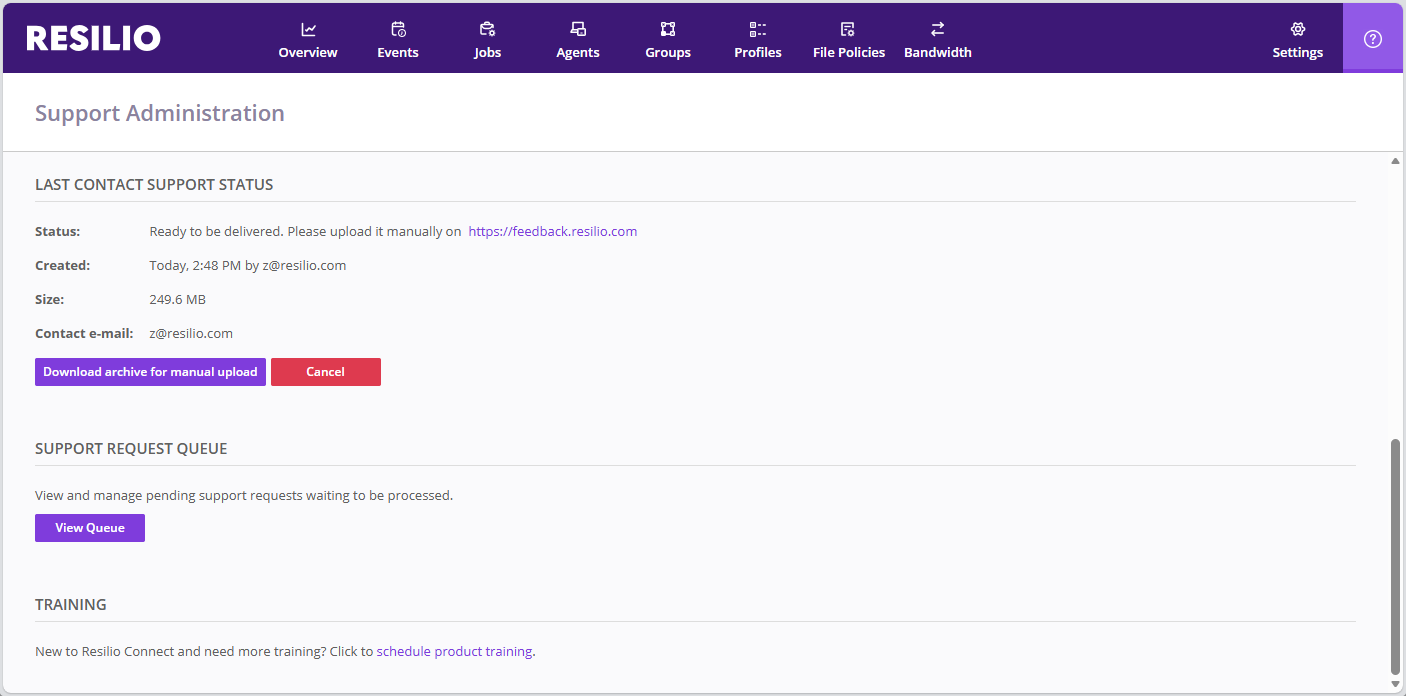
- Automatically
Select Automatically upload to Resilio to have the logs uploaded automatically once you submit your request.
Important: Consider storage space
- Creating a support request requires available storage space to be above the values defined in the
diskSpaceLevels.lowobject in the Managenet Console's configuration file. - Logs from selected Agents are downloaded as long as the available storage space remains above the values defined in
diskSpaceLevels.criticalobject in the Managenet Console's configuration file and there's sufficient space to download the next log chunk and archive the already downloaded logs.
Online form
Access the online form from the documentation by clicking Contact support in the top banner, or from the Management Console by clicking in the top-right corner, and in the Contact Support section, click Open online form.
Fill in the form and attach any files if needed, these can be screenshots, Agents' debug logs (need to be collected manually in advance) or any other details that can help with troubleshooting.
Resilio end-user Agent
Feature availability
Sending a support request via Resilio end-user Agent is available in version 6.0 and newer.
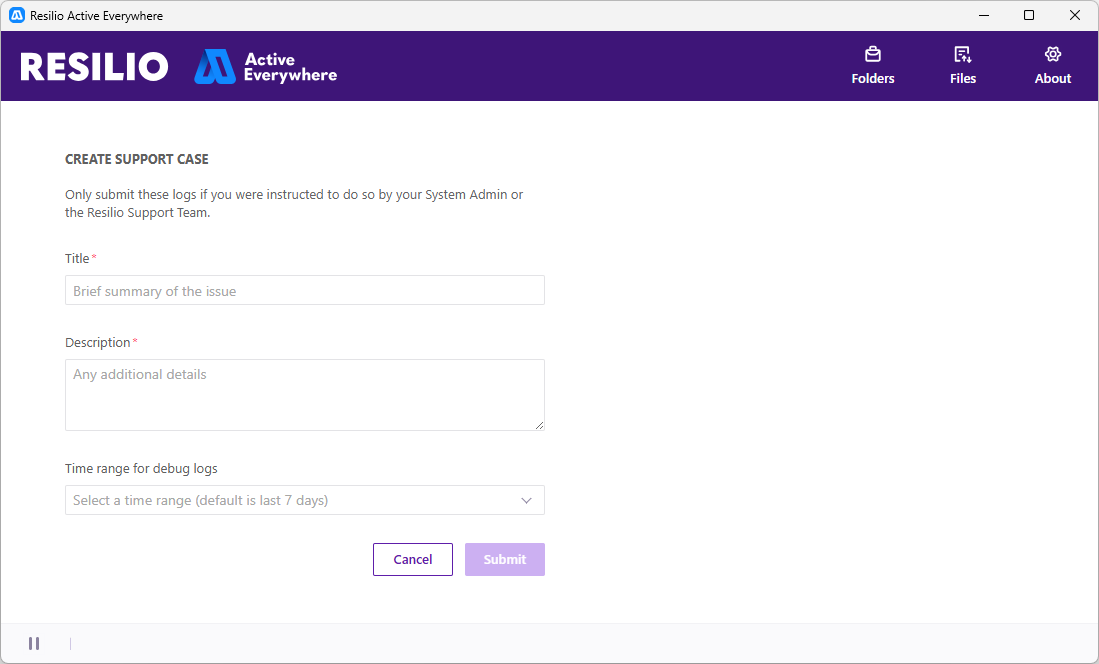
To send a support request using Resilio end-user Agent:
- Select the About tab and click Send support request.
- Provide a brief summary of the issue along with additional information.
- Select the time range when the issue has occurred and for which you want to collect logs.
-
(Optional) Exclude dump files from the support request.
Note
Agent dump files contain essential information for troubleshooting. If you exclude dumps, the support team may request them later.
-
Click Submit.
Merging multiple support requests
If user submits another request before the previous one is processed, the new request is merged with the previous one. The support team will receive only one request with all the information and logs from both requests.
Automatic logs upload
Feature availability
Automatic logs upload is available in Resilio 6.0 and newer.
Your Resilio 6.0 (and newer) deployment can be set up to automatically upload logs to Resilio support team. This functionality must be enabled for your Resilio setup by your sales manager, and then you can toggle it on or off via the Management Console or Resilio API.
When enabled, logs are uploaded at a configured frequency (default is 24h), honouring the bandwidth limits defined in the Scheduler.
To disable or enable back automatic logs upload using the Management Console:
- Click in the top-right corner to access Support Administration.
- In the Automatic log upload section, click Suspend/Resume.
To disable or enable back automatic logs upload via the Resilio API, use the Configure automatic log upload API request.
Monitor support request status
Last contact support status shows the status of the latest created support case, regardless of whether or not it was sent to the support team automatically. Check this section for current status, possible interruptions in sending the support request and other details of the request.
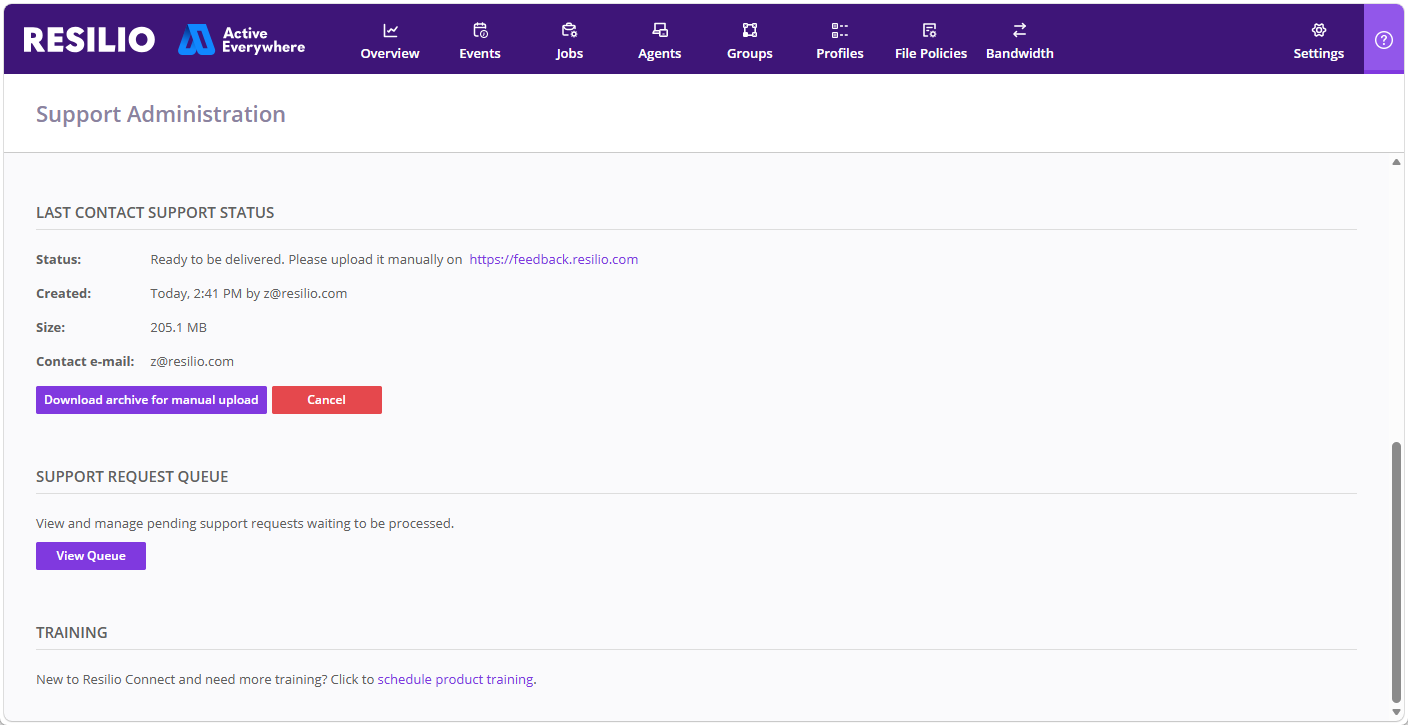
Selected logs will be zipped and stored on the computer where Management Console is installed:
- Windows:
C:\ProgramData\Resilio\Connect Server\support_requests - Linux:
{resilio-connect-server}\support_requests
Optionally, you can download them to the computer where you're currently sitting at.
You can manually upload them later either using the link beside the status or the online form.
New support request cannot be created until the current one is dismissed. Restarting the Management Console also results in it being cleared.
Support request queue
View and manage all of your requests in the support requests queue.
To access support requests queue, click in the top-right corner, and in the Support request queue section, click View queue.
Note
- Support requests queue lists submitted requests that are still pending, being processed, failed to complete or require user action.
- If an Agent with a pending support request is removed from the Management Console, the request is cancelled.
- Management Console restart preserves pending support requests.
- The last started support request is cleared after Management Console restart.
Request additional license
To request additional license(s) for your Resilio Active Everywhere deployment, click in the top-right corner, and in the Contact Support section, click Request additional license(s).