System requirements and prerequisites
Resilio 6.0 system requirements and prerequisites.
- Operating system: Windows Server 2022 or newer
- Network: public DNS name or IP address
-
Hardware:
Disclaimer
Note that the provided sample specifications are for reference only. Actual system requirements depend on workloads running on end-user hosts (the size and the volume of files accessed over the network) and the number of concurrent users. If you have specific deployment requirements, contact Resilio support for assistance in sizing your Management Console and Primary Storage Agent.
Note
The hardware requirements account for the Tracker Server component, which is deployed on the same host as the Management Console.
Bare metal
100 users 500 users 1000 users 5000 users CPU 8 cores 8 cores 16 cores 32 cores System memory 16 GB 16 GB 32 GB 64 GB Storage
(C:boot partition)200 GB (SSD 300 MB/s) 250 GB (SSD 300 MB/s) 500 GB (SSD 300 MB/s) 1+ TB (SSD 300 MB/s) Network 1 Gbps 1 Gbps 1 Gbps 2.5 Gbps Cloud
100 users500 users1000 users5000 usersAzure VM Standard_F8s_v2Standard_F8s_v2Standard_F16s_v2Standard_F32s_v2AWS EC2 c5d.2xlargec5d.2xlargec5d.4xlargec5d.9xlargePOC deployments
Hardware requirements in POC deployments with less than 100 users, running the Management Console and the Primary Storage Agent on the same host.
Bare metal:
- CPU: 16 cores
- System memory: 32 GB
- Storage: 200 GB (SSD 300 MB/s) on the
C:boot partition - Network: 2.5 Gbps
Cloud:
- Azure VM:
Standard_F16s_v2 - AWS EC2:
c5d.4xlarge
Primary Storage Agents in Enterprise Hybrid Work Jobs
- Operating system: Windows Server 2022 or newer
-
Network: public DNS name or IP address
Deployment proximity recommendation
To minimize latency and maximize performance, deploy the Primary Storage Agent in close proximity to your Nasuni Edge Appliance (or a compatible third-party storage solution).
-
Hardware:
Disclaimer
Note that the provided sample specifications are for reference only. Actual system requirements depend on workloads running on end-user hosts (the size and the volume of files accessed over the network) and the number of concurrent users. If you have specific deployment requirements, contact Resilio support for assistance in sizing your Management Console and Primary Storage Agent.
Bare metal
100 users 500 users 1000 users CPU 8 cores 16 cores 32 cores System memory 16 GB 32 GB 64 GB Storage
(C:boot partition)100 GB (SSD 300 MB/s) 100 GB (SSD 300 MB/s) 100 GB (SSD 300 MB/s) Network 2.5 Gbps 10 Gbps 10+ Gbps Cloud
100 users 500 users 1000 users Azure VM Standard_F8s_v2Standard_F16s_v2Standard_F32s_v2AWS EC2 c5d.2xlargec5d.4xlargec5d.9xlarge1000+ users deployments
In deployments with more than 1000 users, deploy multiple Primary Storage Agents. Contact Resilio support for assistance with the deployment architecture.
End-user Agents in Enterprise Hybrid Work Jobs
These are the minimum requirements for end-user Agents participating in Enterprise Hybrid Work Jobs:
- Operating system: Windows 11 x64, macOS 26 (Tahoe)
- Local admin permissions for Agent installation
Windows domain environment (Microsoft Active Directory or Entra Domain Services) is required for Resilio deployments utilizing the Enterprise Hybrid Work Jobs. Enterprise Hybrid Work Jobs require specific SPN assignments and delegation to allow the Primary Storage Agent to impersonate end users when accessing the file server.
Active Directory setup
Important
Applying the following configuration changes in Active Directory requires domain administrator privileges.
SPN assignments and delegation
Before you proceed with setting up Resilio 6.0 for Enterprise Hybrid Work Job perform the following steps to set up your Windows domain environment:
- Ensure that the system designated to run the Management Console and the Primary Storage Agent is a domain-joined Windows Server 2022 (or newer) machine that meets the minimum requirements.
-
Assign service principal names (SPNs) for the Management Console and the Primary Storage Agent.
-
Management Console
The Management Console SPN is required to authenticate Agents using the Kerberos-SPNEGO protocol. This protocol is always used by the Primary Storage Agent. Optionally, end user Agents can use it as well if their machines are domain-joined.Note
The Management Console runs under the Local System account (machine account), therefore the SPN must be assigned to the machine account, not to a service account.
SPN format:
rslmc/<management-console-fqdn>CMD command:
setspn -S rslmc/<management-console-fqdn> <computer-account>where:
rslmcis the Management Console's service class name.<management-console-fqdn>is the fully qualified domain name of the host running the Management Console.-
<computer-account>is the computer account name in the Active Directory.Tip: Computer account name
Computer account name is usually the same as the hostname of the machine, unless the machine is renamed after joining the domain.
Example: Set Management Console SPN
setspn -S rslmc/resilio-server.corp.example.com resilio-server -
Primary Storage Agent
The Primary Storage Agent SPN is required to allow the Agent to impersonate end users when accessing the file server. This allows the Agent to access files on behalf of end users, respecting their permissions and access rights.Note
- The Primary Storage Agent runs under the Local System account (machine account), therefore the SPN must be assigned to the machine account, not to a service account.
- Assign the SPN to all Primary Storage Agent hosts in the deployment.
SPN format:
rsl/<primary-storage-agent-fqdn>CMD command:
setspn -S rsl/<primary-storage-agent-fqdn> <computer-account>where:
rslis the Primary Storage Agent's service class name.<primary-storage-agent-fqdn>is the fully qualified domain name of the host running the Primary Storage Agent.-
<computer-account>is the computer account name in the Active Directory assigned to the host running the Primary Storage Agent.Tip: Computer account name
Computer account name is usually the same as the hostname of the machine, unless the machine is renamed after joining the domain.
Example: Set Primary Storage Agent SPN
setspn -S rsl/resilio-server.corp.example.com resilio-server
-
-
Enable delegation for the Primary Storage Agent to allow it to impersonate end users when accessing the file server:
Using Remote Server Administration Tools
To enable impersonation using Remote Server Administration Tools:
-
Install Remote Server Administration Tools for powershell:
Install-WindowsFeature -Name RSAT-AD-PowerShell -
Configure delegation (impersonation):
$ImpersonatingAccount = Get-ADComputer -Identity resilio-server
Set-ADComputer file-server -PrincipalsAllowedToDelegateToAccount @($ImpersonatingAccount)
where:
resilio-serveris the computer account name in the Active Directory assigned to the host running the Primary Storage Agent.file-serveris the computer account name in the Active Directory assigned to the file server host.
Using Active Directory Users and Computers snap-in
To enable impersonation using Active Directory Users and Computers snap-in:
- Open Active Directory Users and Computers snap-in.
- Locate the
Computeraccount for the host serving as the Primary Storage device, right-click it and select Properties. -
Select the Delegation tab, then select Trust this computer for delegation to specified services only > Use any authentication protocol.
Important
Selecting the option to use any authentication protocol is required.
-
Click Add, then click Users or Computers.
- In the opened window, enter the name of the file server host, click Check Names to verify it, then click OK.
- In the list of services, select
cifsand click OK.
Sensitive domain accounts
Delegation is disabled for sensitive accounts: Protected users group members, accounts with Account is sensitive and cannot be delegated option enabled. Delegation must be allowed for end-user accounts.
Multiple Active Directory domains
To allow end user Agents to authenticate using accounts from multiple domains, users outside the domain that the Management Console is deployed in, must be in a Global or Universal scope group as external Domain Local scope groups cannot be queried.
In case of end user Agents deployed in domains in different forests, ensure that the Management Console and the Primary Storage Agent are deployed in a domain that has two-way trust relationships with other domains. For more information, see How trust relationships work for forests in Active Directory.
Foreign Security Principal objects
Management Console cannot list Foreign Security Principal (FSP) objects within a group. If you have a group, containing users from other trusted domains as Foreign Security Principal objects, Management Console won't be able to access those users and add them to the Job. You must assign users and groups from each domain separately.
User accounts properties
User accounts in Active Directory must have
UserPrincipalName(UPN) property assigned. UPN is used for delegation (impersonation) and to link users between OpenID providers (Entra ID, Okta) and Active Directory. Users without UPN assigned cannot participate in Enterprise Hybrid Work Jobs. The presence of the UPN can be verified in user management UI or with PowerShell command: -
OpenID Connect identity provider
While this guide covers Entra ID and Okta, Resilio 6.0 supports all OpenID Connect compliant identity providers.
Important: User Agent authentication
You cannot have user Agents using different authentication methods. Once you enable user Agent authentication via OpenID Connect compliant identity provider, all user Agents must authenticate using this method. Agents that previously authenticated using Active Directory will no longer be able to connect to the Management Console, unless they are reconfigured to use the OpenID Connect authentication method.
Entra ID/Okta setup for end user authentication
Entra ID
Note
This guide assumes that Entra is synchronized with the domain where the Management Console and Primary Storage Agent are deployed. This can be either an on-premise domain controller or EDS (Entra Domain Services).
To setup Entra ID for end user Agents authentication:
-
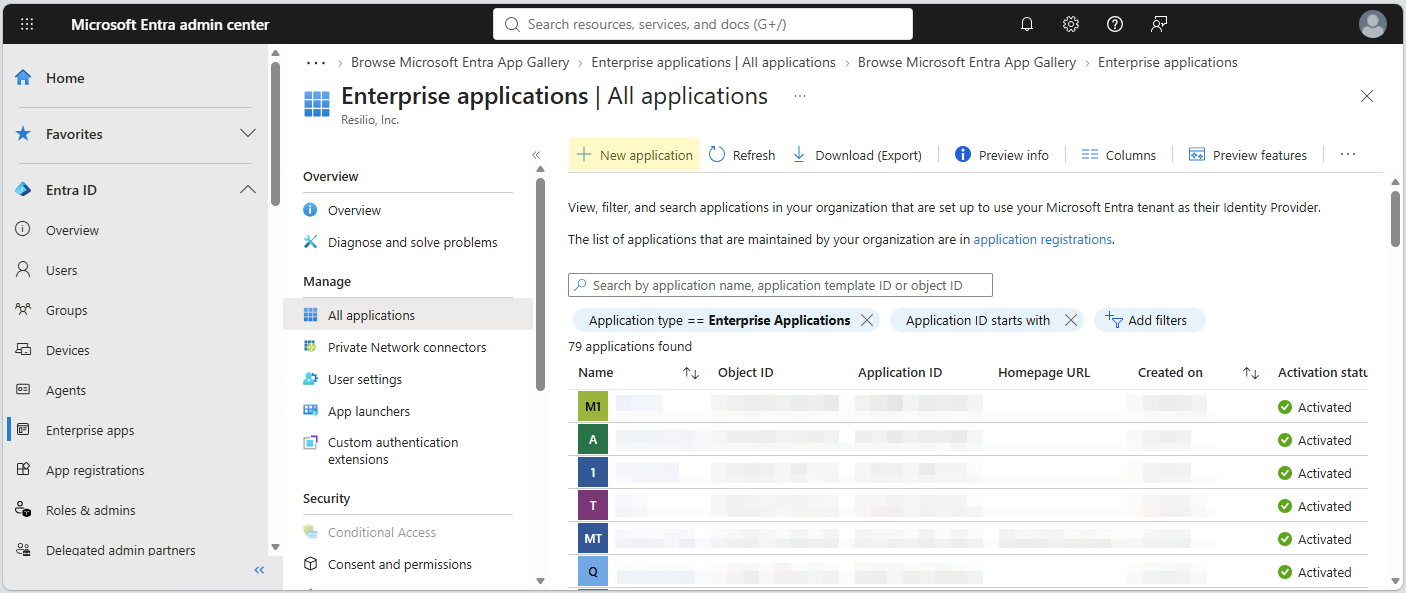
In Microsoft Entra admin center, select Enterprise apps > + New application.
-
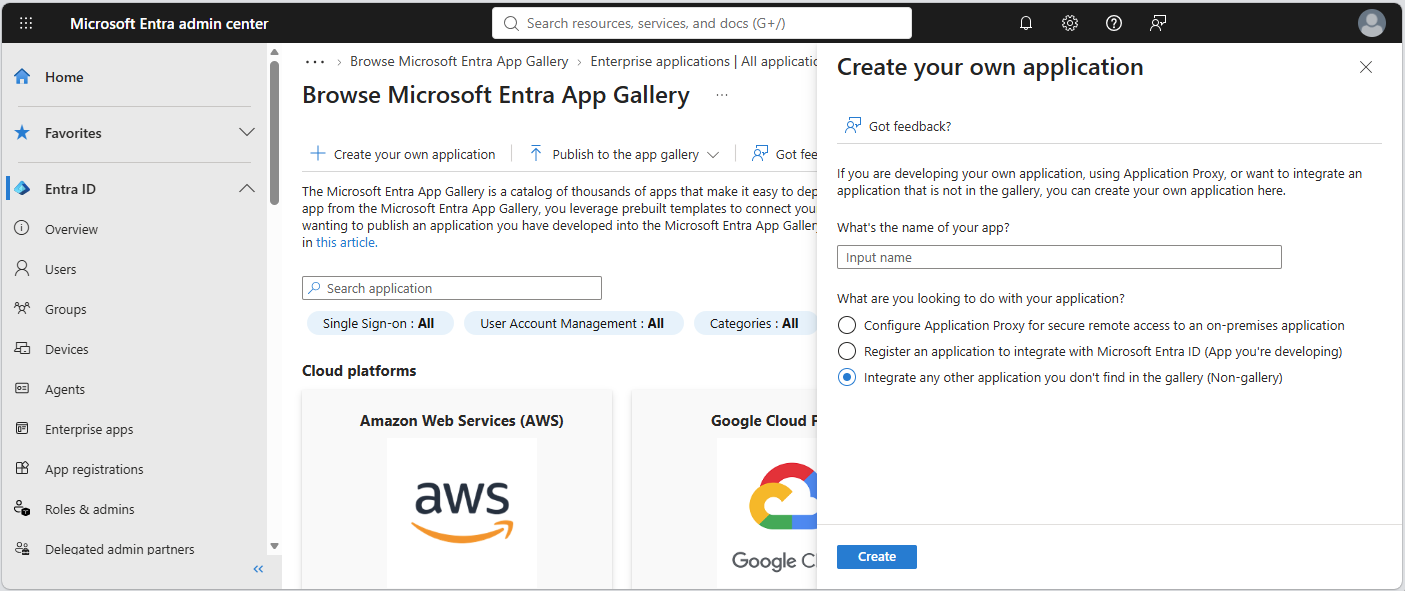
Click Create your own application, provide a name, make sure the Non-gallery option is selected and click Create.
-
Add user groups allowed to authenticate their Resilio Agents using this application.
-
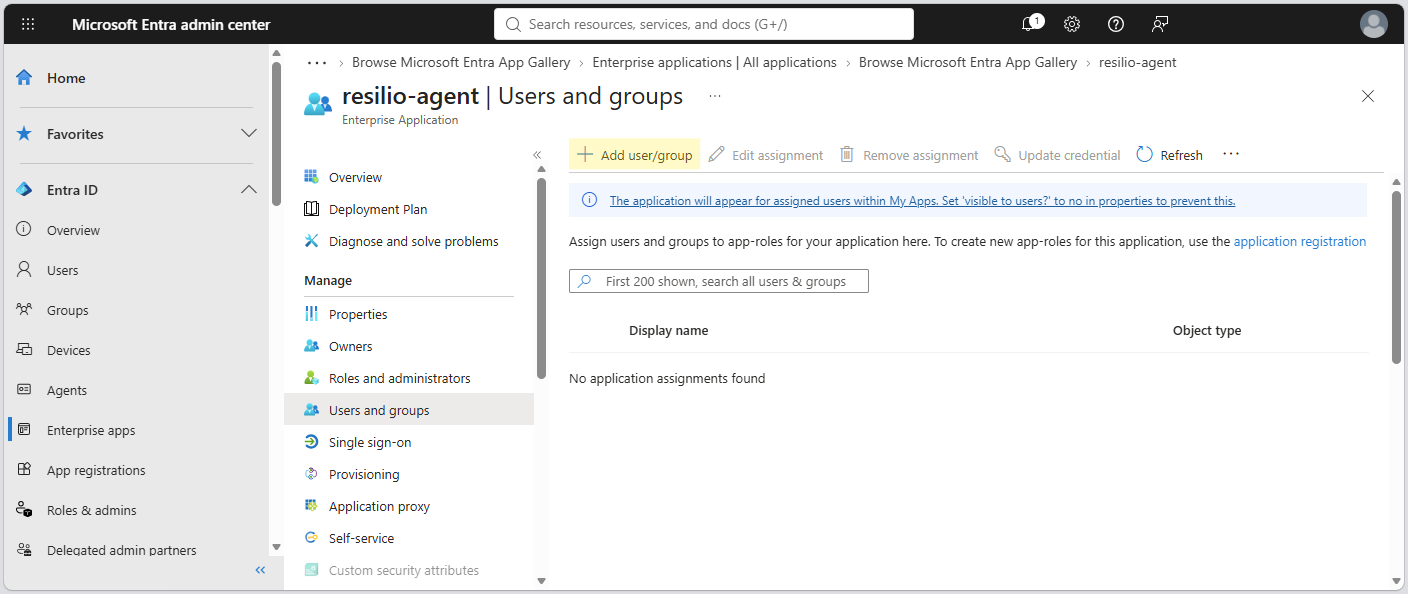
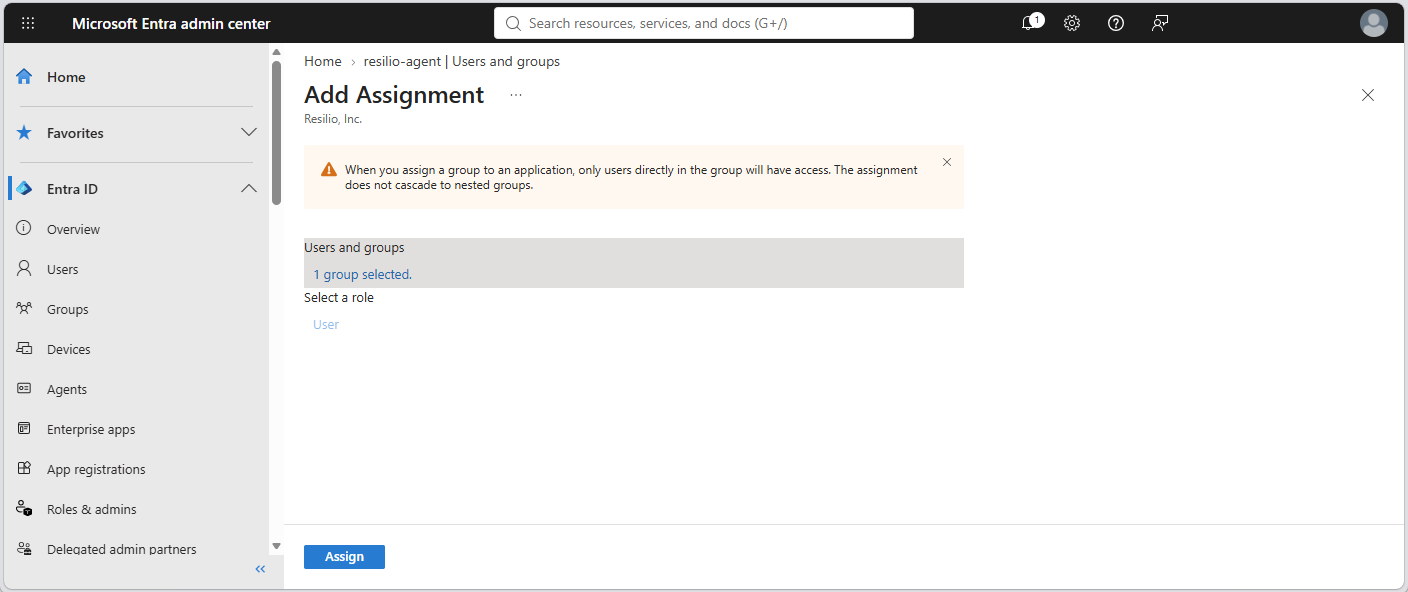
Select Users and groups, then click + Add user/group.
-
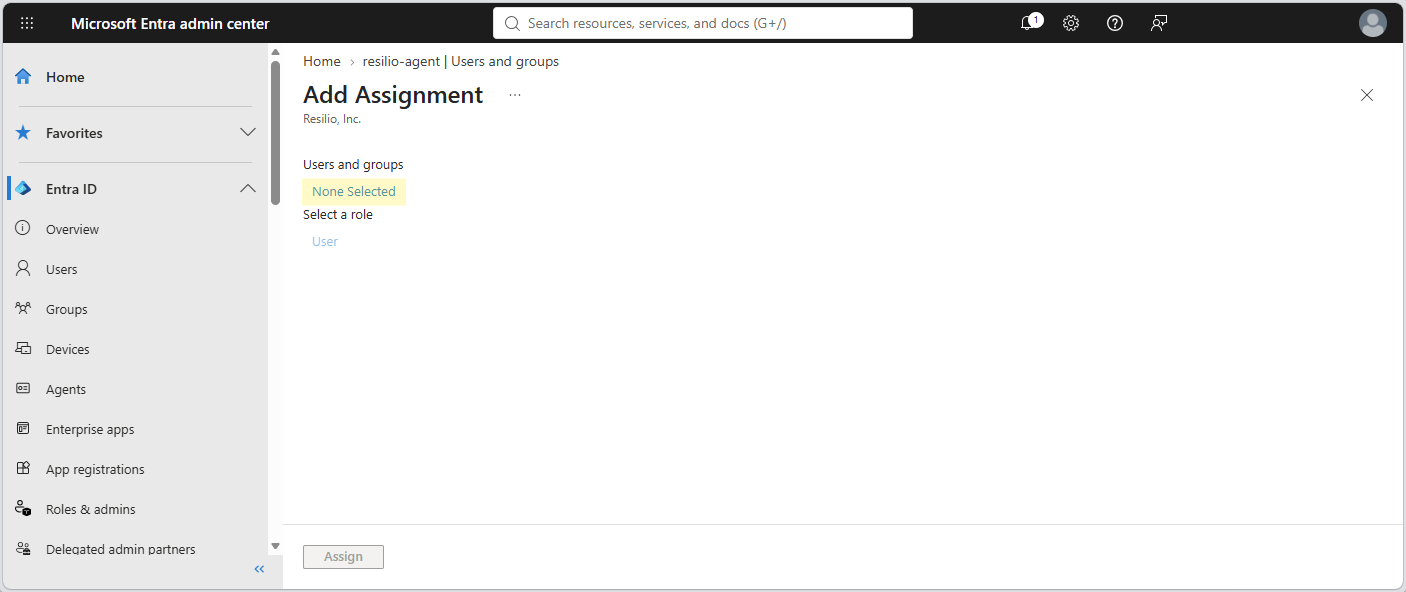
Under Users and groups, click None Selected.
-
Select users or groups to be added and click Select, then click Assign.
-
-
Update the access token format in your application's manifest.
-
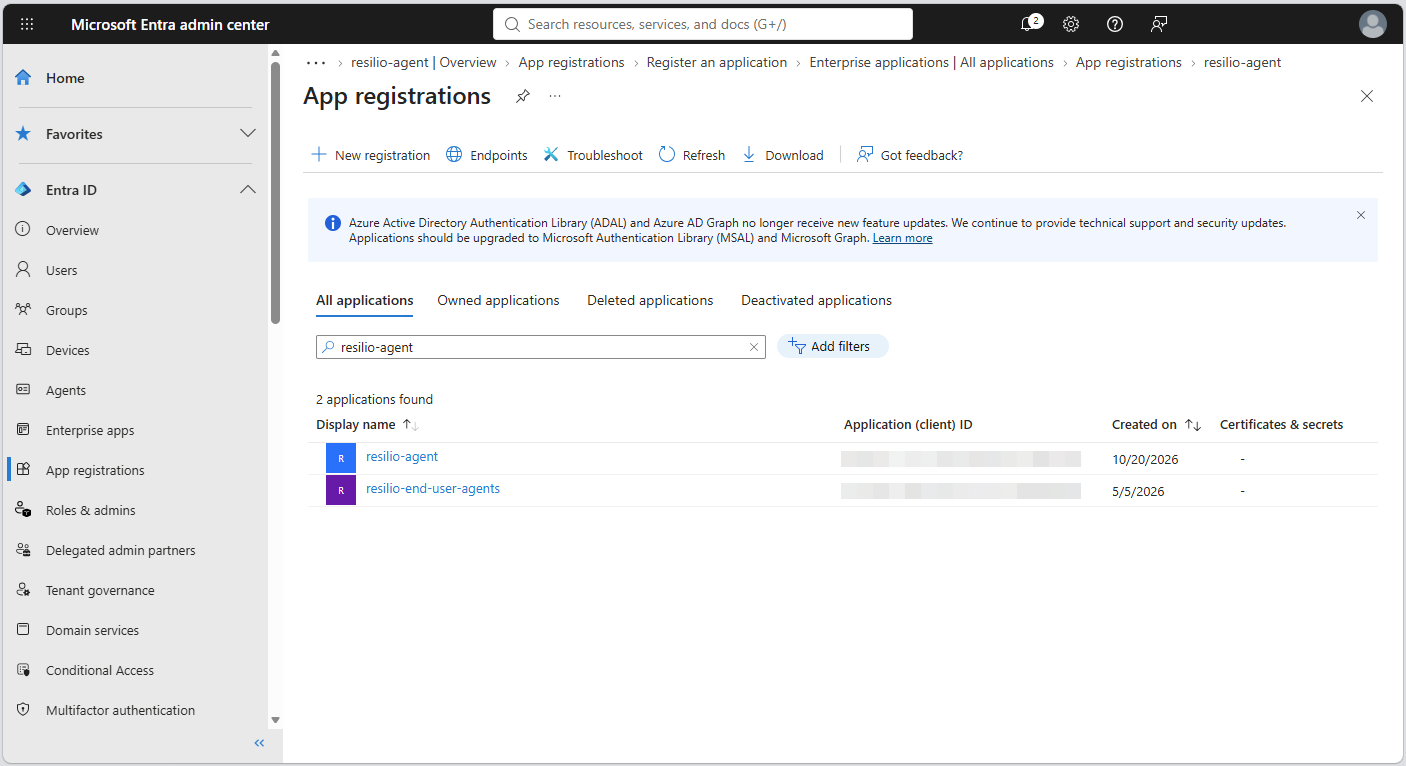
Select App registrations, then find and open your Resilio enterprise app.
-
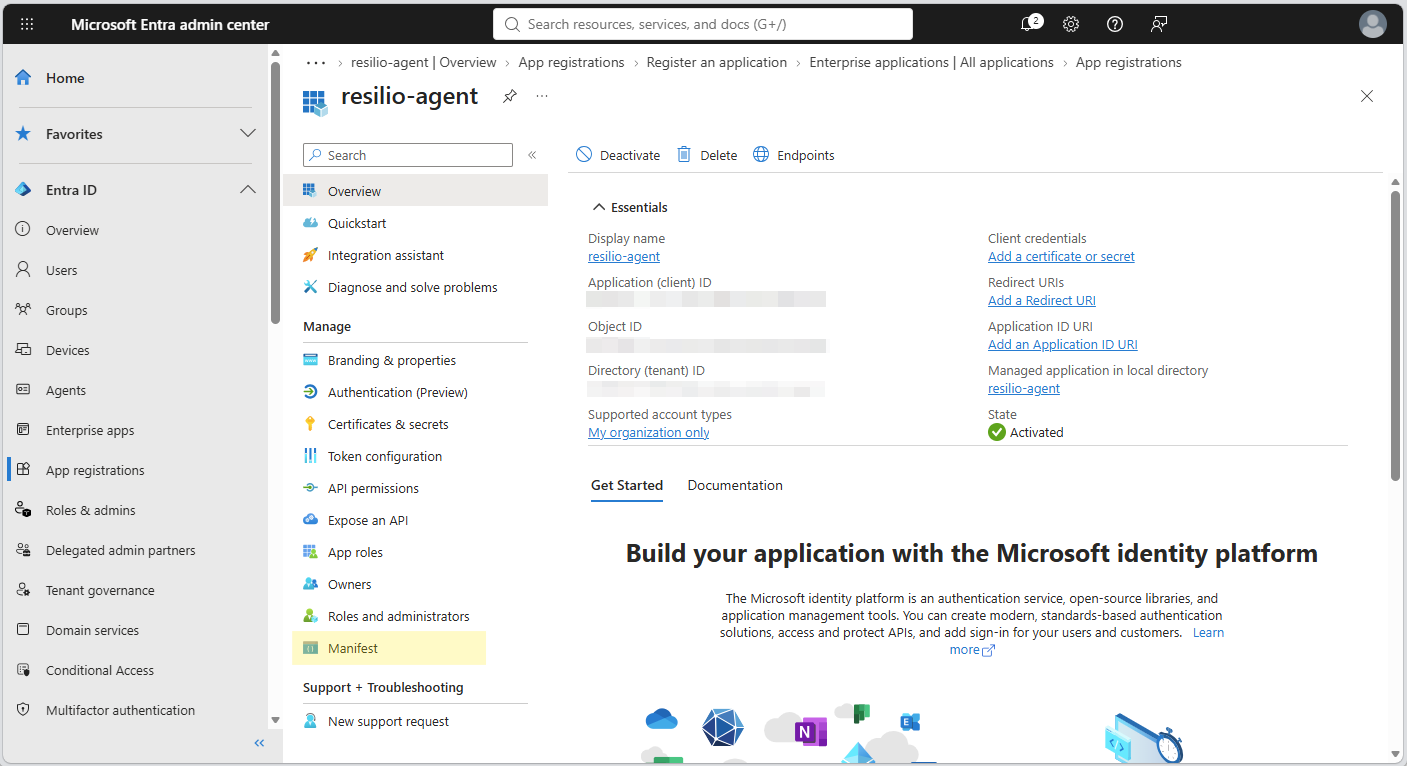
Select Manifest.
-
Locate the
apisection, set theaccessTokenAcceptedVersionparameter value to2and click Save.
-
-
Add redirect URI for your application.
- In the registered application, select Authentication.
- Click + Add Redirect URI, then select Mobile and desktop applications.
-
Enter
http://localhost/rlsagent/callback, then click Configure.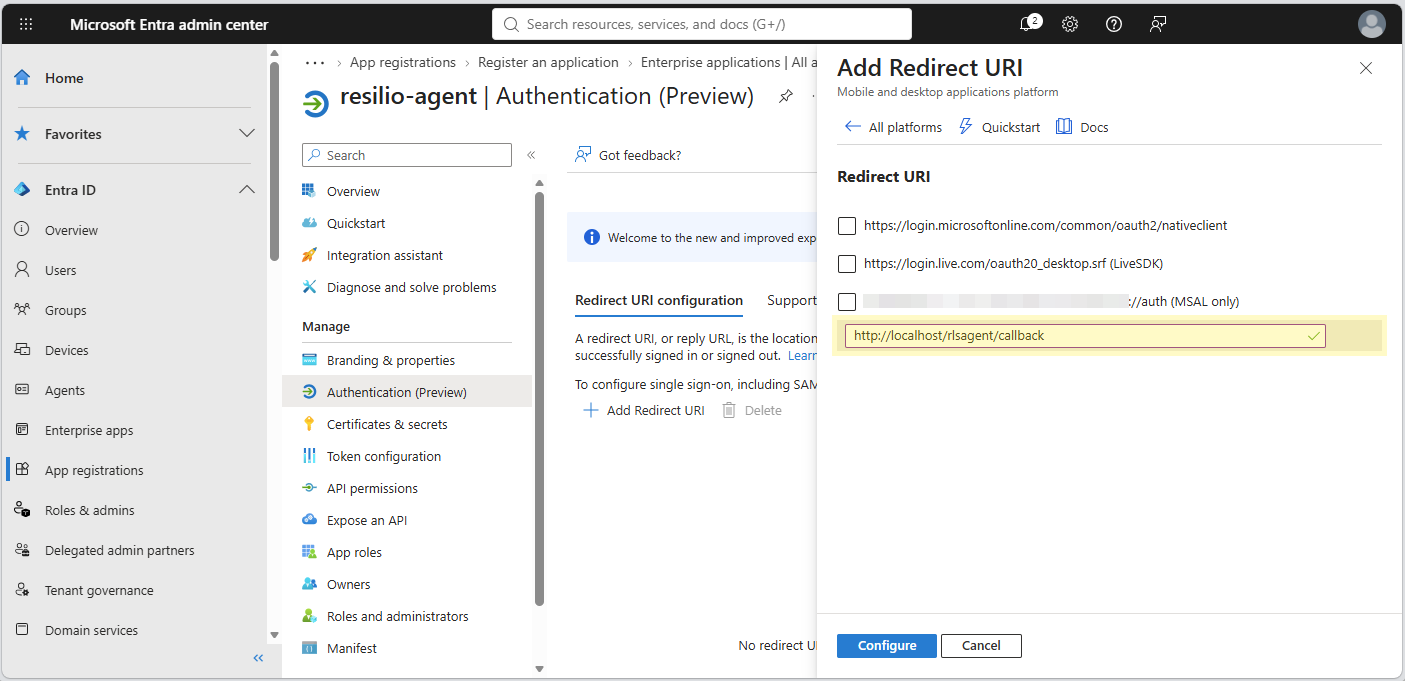
-
Add
emailandupntoken claims.- In the registered application, select Token configuration, then click + Add optional claim.
-
In the opened pane, choose the ID token type, select
emailandupnclaims and click Add.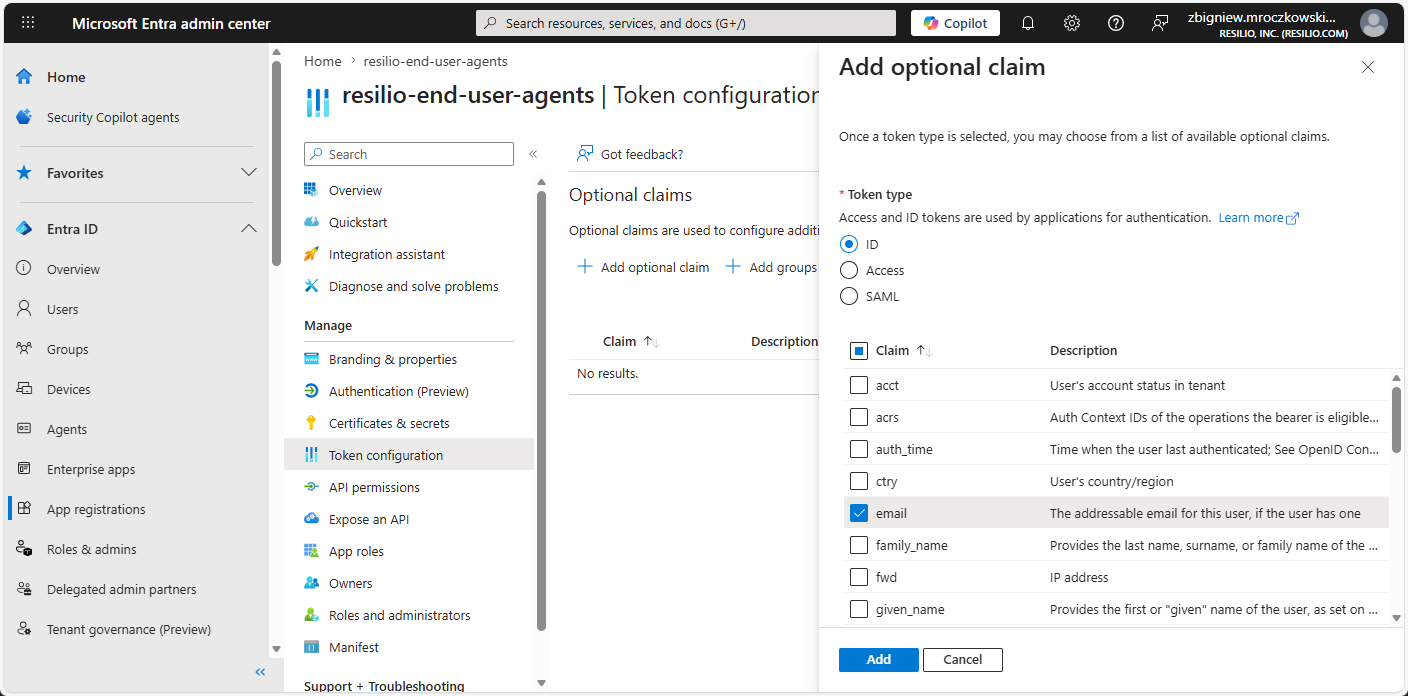
-
Select Turn on the Microsoft Graph email, profile permission (required for claims to appear in token) and click Add.
- Repeat steps a-b to add Access token type
emailandupnclaims.
-
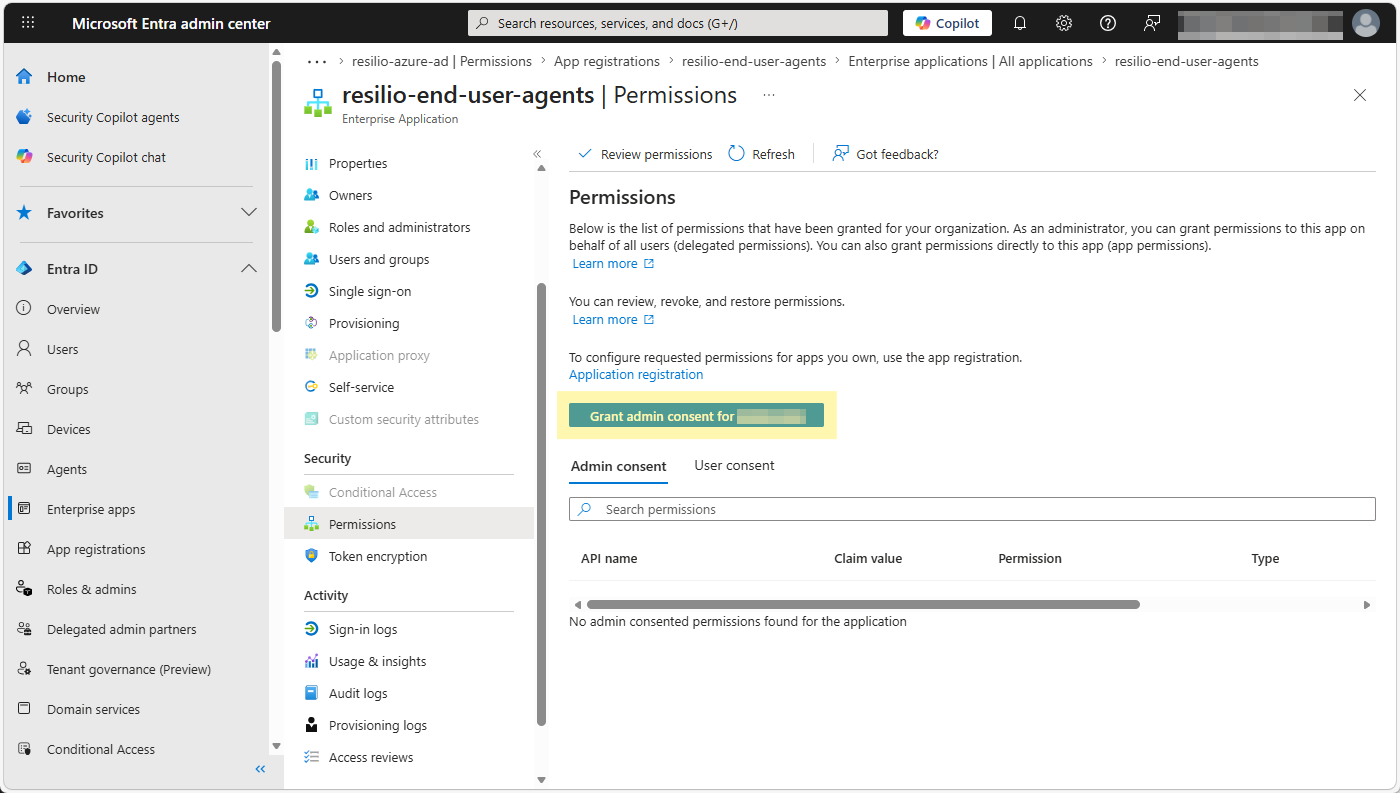
Grant admin consent for your tenant to allow the application to read user's profiles and email addresses.
- Select Enterprise apps then locate and click your application.
-
Under Security, select Permissions, then click Grant admin consent for your tenant to allow the application to read users' profiles and email addresses.
-
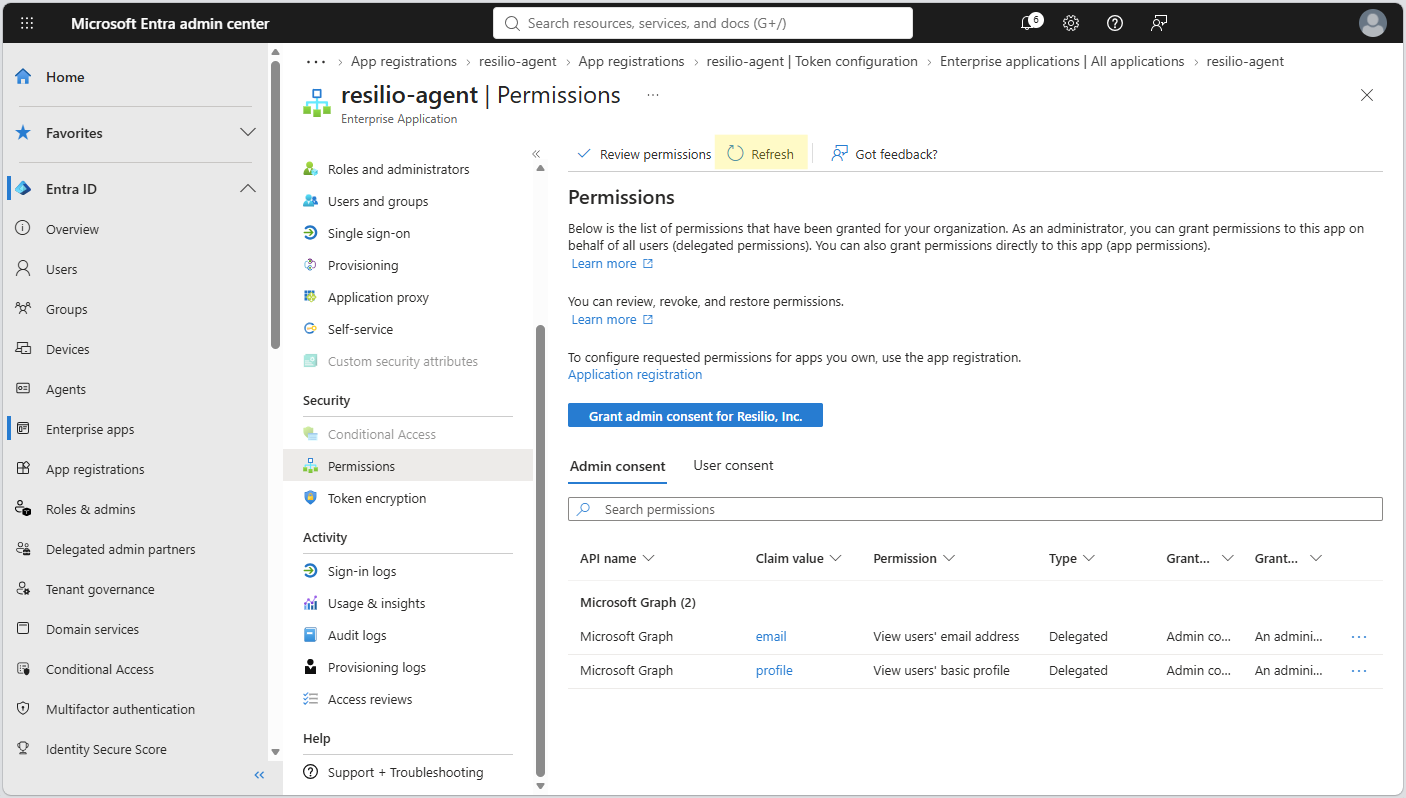
Accept permission request, then click Refresh to verify the permissions have been granted.
-
Once the Management Console is installed, set up Agent Authentication.
Okta
Note
This guide assumes that Okta is synchronized with Active Directory where the Management Console and Primary storage are deployed, and users and groups are available in Okta. Refer to official Okta documentation.
To setup Okta for end user Agents authentication:
-
Register an application.
-
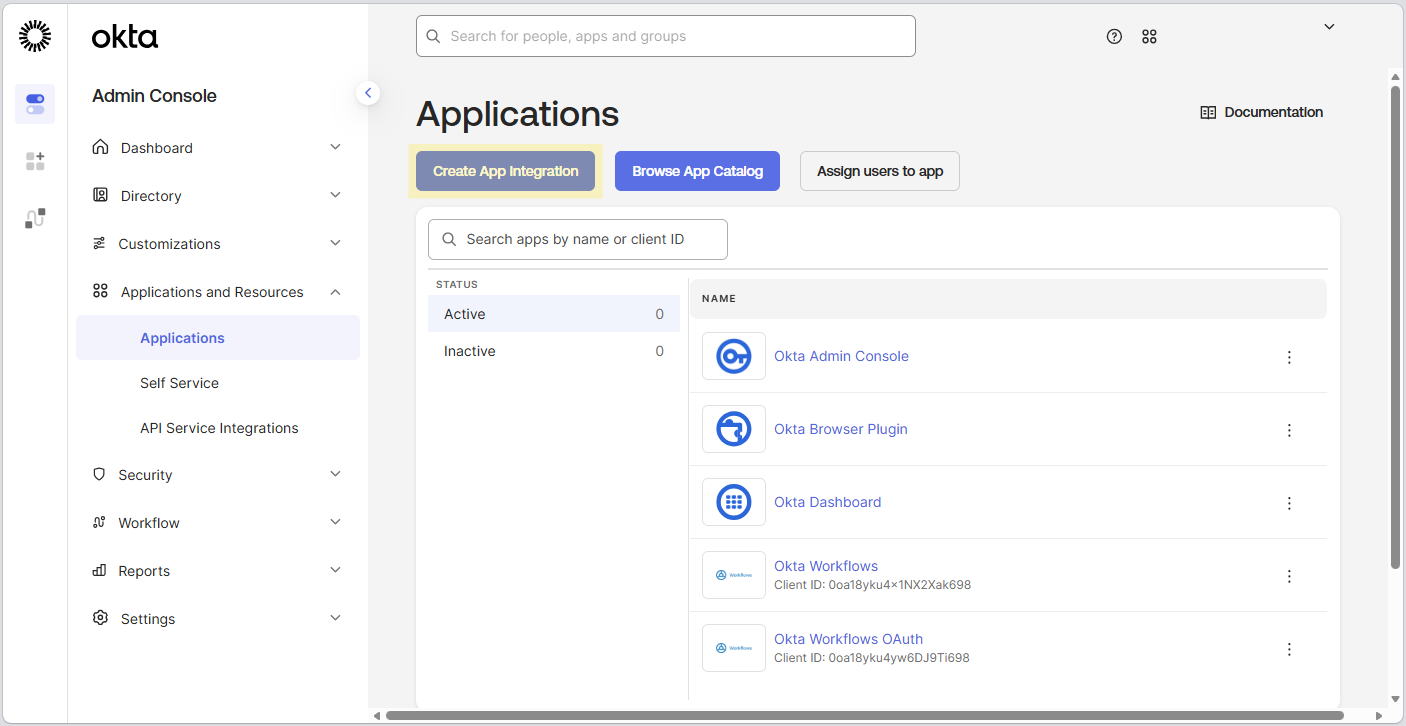
Under Applications and Resources, select Applications, then click Create App Integration.
-
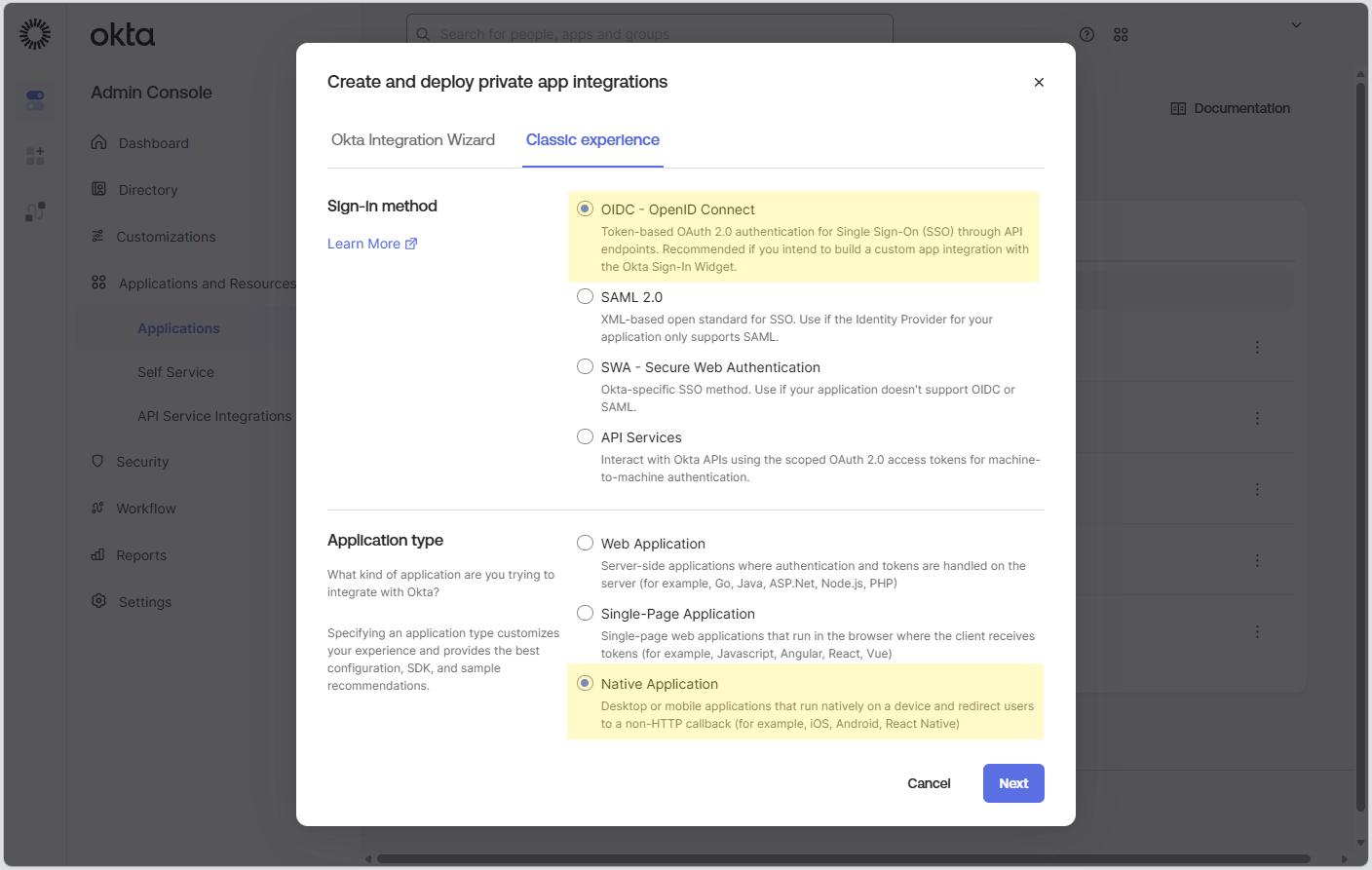
Select OIDC - OpenID Connect Sign-in method, choose Native Application application type and click Next.
-
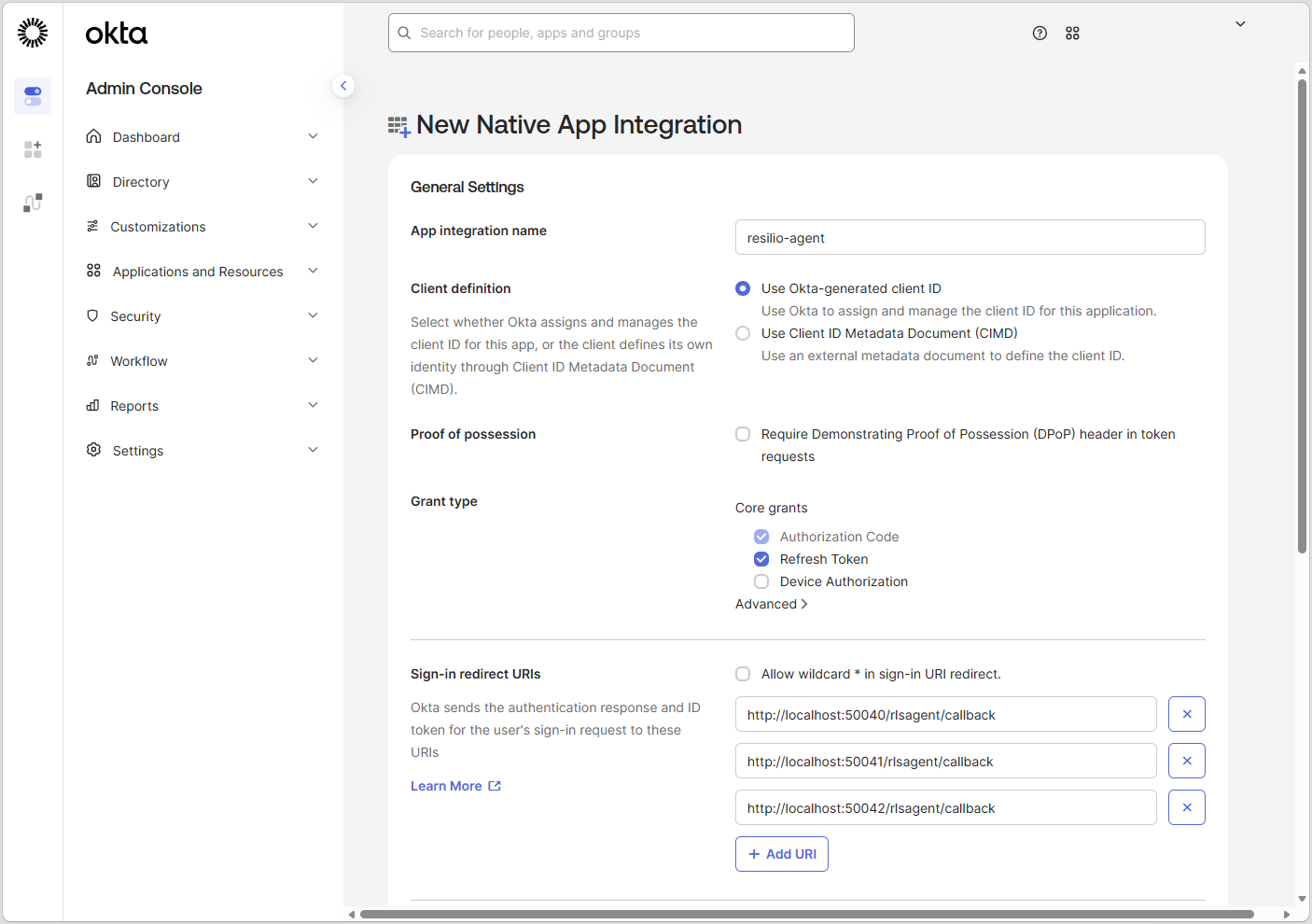
Provide a name for the application, select Use Okta-generated client ID and enable Refresh Token under Grant type.
-
Add the following entries under Sign-in redirect URIs, then click Save.
http://localhost:50040/rlsagent/callbackhttp://localhost:50041/rlsagent/callbackhttp://localhost:50042/rlsagent/callback
Important
Make sure to use the same ports later when setting up Agent Authentication on the Management Console.
-
-
Assign users and groups.
-
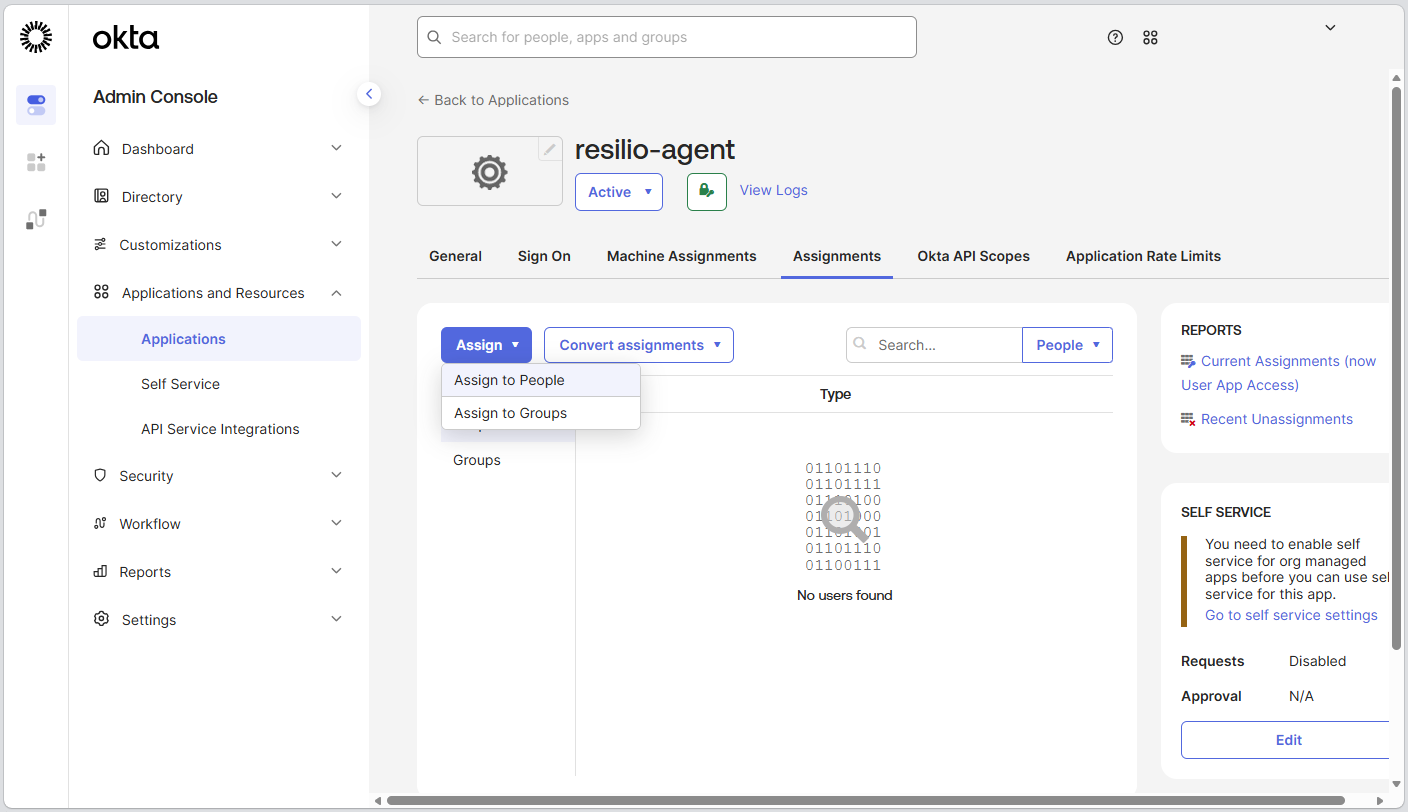
Select Assignments, then click Assign and select Assign to People or Assign to Groups.
-
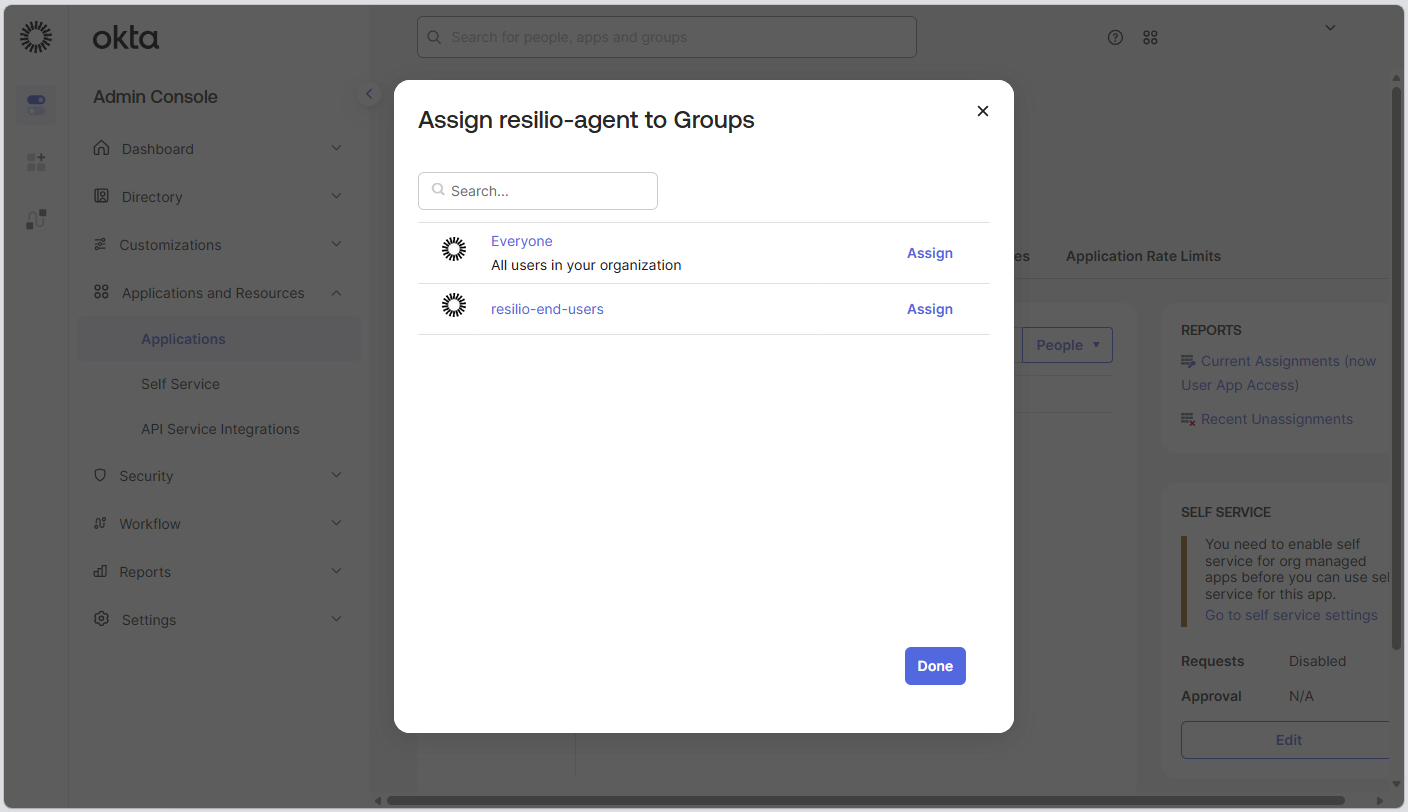
Locate a user or a group, click Assign, then click Done.
-
-
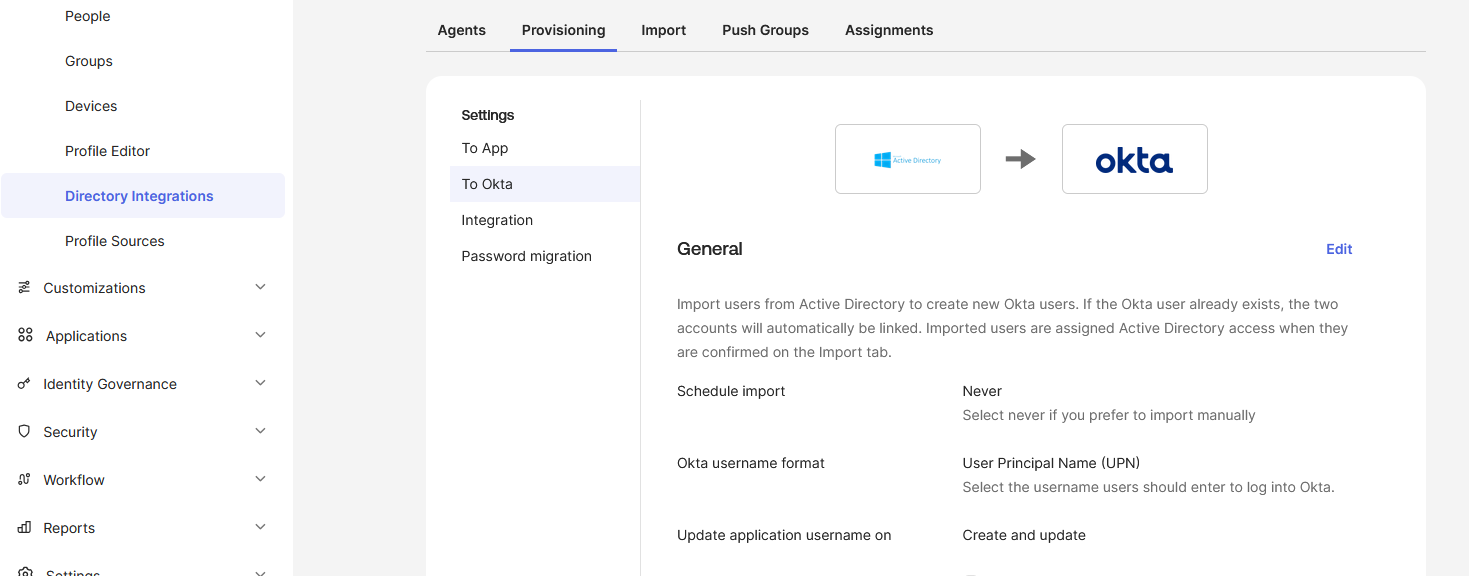
Ensure that the User Principal Name (UPN) is configured.
Note
Management Console uses UPN as a key to search for the user in the Active Directory. This could be configured in different ways in Okta depending on integration setup. For details, see okta Docs - Configure Active Directory import and account settings.
-
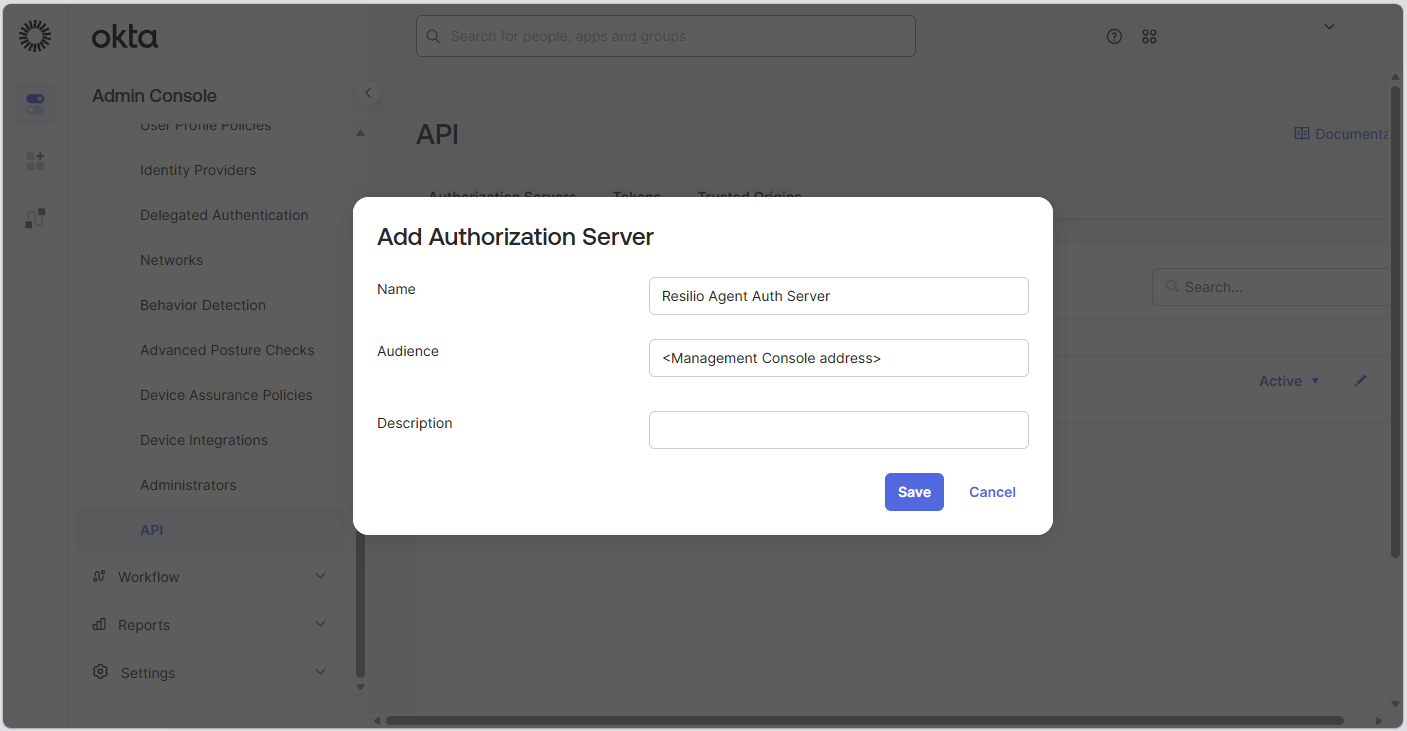
Create application authorization server.
- Select Security > API > Add Authorization Server.
-
Provide a name and an audience for the authorization server, then click Save.
-
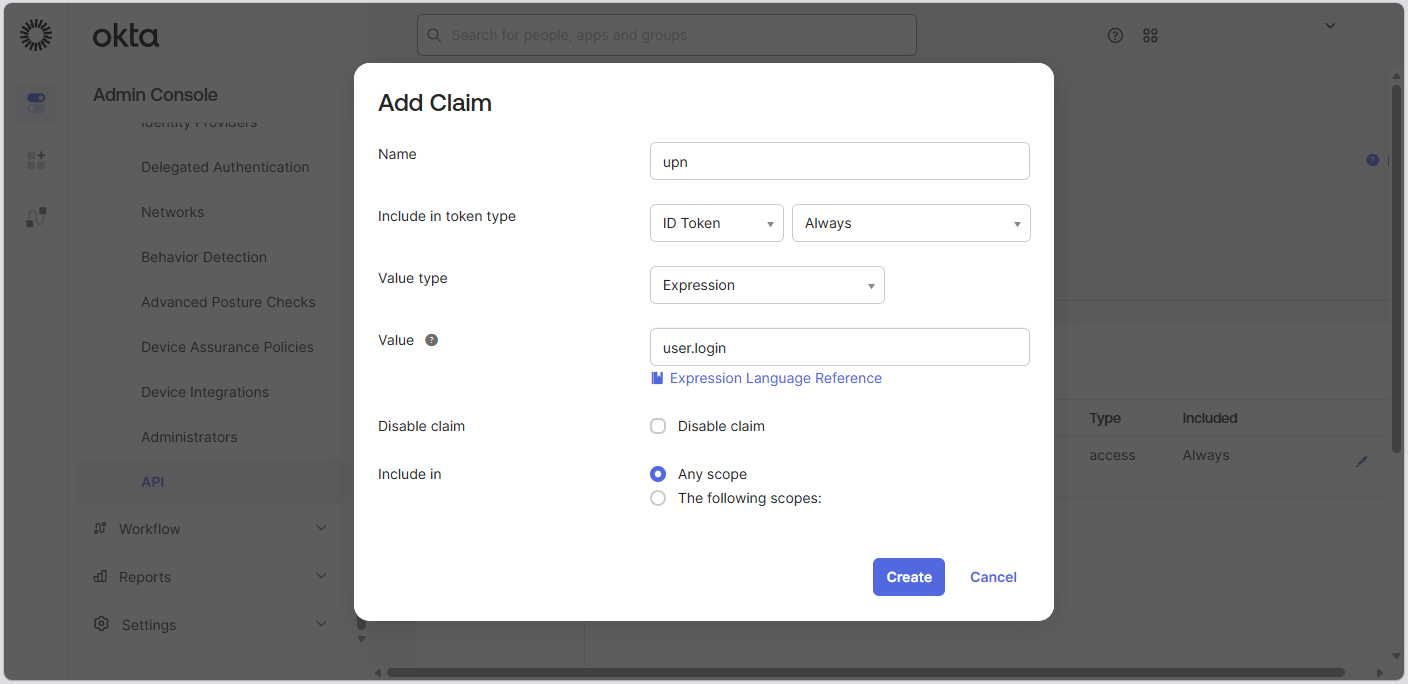
Add a claim to your authorization server.
- Select Claims tab, then click Add Claim.
- From the Include in token type drop-down list, select
ID Token. - In the Value field, enter
user.login. -
Keep the remaining settings as default and click Create.
-
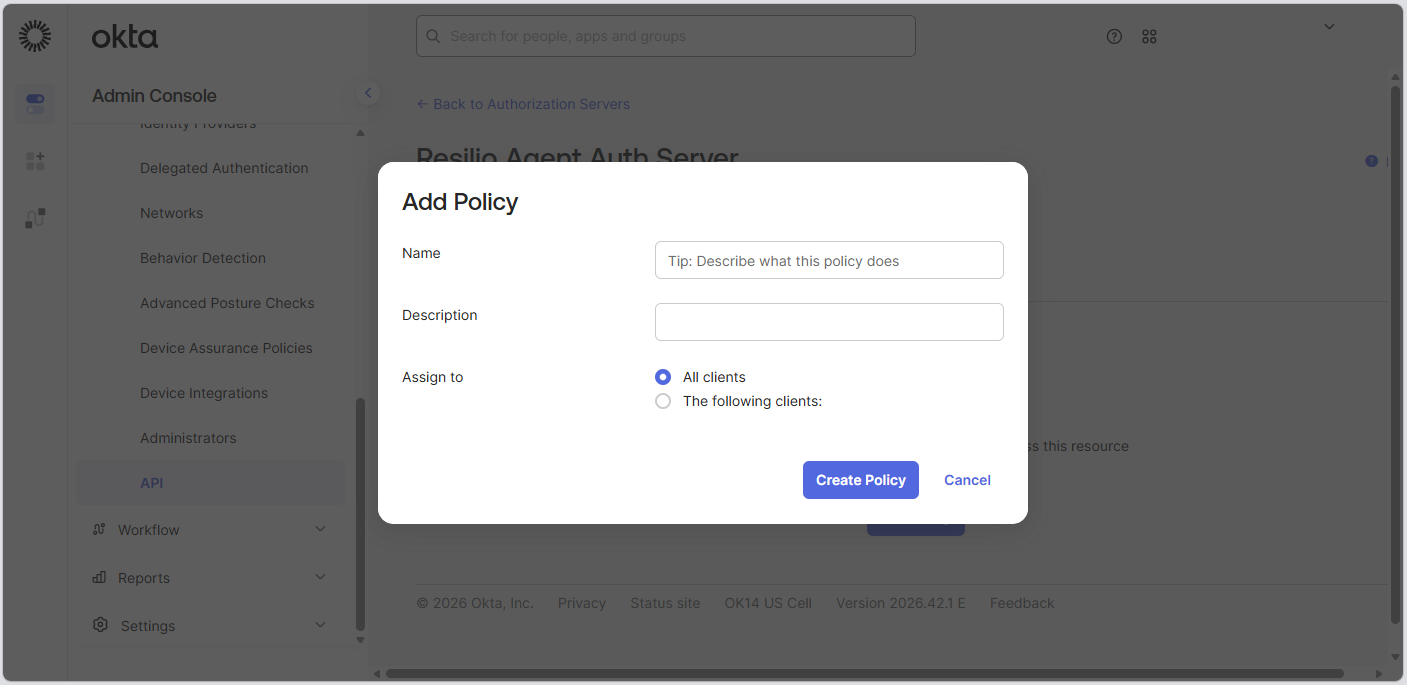
Add an Access policy.
- Select Access Policies tab, then click Add Policy.
-
Enter a name and description for the policy, select clients assignment, then click Create Policy.
-
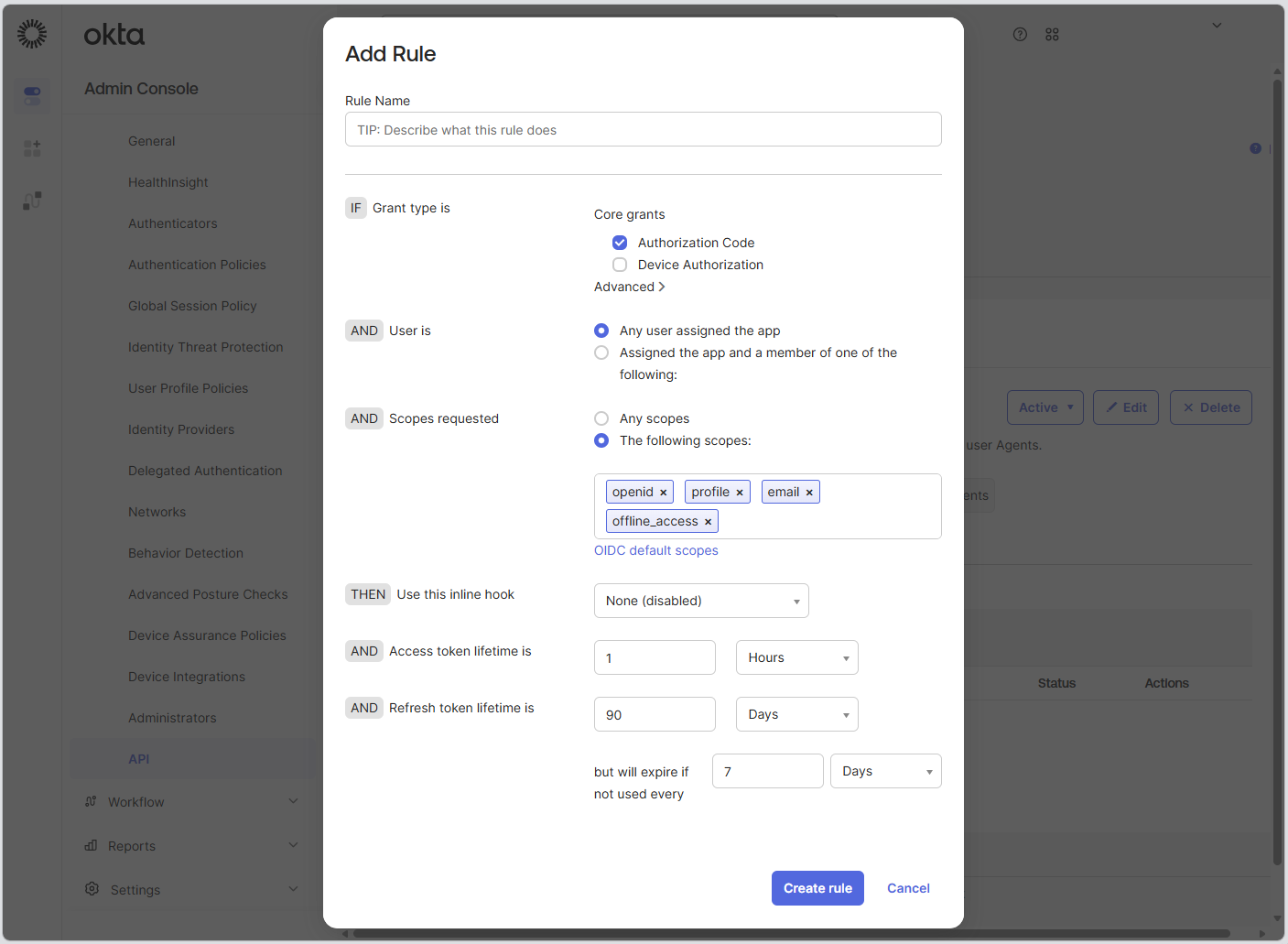
Click Add rule, and enter a name for the rule.
- Deselect Device Authorization and request the following scopes:
openid,profile,email,offline_access. -
Adjust token lifetime to your requirements, then click Create Rule.
-
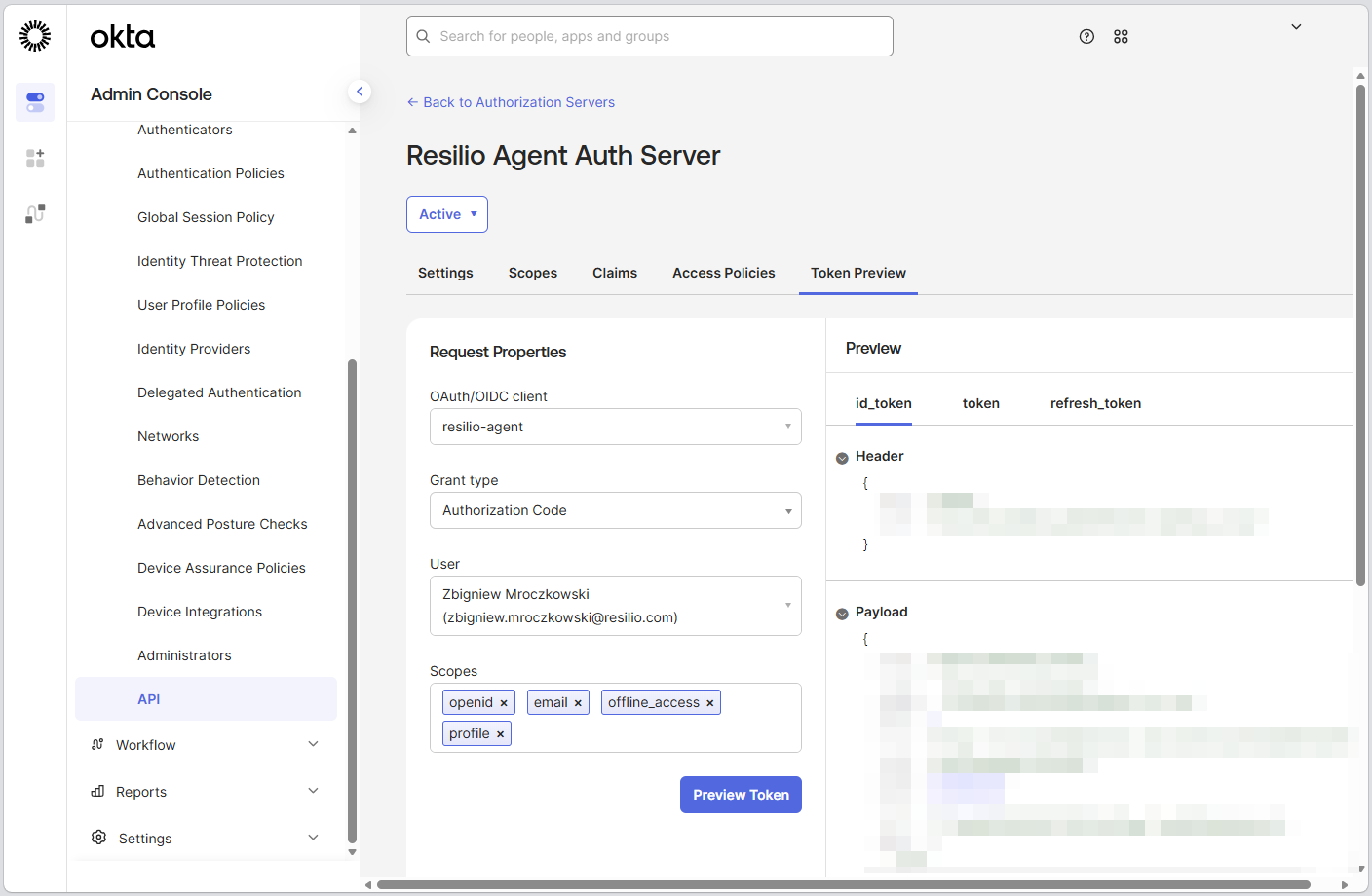
(Optional) Run the token preview check, ensure that the UPN is set.
-
Once the Management Console is installed, set up Agent Authentication.
Active Everywhere 5.x requirements.
Operating system
Windows (x64)
- Windows 8.1 or newer
- Windows Server 2012 R2 or newer
Linux (x64)
- kernel 4.18 or newer
- glibc 2.28 or newer
Ubuntu
- 16.04 or newer
CentOS
- glibc 2.28 or newer
How to check if your system meets the requirements
Windows
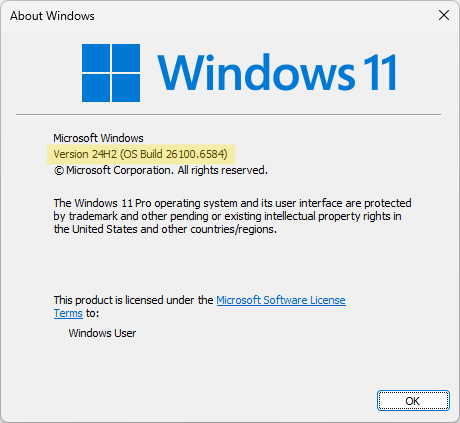
Open Windows Command Prompt (cmd) and run winver command to verify your
Windows version.
Linux
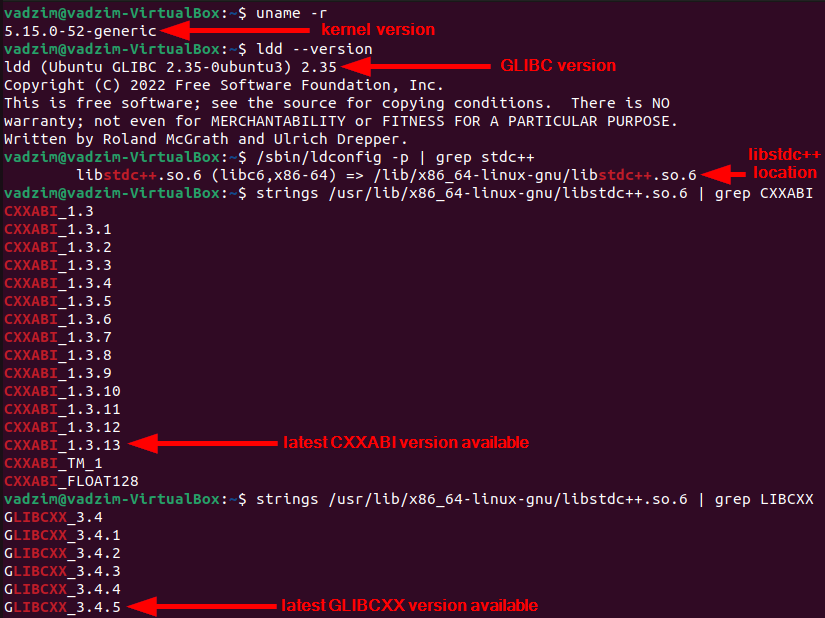
Example output on the screenshot below.
Run this command to check your kernel version:
uname -r
Run this command to check you GLIBC version:
ldd --version
Ubuntu
Run this command in Terminal to locate the path to the active library:
/sbin/ldconfig -p | grep stdc++
Run these commands using the path from before to verify which version of ABI and library is available:
strings /usr/lib/x86_64-linux-gnu/libstdc++.so.6 | grep CXXABI
strings /usr/lib/x86_64-linux-gnu/libstdc++.so.6 | grep LIBCXX
RHEL
Run these commands to verify which version of ABI and library is available:
nm /usr/lib/libstdc++.so.6 | fgrep CXXABI
nm /usr/lib/libstdc++.so.6 | fgrep LIBCXX
Web interface
- Most internet browsers
Hardware requirements
| Deployment size | CPU | System memory | Storage |
|---|---|---|---|
| 50 Agents, 10 jobs each | Intel Core i5 7600 or similar, 4 cores | 6 GB | SSD 400 MB/s |
| 100 Agents, 50 jobs each | Intel Core i5 7600 or similar, 4 cores | 8 GB | SSD 400 MB/s |
| 1000 Agents, 300 sync jobs each | Intel Core i7 10700 or similar, 8 cores | 10 GB | NVME 1500 MB/s |
| 10,000 Agents, 750 jobs total | Intel Core i7 13700 or similar, 16 cores | 32 GB | NVME 1500 MB/s |
Note
Additional 2 GB or RAM is required to build a files' report in a Distribution or a Storage Tiering job. The RAM is freed once the report is built.
System memory requirements for increased number of workers
General recommendations for the number of workers and the estimated RAM requirements for the Management Console based on the number of connected Agents. For more information, see Increasing Management Console worker threads - Resilio Help Center.
| Agents (range) | Workers (total) | Main Worker RAM | Regular Worker RAM (each) | Estimated Total RAM (MC) |
|---|---|---|---|---|
| 500 - 1 000 | 2 | 6 GB | 1 GB | 8 GB |
| 1 000 - 2 000 | 3 | 6 GB | 1 GB | 9 GB |
| 2 000 - 4 000 | 4 | 6 GB | 1 GB | 10 GB |
| 4 000 - 5 000 | 5 | 8-10 GB | 1-1.5 GB | 15.25 GB |
| 5 000 - 7 500 | 6 | 12-14 GB | ~1.5 GB | 22 GB |
| 7 500 - 11 500 | 7 | 18-20 GB | 1.5-2 GB | 31.25 GB |
| 11 500 - 16 000 | 8 | 24 GB | ~2 GB | 40 GB |
| 16 000 - 27 000 | 9 | 28 GB | 2-2.5 GB | 48.25 GB |
| 27 000 - 40 000 | 10 | 32 GB | 2-3 GB | 57 GB |
Minimum hardware configuration for 10 Gbps throughput
| Component | Description |
|---|---|
| CPU | 4-6 cores or more (twice as many if deployed on a Virtual Machine), 3 GHz minimum base frequency. |
| System memory | 16 GB or more (in addition to files-based requirements listed above), 10 Gbps minimum memory bandwidth throughput. |
| Storage | 1250 MB/s sustained read/write performance. |
| Network | 10 GbE (for example Intel X520, X540, Mellanox ConnectX series). An external network interface must be connected to a PCIe Gen3 x8 slot or higher. |
Storage space requirements
Total storage space required is the sum of space taken by:
- Job runs database - Taking approximately 4MB per 100 job runs.
- Backup archives - Taking as much space as the job runs database multiplied by the number of backups. For more information, see Backup And Restore.
- Management Console logs - Logs rotate as the compressed log file reaches 100 MB. No more than 10 log files are kept (this value can be changed in the Management Console's configuration file).
- System and file events - Storage space taken up by system and file events depend on the size of your deployment and the activity it generates. The table below provides approximate storage space and system memory usage for different deployment scenarios. By default, events are rotated every 14 days.
| Deployment size | Storage - all events | Storage - file events | System memory |
|---|---|---|---|
| 50 agents, 10 sync jobs, 1000 files each, updated several times per hour | 400 MB per day + errors | 5.9 GB | 900 MB |
| 200 agents, 5 sync jobs each, 1000 files each job, updated several times per hour | 800 MB per day + errors | 50 GB | 1.2 GB |
| 10 agents, transfer 1 to 9, 100 files and a post_download script, started hourly | 60 MB per day + errors | 41.3 MB | 76 MB |
| 100 agents, transfer 1 to 99, 100 files and a post_download script, started hourly | 600 MB per day + errors | 395 MB | 140 MB |
| 100 agents, transfer 99 to 1, 2000 files and pre-indexing script, 12 runs per day | statistically insignificant | 2.2 GB | 1.26 GB |
| 1000 agents, transfer 999 to 1, 2000 files and pre-indexing script, 12 runs per day | statistically insignificant | 9.8 GB | 2.02 GB |
| 5 agents all RW with peer-2-peer enabled, 1 sync job, 20 million files with 1000 files updated hourly. | statistically insignificant | 12 GB | 1.68 GB |
| 3 agents all RW with peer-2-peer enabled, 1 sync job. 10 million files with 1000 files updated hourly. Enabled NTFS permissions by group. | statistically insignificant | 10 GB | 1.8 GB |
| 2 agents, 1 distribution job, 20 million files transferred in batches of 100k files. | statistically insignificant | 500 MB | 1.75 GB |
Operating system
High availability and scale-out cluster deployments
Agents in high availability and scale-out groups must run on the same operating system.
Windows
- Windows 7 or newer (x64)
- Windows 10 or newer (ARM)
- Windows Server 2008 R2 or newer
- Agent UI: IE11 or newer
- Additional requirements apply to Transparent Selective Sync (TSS). For more information, see Transparent Selective Sync Windows.
macOS
- macOS 12 (Monterey).
- Additional requirements apply to Transparent Selective Sync (TSS). For more information, see Transparent Selective Sync macOS.
Linux
- i386
- x64
- ARM64
- glibc 2.17 and newer
-
fuse 3.17 and newer (applicable to Linux x64 Agents 5.0.4 and newer, running as Caching Gateways in File Caching and Hybrid Work Jobs)
Tip: Verify fuse version
To verify which fuse version you have installed, run
fusermount -V.Note
For a software package compatible with an older fuse library, contact our support team.
FreeBSD
FreeBSD 11 or newer
Android
Android 4.2 or newer
NAS
-
Synology
Note: Support for NAS packages with arm-based installers (ARM, ARMhf, ARMel, ARMv7) has been removed in Resilio Active Everywhere 4.0. -
QNAP
- WD NAS
Hardware requirements
High availability and scale-out cluster deployments
Agents in high availability and scale-out groups must run on the same hardware architecture.
System memory
Note
When estimating system memory size, make sure to take into account not only the Agent itself but also the operating system and other services running on it. The exact amount will vary depending on the system's workload and configuration.
The system memory used by Resilio Active Everywhere depends on the number of files being handled, with each file entry occupying:
- 256 bytes of RAM in RAM-optimized jobs (applicable to Resilio Active Everywhere 3.0 and newer)
- 2 KB of RAM (applicable to Resilio Agent 2.12 and older)
Example: For 4.5 Million files up to 9 GB of RAM is required.
Note: RAM requirements double when syncing NTFS or Posix permissions depending on the number ACLs applied per file. Use time window-based file monitor, to limit memory usage.
Note
Resilio Active Everywhere keep records of all deleted entries in the job. Each entry consumes RAM as well accordingly.
Storage space
Total storage space required is the sum of space taken by:
- Jobs database - Taking up a similar amount as the size the of system memory allocated to the Agent service.
- Database backups - Created each time the Agent is updated to a new version.
- Debug logs - Logs are rotated when the log file reaches 1 GB. At that point, the file is compressed. The system retains up to 100 log files.
Below are configuration examples, based on average load.
Based on the number of files
Note
The RAM size in the table below is the memory consumption estimate for the Agent service only.
| Deployment size | CPU | System memory |
|---|---|---|
| < 100k files | single core, ARM, x86, x64 | 512 MB |
| < 1M files | 2 core, ARM, x86, x64 | Less than 1 GB |
| > 1M files | 4 core, ARM, x86, x64 | Approx. 1 GB |
| ~ 50M files | 8 core, ARM, x86, x64 | Approx. 12 GB |
| ~200M files | 16 core, ARM, x86, x64 | Approx. 48 GB |
Based on the expected transfer speed
Recommended hardware configuration for expected transfer speeds of up to 10 Gbps
| Component | Description |
|---|---|
| CPU | Xeon E5 2600 v4 series or i7-7000 series, 4 cores or more (twice as many if deployed on a Virtual Machine), 2 GHz minimum base frequency. |
| System memory | 16 GB or more (in addition to files-based requirements listed above) 10 Gbps minimum memory bandwidth throughput. |
| Network | An external network interface must be connected to a PCIe 2.0 x4 slot. Link aggregation should be avoided. For NUMA machines with select CPU slots empty, network card PCIe slot should connect to the occupied CPU slot. |
| Operating system | Windows Server 2019 or newer. Note: Non-server Windows versions cannot 10 Gbps performance. Other platforms shall meet hardware requirements above. |
| Storage | Read/write speed over 1.2 GB/s. |
Based on expected cloud storage performance
| Cloud solution | Cloud storage instance type |
|---|---|
| EC2 agent, <1 Gbit | t3.xlarge instance and below |
| EC2 agent, >1 Gbit | m5d.12xlarge instance and greater |
| Azure agent, <1 Gbit | D4s v3 instance and below |
| Azure agent, >1 Gbit | D14 v2 instance and greater Standard_F32s_v2 for speed up to 9 Gbps (same region to sync files between storages) |
| Google cloud, >3 Gbit | n1- standard-64 and greater (same region to sync files between storages) |
Profile Container use case
Note
The RAM size in the table below is the estimated additional memory consumption that must be added to the per file memory consumption mentioned earlier.
| Deployment Size | CPU | System memory | Storage |
|---|---|---|---|
| > 2000 Containers | 4 core or higher | 8 GB | ~300 MB/s as shown in the diagnostics section of the console. |
| 3000~8000 Containers | 8 core or higher | 8 GB | 500-700 MB/s as shown in the diagnostics section of the console. Note: More than 8000 containers are supported but hardware requirements will need to be determined based on size and use case. |
One-to-many use case (Distribution and Consolidation jobs)
Note
The RAM size in the table below is the estimated additional memory consumption that must be added to the per file memory consumption mentioned earlier.
| Deployment size | CPU | System memory | Storage |
|---|---|---|---|
| 100 transfers | 4 cores | 8 GB | 2000+ IOPS |
| 1000 transfers | 8 cores or higher | 32 GB | 10000+ IOPS |
Tip
We recommend using the Optimize for low bandwidth preset.
Operating system
Windows (x64)
- Windows 10 or newer (x64)
- Windows Server 2008 R2 or newer
Linux (x64)
- glibc 2.17 or newer
Hardware requirements
Based on the number of files
| Deployment Size | CPU | System memory |
|---|---|---|
| < 100,000 files | single core | 512 MB |
| < 1,000,000 files | 2 core or higher | 2 GB |
| > 1,000,000 files | 4 core or higher | 4 GB minimum. 2 KB per file with an option to limit memory usage by time window based file monitor |
Note
The required system memory size depends on the number of agent connections (a single Agent may install several connections if it uses proxy for several jobs), distance between agents and proxy, and bandwidth between them. A minimum value is 1 Mb per connection. On 10 Gbps networks it may require 300 MB per connection.
Based on the expected transfer speed
Note
With indirect connection through a proxy, speed deterioration of up to 10% may be observed compared to direct tunnel between Agents.
Recommended hardware configuration for expected transfer speeds of up to 5 Gbps:
| Component | Description |
|---|---|
| CPU | Xeon E5 2600 v4 series or i7-7000 series, 4 cores or more (twice as many if deployed on a Virtual Machine), 2 GHz minimum base frequency. |
| System memory | 16 GB or more (in addition to files-based requirements listed above) 10 Gbps minimum memory bandwidth throughput. |
| Network | An external network interface must be connected to a PCIe 2.0 x4 slot. Link aggregation should be avoided. For NUMA machines with select CPU slots empty, network card PCIe slot should connect to the occupied CPU slot. |
| Operating system | Windows Server 2019 or newer. Note: Non-server Windows versions cannot ensure 10 Gbps speeds. Other platforms must meet hardware requirements above. |
Operating system
Windows (x64)
- Windows 10 or newer (x64)
- Windows Server 2008 R2 or newer
Linux (x64)
- glibc 2.17 or newer
Hardware requirements
Based on the number of encrypted Agent connections
| Deployment Size | CPU | System memory |
|---|---|---|
| 10,000 connections | 4 core or higher | 8 GB minimum |
Active Everywhere 4.x requirements.
Operating system
Windows (x64)
- Windows 8.1 or newer
- Windows Server 2012 R2 or newer
Linux (x64)
- kernel 4.18 or newer
- glibc 2.28 or newer
Ubuntu
- 16.04 or newer
CentOS
- glibc 2.28 or newer
How to check if your system meets the requirements
Windows
Open Windows Command Prompt (cmd) and run winver command to verify your
Windows version.
Linux
Example output on the screenshot below.
Run this command to check your kernel version:
uname -r
Run this command to check you GLIBC version:
ldd --version
Ubuntu
Run this command in Terminal to locate the path to the active library:
/sbin/ldconfig -p | grep stdc++
Run these commands using the path from before to verify which version of ABI and library is available:
strings /usr/lib/x86_64-linux-gnu/libstdc++.so.6 | grep CXXABI
strings /usr/lib/x86_64-linux-gnu/libstdc++.so.6 | grep LIBCXX
RHEL
Run these commands to verify which version of ABI and library is available:
nm /usr/lib/libstdc++.so.6 | fgrep CXXABI
nm /usr/lib/libstdc++.so.6 | fgrep LIBCXX
Web interface
- Most internet browsers
Hardware requirements
| Deployment size | CPU | System memory | Storage |
|---|---|---|---|
| 50 Agents, 10 jobs each | Intel Core i5 7600 or similar, 4 cores | 6 GB | SSD 400 MB/s |
| 100 Agents, 50 jobs each | Intel Core i5 7600 or similar, 4 cores | 8 GB | SSD 400 MB/s |
| 1000 Agents, 300 sync jobs each | Intel Core i7 10700 or similar, 8 cores | 10 GB | NVME 1500 MB/s |
| 10,000 Agents, 750 jobs total | Intel Core i7 13700 or similar, 16 cores | 32 GB | NVME 1500 MB/s |
Note
Additional 2 GB or RAM is required to build a files' report in a Distribution or a Storage Tiering job. The RAM is freed once the report is built.
System memory requirements for increased number of workers
General recommendations for the number of workers and the estimated RAM requirements for the Management Console based on the number of connected Agents. For more information, see Increasing Management Console worker threads - Resilio Help Center.
| Agents (range) | Workers (total) | Main Worker RAM | Regular Worker RAM (each) | Estimated Total RAM (MC) |
|---|---|---|---|---|
| 500 - 1 000 | 2 | 6 GB | 1 GB | 8 GB |
| 1 000 - 2 000 | 3 | 6 GB | 1 GB | 9 GB |
| 2 000 - 4 000 | 4 | 6 GB | 1 GB | 10 GB |
| 4 000 - 5 000 | 5 | 8-10 GB | 1-1.5 GB | 15.25 GB |
| 5 000 - 7 500 | 6 | 12-14 GB | ~1.5 GB | 22 GB |
| 7 500 - 11 500 | 7 | 18-20 GB | 1.5-2 GB | 31.25 GB |
| 11 500 - 16 000 | 8 | 24 GB | ~2 GB | 40 GB |
| 16 000 - 27 000 | 9 | 28 GB | 2-2.5 GB | 48.25 GB |
| 27 000 - 40 000 | 10 | 32 GB | 2-3 GB | 57 GB |
Minimum hardware configuration for 10 Gbps throughput
| Component | Description |
|---|---|
| CPU | 4-6 cores or more (twice as many if deployed on a Virtual Machine), 3 GHz minimum base frequency. |
| System memory | 16 GB or more (in addition to files-based requirements listed above), 10 Gbps minimum memory bandwidth throughput. |
| Storage | 1250 MB/s sustained read/write performance. |
| Network | 10 GbE (for example Intel X520, X540, Mellanox ConnectX series). An external network interface must be connected to a PCIe Gen3 x8 slot or higher. |
Storage space requirements
Total storage space required is the sum of space taken by:
- Job runs database - Taking approximately 4MB per 100 job runs.
- Backup archives - Taking as much space as the job runs database multiplied by the number of backups. For more information, see Backup And Restore.
- Management Console logs - Logs rotate as the log file reaches 100 MB when the log file is zipped. No more than 10 log files are kept (this value can be changed in the Management Console Configuration File In Detail).
- System and file events - Storage space taken up by system and file events depend on the size of your deployment and the activity it generates. The table below provides approximate storage space and system memory usage for different deployment scenarios. By default, events are rotated every 14 days.
| Deployment size | Storage - all events | Storage - file events | System memory |
|---|---|---|---|
| 50 agents, 10 sync jobs, 1000 files each, updated several times per hour | 400 MB per day + errors | 5.9 GB | 900 MB |
| 200 agents, 5 sync jobs each, 1000 files each job, updated several times per hour | 800 MB per day + errors | 50 GB | 1.2 GB |
| 10 agents, transfer 1 to 9, 100 files and a post_download script, started hourly | 60 MB per day + errors | 41.3 MB | 76 MB |
| 100 agents, transfer 1 to 99, 100 files and a post_download script, started hourly | 600 MB per day + errors | 395 MB | 140 MB |
| 100 agents, transfer 99 to 1, 2000 files and pre-indexing script, 12 runs per day | statistically insignificant | 2.2 GB | 1.26 GB |
| 1000 agents, transfer 999 to 1, 2000 files and pre-indexing script, 12 runs per day | statistically insignificant | 9.8 GB | 2.02 GB |
| 5 agents all RW with peer-2-peer enabled, 1 sync job, 20 million files with 1000 files updated hourly. | statistically insignificant | 12 GB | 1.68 GB |
| 3 agents all RW with peer-2-peer enabled, 1 sync job. 10 million files with 1000 files updated hourly. Enabled NTFS permissions by group. | statistically insignificant | 10 GB | 1.8 GB |
| 2 agents, 1 distribution job, 20 million files transferred in batches of 100k files. | statistically insignificant | 500 MB | 1.75 GB |
Operating system
High availability deployments
Agents in high availability deployments must run on the same operating system.
Windows
- Windows 7 or newer (x64)
- Windows 10 or newer (ARM) (compatible with Resilio Active Everywhere 4.1 and newer)
- Windows Server 2008 R2 or newer
- Agent UI: IE11 or newer (available in Windows 7 SP1 and newer)
- Additional requirements apply to Transparent Selective Sync (TSS). For more information, see Transparent Selective Sync Windows.
macOS
Minimum macOS release by Agent version
| Resilio Agent version | Minimum macOS release |
|---|---|
| 4.2.2 and earlier | macOS 10.15 (Catalina) |
| 4.2.3 and later | macOS 12 (Monterey) |
Minimum supported Resilio Agent version by macOS release
| macOS release | Minimum Resilio Agent version |
|---|---|
| macOS 15 (Sequoia) | 4.0.5 |
| macOS 26 (Tahoe) | 4.2.3 |
| macOS 27 (Golden Gate) | 4.2.9 |
Note
Additional requirements apply to Transparent Selective Sync (TSS). For more information, see Transparent Selective Sync macOS.
Linux
- i386
- x64
- ARM64
- glibc 2.17 and newer
-
fuse 3.17 and newer (applicable to Linux x64 Agents 4.2.5 and newer running as Caching Gateways in File Caching and Hybrid Work Jobs)
Tip: Verify fuse version
To verify which fuse version you have installed, run
fusermount -V.Note
For a software package compatible with an older fuse library, contact our support team.
FreeBSD
FreeBSD 11 or newer
Android
Android 4.2 or newer
NAS
-
Synology
Note: Support for NAS packages with arm-based installers (ARM, ARMhf, ARMel, ARMv7) has been removed in Resilio Active Everywhere 4.0. -
QNAP
- WD NAS
Hardware requirements
High availability and scale-out cluster deployments
Agents in high availability and scale-out groups must run on the same hardware architecture.
System memory
Note
When estimating system memory size, make sure to take into account not only the Agent itself but also the operating system and other services running on it. The exact amount will vary depending on the system's workload and configuration.
The system memory used by Resilio Active Everywhere depends on the number of files being handled, with each file entry occupying 256 bytes of RAM in RAM-optimized jobs Note: RAM requirements double when syncing NTFS or Posix permissions depending on the number ACLs applied per file. Use time window-based file monitor, to limit memory usage.
Note
Resilio Active Everywhere keep records of all deleted entries in the job. Each entry consumes RAM as well accordingly.
Storage space
Total storage space required is the sum of space taken by:
- Jobs database - Taking up a similar amount as the size the of system memory allocated to the Agent service.
- Database backups - Created each time the Agent is updated to a new version.
- Debug logs - Logs are rotated when the log file reaches 1 GB. At that point, the file is compressed. The system retains up to 100 log files.
Below are configuration examples, based on average load.
Based on the number of files
Note
The RAM size in the table below is the memory consumption estimate for the Agent service only.
| Deployment size | CPU | System memory |
|---|---|---|
| < 100k files | single core, ARM, x86, x64 | 512 MB |
| < 1M files | 2 core, ARM, x86, x64 | Less than 1 GB |
| > 1M files | 4 core, ARM, x86, x64 | Approx. 1 GB |
| ~ 50M files | 8 core, ARM, x86, x64 | Approx. 12 GB |
| ~200M files | 16 core, ARM, x86, x64 | Approx. 48 GB |
Based on the expected transfer speed
Recommended hardware configuration for expected transfer speeds of up to 10 Gbps
| Component | Description |
|---|---|
| CPU | Xeon E5 2600 v4 series or i7-7000 series, 4 cores or more (twice as many if deployed on a Virtual Machine), 2 GHz minimum base frequency. |
| System memory | 16 GB or more (in addition to files-based requirements listed above) 10 Gbps minimum memory bandwidth throughput. |
| Network | An external network interface must be connected to a PCIe 2.0 x4 slot. Link aggregation should be avoided. For NUMA machines with select CPU slots empty, network card PCIe slot should connect to the occupied CPU slot. |
| Operating system | Windows Server 2019 or newer. Note: Non-server Windows versions cannot 10 Gbps performance. Other platforms shall meet hardware requirements above. |
| Storage | Read/write speed over 1.2 GB/s. |
Based on expected cloud storage performance
| Cloud solution | Cloud storage instance type |
|---|---|
| EC2 agent, <1 Gbit | t3.xlarge instance and below |
| EC2 agent, >1 Gbit | m5d.12xlarge instance and greater |
| Azure agent, <1 Gbit | D4s v3 instance and below |
| Azure agent, >1 Gbit | D14 v2 instance and greater Standard_F32s_v2 for speed up to 9 Gbps (same region to sync files between storages) |
| Google cloud, >3 Gbit | n1- standard-64 and greater (same region to sync files between storages) |
Profile Container use case
Note
The RAM size in the table below is the estimated additional memory consumption that must be added to the per file memory consumption mentioned earlier.
| Deployment Size | CPU | System memory | Storage |
|---|---|---|---|
| > 2000 Containers | 4 cores or more | 8 GB | ~300 MB/s as shown in the diagnostics section of the console. |
| 3000~8000 Containers | 8 cores or more | 8 GB | 500-700 MB/s as shown in the diagnostics section of the console. Note: More than 8000 containers are supported but hardware requirements will need to be determined based on size and use case. |
One-to-many use case (Distribution and Consolidation jobs)
Note
The RAM size in the table below is the estimated additional memory consumption that must be added to the per file memory consumption mentioned earlier.
| Deployment size | CPU | System memory | Storage |
|---|---|---|---|
| 100 transfers | 4 cores | 8 GB | 2000+ IOPS |
| 1000 transfers | 8 cores or more | 32 GB | 10000+ IOPS |
Tip
We recommend using the Optimize for low bandwidth preset.
Operating system
Windows (x64)
- Windows 10 or newer (x64)
- Windows Server 2008 R2 or newer
Linux (x64)
- glibc 2.17 or newer
Hardware requirements
Based on the number of files
| Deployment Size | CPU | System memory |
|---|---|---|
| < 100,000 files | single core | 512 MB |
| < 1,000,000 files | 2 core or higher | 2 GB |
| > 1,000,000 files | 4 core or higher | 4 GB minimum. 2 KB per file with an option to limit memory usage by time window based file monitor |
Note
The required system memory size depends on the number of agent connections (a single Agent may install several connections if it uses proxy for several jobs), distance between agents and proxy, and bandwidth between them. A minimum value is 1 Mb per connection. On 10 Gbps networks it may require 300 MB per connection.
Based on the expected transfer speed
Note
With indirect connection through a proxy, speed deterioration of up to 10% may be observed compared to direct tunnel between Agents.
Recommended hardware configuration for expected transfer speeds of up to 5 Gbps:
| Component | Description |
|---|---|
| CPU | Xeon E5 2600 v4 series or i7-7000 series, 4 cores or more (twice as many if deployed on a Virtual Machine), 2 GHz minimum base frequency. |
| System memory | 16 GB or more (in addition to files-based requirements listed above) 10 Gbps minimum memory bandwidth throughput. |
| Network | An external network interface must be connected to a PCIe 2.0 x4 slot. Link aggregation should be avoided. For NUMA machines with select CPU slots empty, network card PCIe slot should connect to the occupied CPU slot. |
| Operating system | Windows Server 2019 or newer. Note: Non-server Windows versions cannot ensure 10 Gbps speeds. Other platforms must meet hardware requirements above. |
Operating system
Windows (x64)
- Windows 10 or newer (x64)
- Windows Server 2008 R2 or newer
Linux (x64)
- glibc 2.17 or newer
Hardware requirements
Based on the number of encrypted Agent connections
| Deployment Size | CPU | System memory |
|---|---|---|
| 10,000 connections | 4 core or higher | 8 GB minimum |
Active Everywhere 3.x requirements.
Operating system
Windows (x64)
- Windows 8.1 or newer
- Windows Server 2012 R2 or newer
Note: Resilio Active Everywhere 3.6.0 does not support Windows Server 2012.
Linux (x64)
- kernel 4.18 or newer (applicable to Resilio Active Everywhere 3.6 and newer)
- glibc 2.28 or newer (applicable to Resilio Active Everywhere 3.6 and newer)
- kernel 2.6.32 or newer
- glibc 2.17 or newer
- GCC 5.1.0: libstdc++.so.6.0.21
- GCC 5.1.0: GLIBCXX_3.4.21, CXXABI_1.3.9
Ubuntu
16.04 or newer
CentOS
Management Console versions 3.4.x and 3.5.x require CentOS 8.0.1905 or newer. 3.6.x may run on older versions of CentOS.
How to check if your system meets the requirements
Windows
Open Windows Command Prompt (cmd) and run winver command to verify your
Windows version.
Linux
Example output on the screenshot below.
Run this command to check your kernel version:
uname -r
Run this command to check you GLIBC version:
ldd --version
Ubuntu
Run this command in Terminal to locate the path to the active library:
/sbin/ldconfig -p | grep stdc++
Run these commands using the path from before to verify which version of ABI and library is available:
strings /usr/lib/x86_64-linux-gnu/libstdc++.so.6 | grep CXXABI
strings /usr/lib/x86_64-linux-gnu/libstdc++.so.6 | grep LIBCXX
RHEL
Run these commands to verify which version of ABI and library is available:
nm /usr/lib/libstdc++.so.6 | fgrep CXXABI
nm /usr/lib/libstdc++.so.6 | fgrep LIBCXX
Web interface
- Most internet browsers
Hardware requirements
| Deployment size | CPU | System memory | Storage |
|---|---|---|---|
| 50 Agents, 10 jobs each | Intel Core i5 7600 or similar, 4 cores | 6 GB | SSD 400 MB/s |
| 100 Agents, 50 jobs each | Intel Core i5 7600 or similar, 4 cores | 8 GB | SSD 400 MB/s |
| 1000 Agents, 300 sync jobs each | Intel Core i7 10700 or similar, 8 cores | 10 GB | NVME 1500 MB/s |
| 10,000 Agents, 750 jobs total | Intel Core i7 13700 or similar, 16 cores | 32 GB | NVME 1500 MB/s |
Note
Additional 2 GB or RAM is required to build a files' report in a Distribution or a Storage Tiering job. The RAM is freed once the report is built.
System memory requirements for increased number of workers
General recommendations for the number of workers and the estimated RAM requirements for the Management Console based on the number of connected Agents. For more information, see Increasing Management Console worker threads - Resilio Help Center.
| Agents (range) | Workers (total) | Main Worker RAM | Regular Worker RAM (each) | Estimated Total RAM (MC) |
|---|---|---|---|---|
| 500 - 1 000 | 2 | 6 GB | 1 GB | 8 GB |
| 1 000 - 2 000 | 3 | 6 GB | 1 GB | 9 GB |
| 2 000 - 4 000 | 4 | 6 GB | 1 GB | 10 GB |
| 4 000 - 5 000 | 5 | 8-10 GB | 1-1.5 GB | 15.25 GB |
| 5 000 - 7 500 | 6 | 12-14 GB | ~1.5 GB | 22 GB |
| 7 500 - 11 500 | 7 | 18-20 GB | 1.5-2 GB | 31.25 GB |
| 11 500 - 16 000 | 8 | 24 GB | ~2 GB | 40 GB |
| 16 000 - 27 000 | 9 | 28 GB | 2-2.5 GB | 48.25 GB |
| 27 000 - 40 000 | 10 | 32 GB | 2-3 GB | 57 GB |
Minimum hardware configuration for 10 Gbps throughput
| Component | Description |
|---|---|
| CPU | 4-6 cores or more (twice as many if deployed on a Virtual Machine), 3 GHz minimum base frequency. |
| System memory | 16 GB or more (in addition to files-based requirements listed above), 10 Gbps minimum memory bandwidth throughput. |
| Storage | 1250 MB/s sustained read/write performance. |
| Network | 10 GbE (for example Intel X520, X540, Mellanox ConnectX series). An external network interface must be connected to a PCIe Gen3 x8 slot or higher. |
Storage space requirements
Total storage space required is the sum of space taken by:
- Job runs database - Taking approximately 4MB per 100 job runs.
- Backup archives - Taking as much space as the job runs database multiplied by the number of backups. For more information, see Backup And Restore.
- Management Console logs - Logs rotate as the log file reaches 100 MB when the log file is zipped. No more than 10 log files are kept (this value can be changed in the Management Console's configuration file).
- System and file events - Storage space taken up by system and file events depend on the size of your deployment and the activity it generates.
The table below provides approximate storage space and system memory usage for different deployment scenarios. By default, events are rotated every 14 days.
| Deployment size | Storage - all events | Storage - file events | System memory |
|---|---|---|---|
| 50 agents, 10 sync jobs, 1000 files each, updated several times per hour | 400 MB per day + errors | 5.9 GB | 900 MB |
| 200 agents, 5 sync jobs each, 1000 files each job, updated several times per hour | 800 MB per day + errors | 50 GB | 1.2 GB |
| 10 agents, transfer 1 to 9, 100 files and a post_download script, started hourly | 60 MB per day + errors | 41.3 MB | 76 MB |
| 100 agents, transfer 1 to 99, 100 files and a post_download script, started hourly | 600 MB per day + errors | 395 MB | 140 MB |
| 100 agents, transfer 99 to 1, 2000 files and pre-indexing script, 12 runs per day | statistically insignificant | 2.2 GB | 1.26 GB |
| 1000 agents, transfer 999 to 1, 2000 files and pre-indexing script, 12 runs per day | statistically insignificant | 9.8 GB | 2.02 GB |
| 5 agents all RW with peer-2-peer enabled, 1 sync job, 20 million files with 1000 files updated hourly. | statistically insignificant | 12 GB | 1.68 GB |
| 3 agents all RW with peer-2-peer enabled, 1 sync job. 10 million files with 1000 files updated hourly. Enabled NTFS permissions by group. | statistically insignificant | 10 GB | 1.8 GB |
| 2 agents, 1 distribution job, 20 million files transferred in batches of 100k files. | statistically insignificant | 500 MB | 1.75 GB |
Operating system
Windows
- Windows 7 or newer (x64)
- Windows 7 or newer (x86) (compatible with Resilio Active Everywhere 3.7 and older)
- Windows Server 2008 R2 or newer
- Agent UI: IE11 or newer (available in Windows 7 SP1 and newer)
- Additional requirements apply to Transparent Selective Sync (TSS). For more information, see Transparent Selective Sync Windows.
macOS
-
macOS 10.15 (Catalina) or newer
Note: macOS 13 (Ventura) requires Resilio Active Everywhere 3.4.1 or newer. -
Additional requirements apply to Transparent Selective Sync (TSS). For more information, see Transparent Selective Sync macOS.
Linux
- i386
- x64
- ARM64, ARM, ARMhf, ARMel, ARMv7, ARMv5 (ARMv5 support available in Resilio Active Everywhere 3.7 and older)
- glibc 2.6 or newer (applicable to Resilio Active Everywhere 3.8 and newer)
- glibc 2.3 or newer (applicable to Resilio Active Everywhere 3.7 and older)
FreeBSD
- FreeBSD 11 or newer
Android
- Android 4.2 or newer
NAS
-
Synology
Note: Synology 88f6281 package architecture had been deprecated in Resilio Active Everywhere 3.8. -
QNAP
- WD NAS
- Drobo
System memory
Note
When estimating system memory size, make sure to take into account not only the Agent itself but also the operating system and other services running on it. The exact amount will vary depending on the system's workload and configuration.
The system memory used by Resilio Active Everywhere depends on the number of files being handled, with each file entry occupying:
- 256 bytes of RAM in RAM-optimized jobs (applicable to Resilio Active Everywhere 3.0 and newer)
- 2 KB of RAM (applicable to Resilio Agent 2.12 and older)
Example: For 4.5 Million files up to 9 GB of RAM is required.
Note: RAM requirements double when syncing NTFS or Posix permissions depending on the number ACLs applied per file. Use time window-based file monitor, to limit memory usage.
Note
Resilio Active Everywhere keep records of all deleted entries in the job. Each entry consumes RAM as well accordingly.
Storage space
Total storage space required is the sum of space taken by:
- Jobs database - Taking up a similar amount as the size the of system memory allocated to the Agent service.
- Database backups - Created each time the Agent is updated to a new version.
- Debug logs - Logs are rotated when the log file reaches 1 GB. At that point, the file is compressed. The system retains up to 100 log files.
Below are configuration examples, based on average load.
Based on the number of files
Note
The RAM size in the table below is the memory consumption estimate for the Agent service only.
| Deployment size | CPU | System memory |
|---|---|---|
| < 100k files | single core, ARM, x86, x64 | 512 MB |
| < 1M files | 2 core, ARM, x86, x64 | Less than 1 GB |
| > 1M files | 4 core, ARM, x86, x64 | Approx. 1 GB |
| ~ 50M files | 8 core, ARM, x86, x64 | Approx. 12 GB |
| ~200M files | 16 core, ARM, x86, x64 | Approx. 48 GB |
Based on the expected transfer speed
Recommended hardware configuration for expected transfer speeds of up to 10 Gbps
| Component | Description |
|---|---|
| CPU | Xeon E5 2600 v4 series or i7-7000 series, 4 cores or more (twice as many if deployed on a Virtual Machine), 2 GHz minimum base frequency. |
| System memory | 16 GB or more (in addition to files-based requirements listed above) 10 Gbps minimum memory bandwidth throughput. |
| Network | An external network interface must be connected to a PCIe 2.0 x4 slot. Link aggregation should be avoided. For NUMA machines with select CPU slots empty, network card PCIe slot should connect to the occupied CPU slot. |
| Operating system | Windows Server 2019 or newer. Note: Non-server Windows versions cannot 10 Gbps performance. Other platforms shall meet hardware requirements above. |
| Storage | Read/write speed over 1.2 GB/s. |
Based on expected cloud storage performance
| Cloud solution | Cloud storage instance type |
|---|---|
| EC2 agent, <1 Gbit | t3.xlarge instance and below |
| EC2 agent, >1 Gbit | m5d.12xlarge instance and greater |
| Azure agent, <1 Gbit | D4s v3 instance and below |
| Azure agent, >1 Gbit | D14 v2 instance and greater Standard_F32s_v2 for speed up to 9 Gbps (same region to sync files between storages) |
| Google cloud, >3 Gbit | n1- standard-64 and greater (same region to sync files between storages) |
Profile Container use case
Note
The RAM size in the table below is the estimated additional memory consumption that must be added to the per file memory consumption mentioned earlier.
| Deployment Size | CPU | System memory | Storage |
|---|---|---|---|
| > 2000 Containers | 4 core or higher | 8 GB | ~300 MB/s as shown in the diagnostics section of the console. |
| 3000~8000 Containers | 8 core or higher | 8 GB | 500-700 MB/s as shown in the diagnostics section of the console. Note: More than 8000 containers are supported but hardware requirements will need to be determined based on size and use case. |
One-to-many use case (Distribution and Consolidation jobs)
Note
The RAM size in the table below is the estimated additional memory consumption that must be added to the per file memory consumption mentioned earlier.
| Deployment size | CPU | System memory | Storage |
|---|---|---|---|
| 100 transfers | 4 cores | 8 GB | 2000+ IOPS |
| 1000 transfers | 8 cores or higher | 32 GB | 10000+ IOPS |
Tip
We recommend using the Optimize for low bandwidth preset.
Operating system
Windows (x64)
- Windows 10 or newer (x64)
- Windows Server 2008 R2 or newer
Linux (x64)
- glibc 2.17 or newer
Hardware requirements
Based on the number of files
| Deployment Size | CPU | System memory |
|---|---|---|
| < 100,000 files | single core | 512 MB |
| < 1,000,000 files | 2 core or higher | 2 GB |
| > 1,000,000 files | 4 core or higher | 4 GB minimum. 2 KB per file with an option to limit memory usage by time window based file monitor |
Note
The required system memory size depends on the number of agent connections (a single Agent may install several connections if it uses proxy for several jobs), distance between agents and proxy, and bandwidth between them. A minimum value is 1 Mb per connection. On 10 Gbps networks it may require 300 MB per connection.
Based on the expected transfer speed
Note
With indirect connection through a proxy, speed deterioration of up to 10% may be observed compared to direct tunnel between Agents.
Recommended hardware configuration for expected transfer speeds of up to 5 Gbps:
| Component | Description |
|---|---|
| CPU | Xeon E5 2600 v4 series or i7-7000 series, 4 cores or more (twice as many if deployed on a Virtual Machine), 2 GHz minimum base frequency. |
| System memory | 16 GB or more (in addition to files-based requirements listed above) 10 Gbps minimum memory bandwidth throughput. |
| Network | An external network interface must be connected to a PCIe 2.0 x4 slot. Link aggregation should be avoided. For NUMA machines with select CPU slots empty, network card PCIe slot should connect to the occupied CPU slot. |
| Operating system | Windows Server 2019 or newer. Note: Non-server Windows versions cannot ensure 10 Gbps speeds. Other platforms must meet hardware requirements above. |
Operating system
Windows (x64)
- Windows 10 or newer (x64)
- Windows Server 2008 R2 or newer
Linux (x64)
- glibc 2.17 or newer
Hardware requirements
Based on the number of encrypted Agent connections
| Deployment Size | CPU | System memory |
|---|---|---|
| 10,000 connections | 4 core or higher | 8 GB minimum |