Resilio Active Everywhere update: best practices checklist
Prepare for the update
Before updating Resilio Active Everywhere setup, it's worth doing some preparations in advance.
-
Review the changes in product compared to your current version
Study the important notes and change log before updating:
-
Resilio Active Everywhere v4: important notes and change log. Update your configuration if necessary.
-
Resilio Active Everywhere v5: important notes and change log. Update your configuration if necessary.
-
-
Check if you have a custom build in your setup
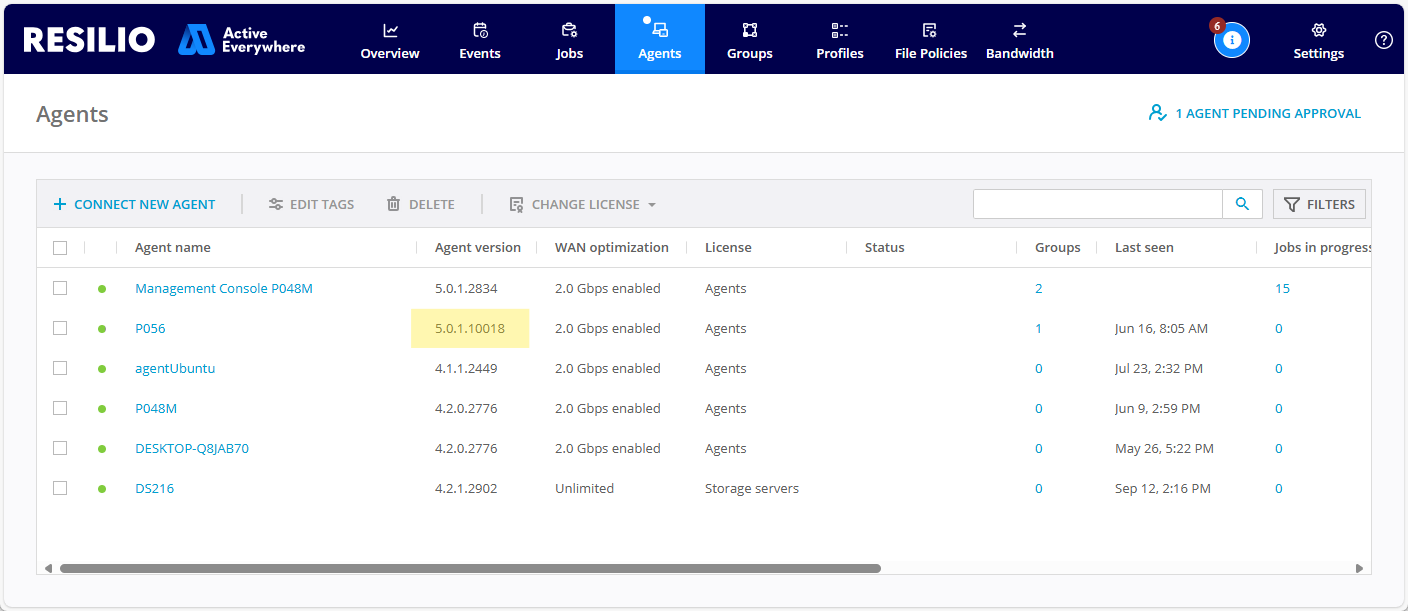
If any of your Agents are running a custom version, contact Resilio Support and ensure your customization has been included in the Main Release.
Note
Custom Agent's version 3rd or 4th number (if visible) will start with 10000, for example 5.0.1.10018.
-
Review system requirements against your current deployment
-
Check free disk space
Ensure your Agents (including the Management Console Agent) have enough storage space available to perform the upgrade. The Agent requires as much of free space as its storage folder currently takes. If the Agent has lesser disk space, the upgrade will fail.
-
Create the backup of the configuration
After making all necessary adjustments to the configuration, create the backup of MC configuration. For more information, see Management Console backup and restore.
-
Plan the downtime
Usually, Management Console is updated quickly within minutes. The downtime time for the Agents depends on their storage performance and amount of files and folders that the Agent keeps in its jobs' databases. During downtime the Agent needs to perform the following: backup its storage folder, upgrade the databases, load databases.
-
If you are using File Locking feature - warn your users about temporary inability to access files or set Resilio file locking driver into permissive mode for the duration of the update by setting
shared_locks_allowed_access_when_no_server->4in Default agent profile. Remove the parameter after upgrade is done.
Info
If you are upgrading within the same major version (e.g. from 4.2.8 to 4.2.9), in Management Console, navigate to Setting -> General -> Miscellaneous for the binaries link. If you are upgrading to a newer major version, contact Resilio Support for the latest version binaries link.
Update Management Console
Management Console must be the first component of Resilio setup to get updated. It's not recommended to update Agents, proxy or any other components before the Management Console.
Follow the Updating Management Console guide for step-by-step instructions for different operating systems.
The tracker server running as a part of Management Console bundle will get updated automatically with the Management Console update.
Go to the MC Settings -> General and check the version installed.
Update Auxiliary servers
If you have any separately installed tracker servers - follow the Updating tracker server guide for step-by-step instructions.
If you are using Resilio proxy - follow Updating Resilio Proxy guide.
Update Agents
After Management Console and auxiliary servers are updated, you can update Agents.
It is recommended to use the same method of updating Agents as they were initially installed. For example, if installed from a linux repository, update it same way via apt or yum. If installed manually with a package (deb, rpm or msi on Windows), update it same way by running the package.
If it's impossible to update an Agent through a package for some reason or you prefer to update Agents using your solution, download raw binaries instead (.exe for windows, tarballs for *nix OSes).
- For a small amount of Agents, see this guide to update the Agents manually.
- For larger amounts of Agents automated update using the guide for updating agent via distribution job is advised.
- If your Linux Agents were installed using Resilio Repository, you can follow this guide for registering a new repository and updating using Linux package manager.
- If you use your own automation (like Chef, Ansible, etc.) or some customized setup (non-supported NAS vendors or any other device not officially supported) you can update with binary replacement technique.
- For TrueNAS update use TrueNAS update guide.
Update agents with millions of files
Agents that handle hundreds of millions of files may take significant time to upgrade their DBs upon a first Agent startup. As a result you may get an impression that the Agent is running but stays not connected to the Management Console, or even see a message from Installer / Service Manager that Agent service cannot start. Do not terminate the Agent process, be patient.
After the update
After the update open the Management Console, tab Agents, and in column "Agent version" check that it's updated correctly.
No further adjustments to the jobs are usually required, unless it's stated so in the version's change log or release notes.