Transparent Selective Sync (TSS) for macOS Agents
Transparent Selective Sync (TSS) allows end-users to work with files in a job folder without downloading them first. It provides a seamless experience where files appear as if they are present locally, but they are actually downloaded on-demand when accessed.
TSS in Agents version 5.0.9 and older is based on FUSE while Agents version 6.0 and newer use FSKitExtension interface and make Selective Sync transparent to end-users and applications on macOS devices.
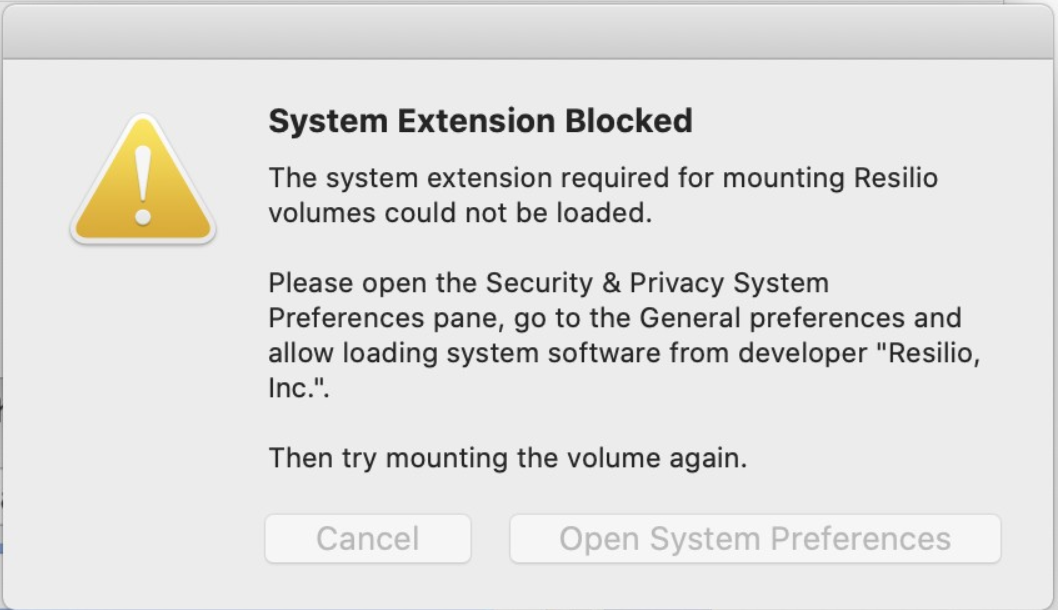
Upon installation, the Resilio Agent (5.0.9 and older) will be trying to register the new kernel extension and a security warning may appear. Extensions must be allowed through System Preferences > Security & Privacy.
Important
Transparent Selective Sync (TSS) requires:
- Archiving feature enabled on Agents participating in File Caching and Hybrid Work Jobs.
- Max archive file age parameter value in the Agent Profile set to at least 1 day.
System requirements
- TSS for M1 chip macOS 11 is supported starting with Resilio Agent version 3.1.
- TSS for macOS 12 is supported starting with Resilio Agent version 2.12.10 and 3.1.0.
- Resilio 6.0 and newer requires macOS 26 (Tahoe) or newer.
macOS Big Sur with the M1 chip
On macOS Big Sur with M1 chips, Administrators need to enable Kernel extensions and also ensure that they run Big Sur 11.3.1 or later since older versions have an issue with Kernel extensions.
For more information, see Resilio system kernel extension blocked on macOS - enable kernel extensions.
How to enable Transparent Selective Sync
Transparent Selective Sync feature is enabled by default for clean installation and updates of Resilio.
Update from legacy Selective Sync (pre 2.11)
In order to correctly upgrade from older version of Resilio (pre 2.11) and switch to the Transparent Selective Sync follow the steps below:
- Before updating the Management Console to 2.11, check if there are sync jobs with macOS Agents in Selective Sync mode. Remove these Agents from the job and save.
- Follow the procedure to update the Management Console first and Agents after that.
- Verify that in Agent profile assigned to macOS Agents option "Advanced selective sync" is set to True (default). This parameter is removed from profile and enforced starting with v3.1.0.
- Add the MacOS Agents back to the job. Note, a new empty directory needs to be used.
Virtual folder
The basic idea behind Transparent Selective Sync is that a virtual folder will be mounted on the chosen location, and files in such a share can be handled with a native routine file management workflow.

Agents with read-only permissions
Applicable to Resilio Agents version 5.0.9 and older.
If an Agent has Read-only permissions in a job, the folder is mounted as "read-only" meaning the user cannot change anything in it.
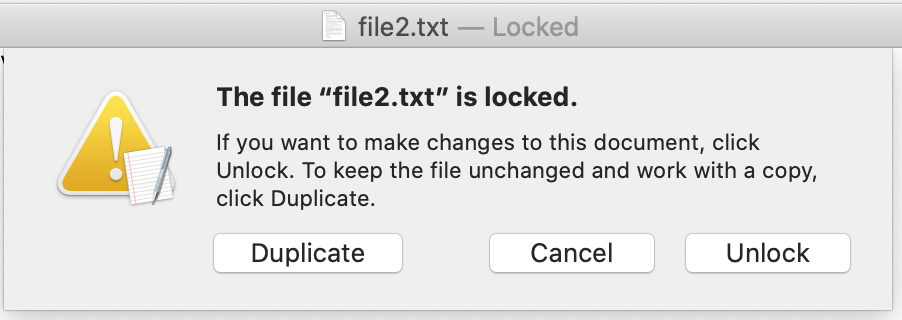
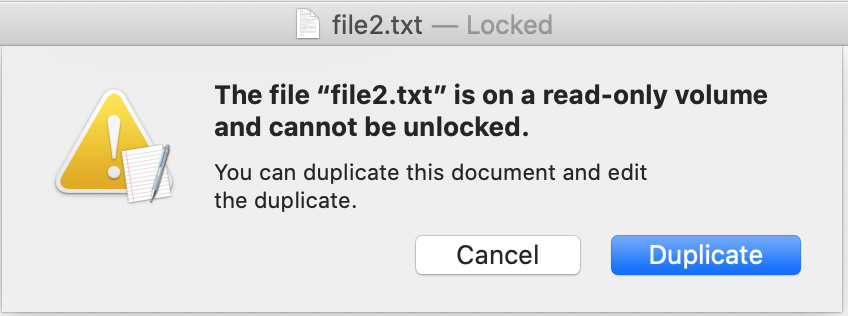
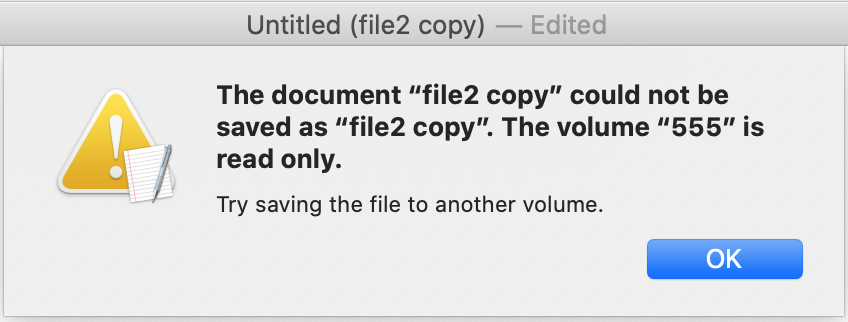
Mounting and unmounting of a folder depends on and is performed by the Agent process. It means that the folder is mounted and present only as the Agent is running. This may imply some limitations, for example, the virtual folder cannot be mounted on an already existing non-empty path or on a network location. Also, if the Agent is removed from a job, the folder is unmounted, and all downloaded files remain on the internal drive. Agents won’t be able to unmount the path if it’s opened in another application, for example, in Terminal.
In Agents version 5.0.9 and older, if the user manually unmounts (ejects) the mounted folder through Finder, the Agent will immediately attempt to mount it back.
For more information on mountpoint errors, see Troubleshooting mounting errors.
Managing virtual files
A file download can be triggered implicitly by opening it with a designated application, or explicitly via the context menu. Files states are represented by icons.
File status icons
| Icon | Description |
|---|---|
 |
Fully synchronized A fully synchronized file is always stored locally on the device. If a file is updated on a remote Agent, the updates are automatically fetched to this device and the previous version is placed in the Archive folder. Note:
|
 |
Current file version available locally The current (most up to date) version of the file is present on the device. If the file is updated on a remote Agent, the file is automatically dehydrated and the currently stored revision is moved to the Archive folder. Right-click the file and select Always keep synced to have it automatically synchronized and available locally at all times. Note: By default, files added to a job folder locally store only their current version. |
 |
Dehydrated Dehydrated files don't take up space on the device. Open the file to have Resilio Agent download it to your device. |
 |
Resilio 5.0.9 and older File is being downloaded The file is currently being downloaded to the device. Resilio 6.0 and newer Synchronization pending File is being processed in any of the following ways:
|
Context menu items
| Context menu item | Description |
|---|---|
| Always keep synced | Select Always keep synced to have the file available locally and up to date at all times. For files and folders with this option enabled, a checkmark is displayed next to the context-menu item. Right-click the file and select Always keep synced again to disable auto-synchronization of updates and store only the file's current revision. Clicking this menu item again on a file that is being synchronized, cancels the download. Note:
|
| Free up space | Reverts the file to the dehydrated state. Note: The file won't be dehydrated until it's uploaded to one of the configured main servers. For more information, see File will be reverted to placeholder automatically once it is synced to at least one of the configured main servers. |
| Remove downloaded files | Clears all downloaded files - those that are fully synchronized and those that only store their current version. Note: This context menu item is available when clicking on the mounted folder itself or inside its root. |
Files are not placed in Trash
In Resilio 5.0.9 and older, macOS' Move to Trash option does not put files (virtual, or downloaded) to Trash, because Trash is located on an internal disk partition and moving files across different mount points is not supported by OS. Files are deleted skipping the Trash, and this deletion propagates to other Agents. On remote Agents, files are placed to Archive.
Known limitations
-
A virtual folder cannot be mounted on an existing path:
- Transparent Selective Sync is not supported for pre-seeded folders.
- Folder cannot be mounted on a network path.
-
Changing Selective Sync mode from ON to OFF and back is not supported. In order to change the mode for the Agent, the admin must remove it from the job, save the job, and add the Agent back.
- Changing Agent permissions RO <-> RW in the job is not supported. Admin needs to remove the Agent from job, save, and add the Agent back to job. Starting with v3.6.0 its possible to change the permissions and simply restart the Agent.
- FileDelayConfig does not work for TSS shares.
- File system notifications are forcibly disabled for macOS TSS folders. Agent discovers new and updated files during periodic folder scan.
-
If a Reference Agent is configured in the job, the macOS Agent in TSS will be reporting Read-Only access in the Agent UI and MC while performing initial synchronization (even though the Agent was configured to have Read-Write access). After completing the initial synchronization, restart is required for the Agent to switch to Read-Write.
-
(Applicable to Resilio 5.0.9 and older) Renaming files
Renames may cause file loss
Do not rename virtual files if Archive is disabled from this and other Agents in the job! This will lead to data loss (How Agents process file renames).
-
If a zero-sized file is created on a remote Agent, it’s marked as ‘virtual’ on Selective Sync macOS Agent (i.e. not auto-downloaded) and is not counted in the file count.
- Synchronized POSIX permissions don't appear on virtual files. The files need to be downloaded to view the permissions.
- Sharing the virtual folder as a network drive is not allowed.
-
(Applicable to Resilio 5.0.9 and older) Auto starting Agent service - Launch Agent and Launch Daemon
Transparent Selective Sync is incompatible with auto starting Agents on macOS as Launch Agent or Launch Daemon. Agents started as Launch Agent or Launch Daemon won't be able to participate in Hybrid Work Jobs or in Synchronization Jobs with the Selective Sync option enabled. -
(Applicable to Resilio 6.0 and newer) Agents create a volume via fskitd system daemon. Without specific permissions, it cannot create volumes in protected folders, for example,
Documents. - (Applicable to Resilio 6.0 and newer) In Enterprise Hybrid Work Jobs, file's
mtimeupdate on the Primary Storage Agent triggers dehydration of the file on end user Agents participating in the Job, even if the file is not modified. The file won't be rehydrated automatically until the end user Agent accesses the file.
Related to other apps
- Some applications may automatically download files when listing them (for example, iTunes Library, CleanMyMac).
- macOS bundles can be downloaded through the right-click context menu only. Some files inside bundles (e.g. Info.plist, Pkginfo, icons) may be automatically downloaded.
- (Applicable to Resilio 5.0.9 and older) Application bundles don't start from virtual folder.
- Choosing a location that's shared with other synchronization solutions, for example, DropBox or Google Drive, is not supported and may lead to unpredictable behavior for both - Resilio and the third-party solutions.
- If a virtual file is attempted to be opened with an application while there's no network or no other Agent is connected, the application will either show a "Cannot read/open file" error, or could behave unexpectedly (e.g., open an empty text file, for example).
Related to Finder
- (Applicable to Resilio 5.0.9 and older) If the job contains a Reference Agent, non-reference Agents may show an incorrect icon for their virtual folder until the Mac is rebooted. The folder will have a "Read-Only folder" icon while the Agent actually has Read-Write permissions in a job.
- TSS icons in Finder may be shown with delay or be missing when browsing through files on large data set. Finder refresh usually solves it.
- Finder hangs if a file that is being downloaded or a subfolder inside which a file is being downloaded, is selected for any manipulation (open file, rename, move, etc).
- Some other Finder extensions may prevent TSS context menu options from appearing.
- Context menu option Get info does not show correct information about virtual folder. It shows information about the whole volume.
-
Search does not work in virtual folder.
Note
While Finder is not capable to search TSS files, there are other Finder alternatives such as Commander One or EasyFind that can. Resilio Inc is not endorsing any of these but we are aware that these applications can be used as a Finder alternative to be able to search TSS files, downloaded or not.
-
(Applicable to Resilio 5.0.9 and older) Finder color tags don't appear in virtual folder.