Management Console integration with Entra ID
Resilio can use Entra ID to authenticate users logging into the Management Console (version 3.3.2 and newer), Resilio API requests (version 3.5.1 and newer) as well as end user Agents connecting to the Management Console and participating in Enterprise Hybrid Work Jobs (Resilio 6.0 and newer).
Authenticating access to Management Console
Configure connection to Entra ID
-
In the Management Console, in Advanced Settings, make sure you have the Management Console address and/or the Data Managers Console address parameters defined, and the Use Management Console address for IdP redirect URI option is enabled.
Note
Data Managers Console address and Use Management Console address for IdP redirect URI parameters are applicable to Resilio 5.0.2 and newer.
-
In the Microsoft Entra admin center, register an application. For details, see Register an application.
Important
When registering an application, make sure to provide the redirect URI:
https://mc_address:8443/login/azuread/redirect, wheremc_addressis the IP address or the hostname of your Management Console.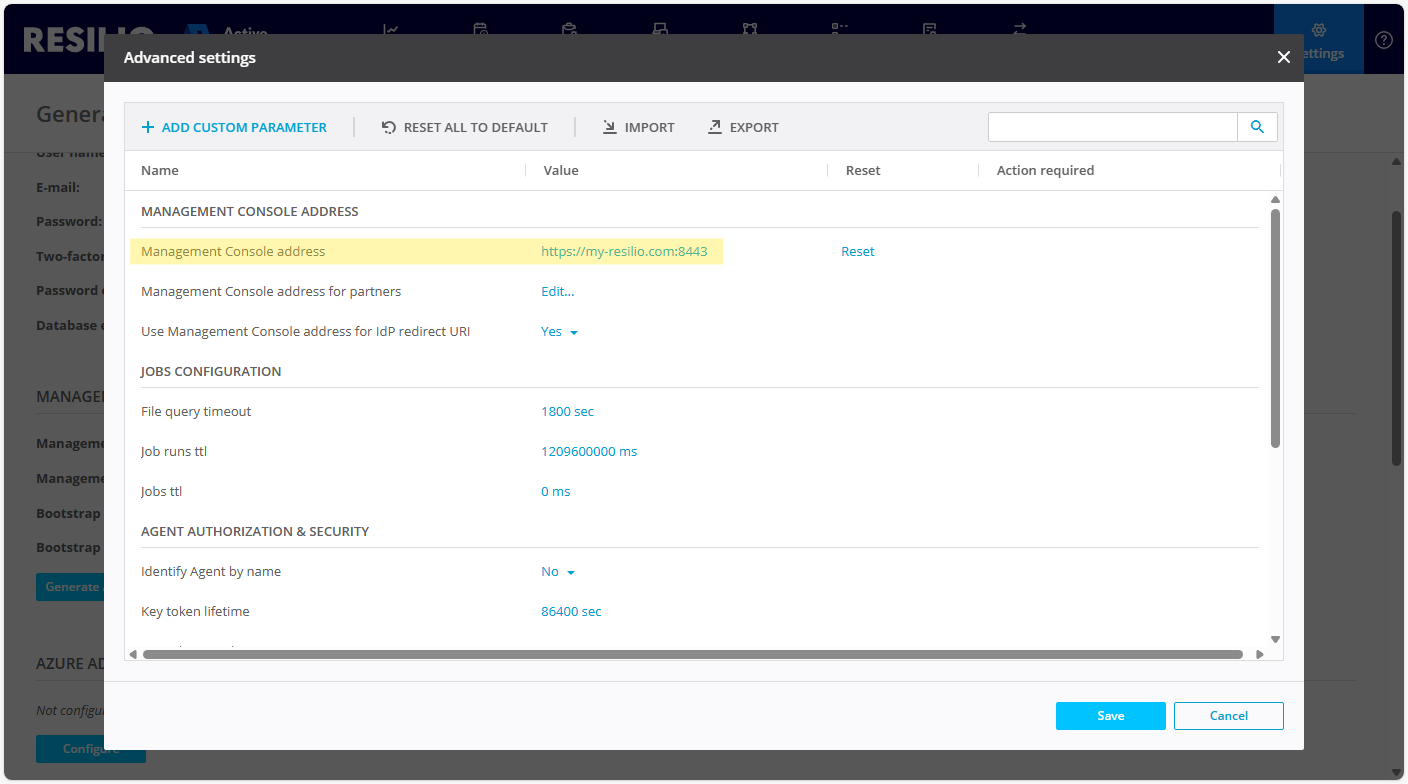
-
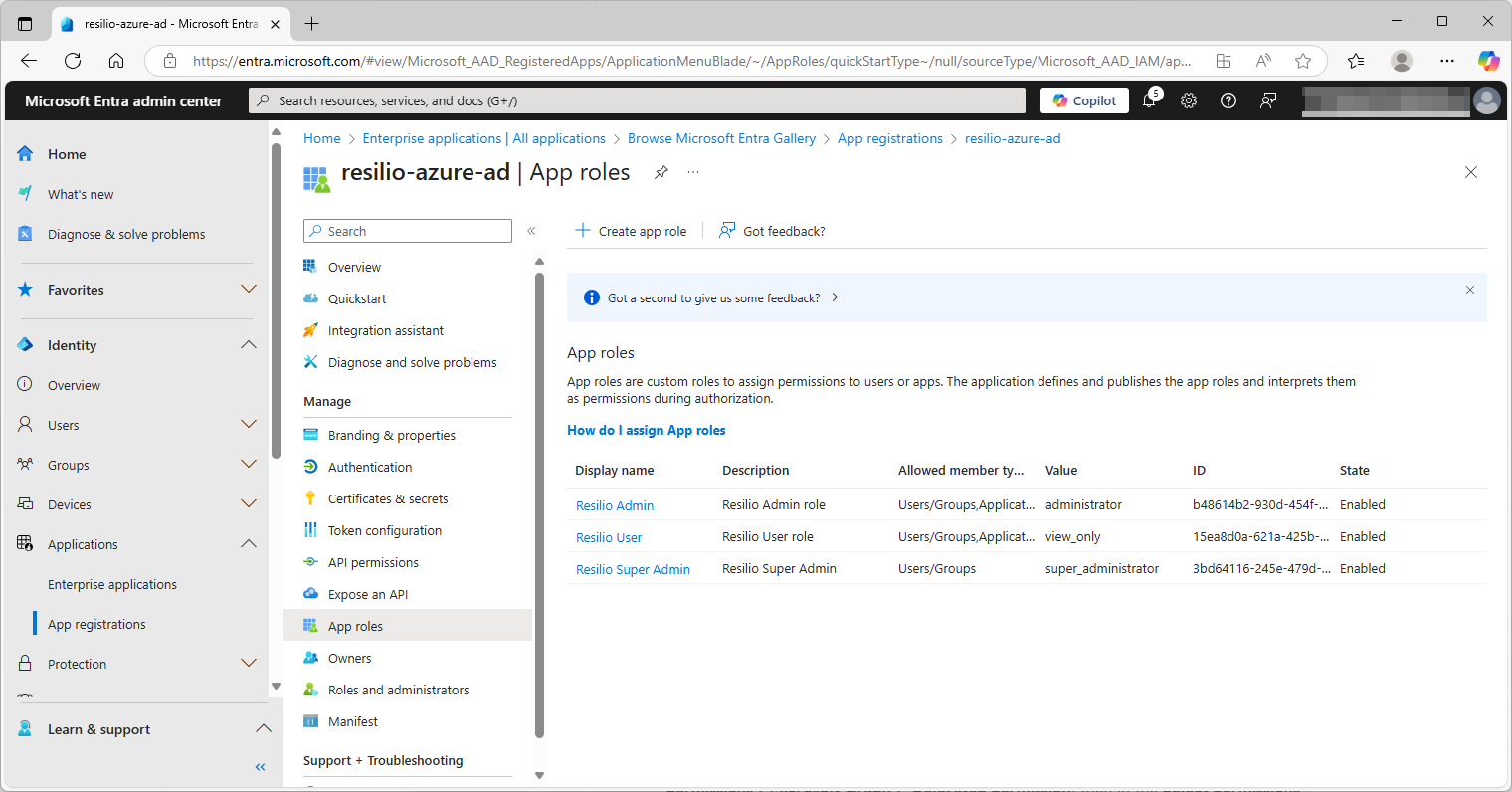
Create application roles, equivalent to user roles found in the Management Console:
super_administratoradministratorview_only
For details, see Add app roles to your application and receive them in the token.
Note: For information on custom roles, see Configuring custom user roles.
-
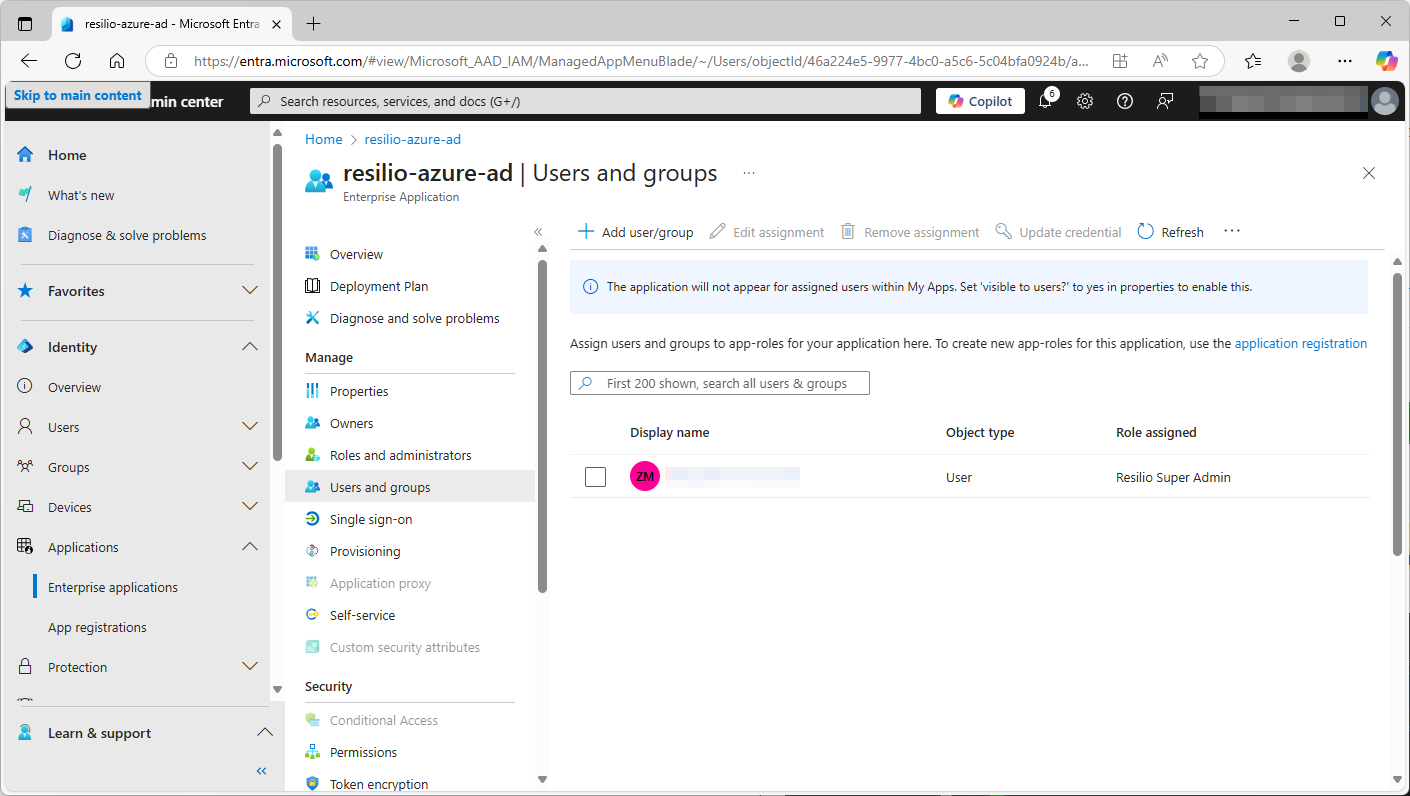
Assign app roles to users. For details, see Assign users and groups to Microsoft Entra roles.
-
Verify application's API permissions under Manage > API permissions. The
User.Readpermission is required.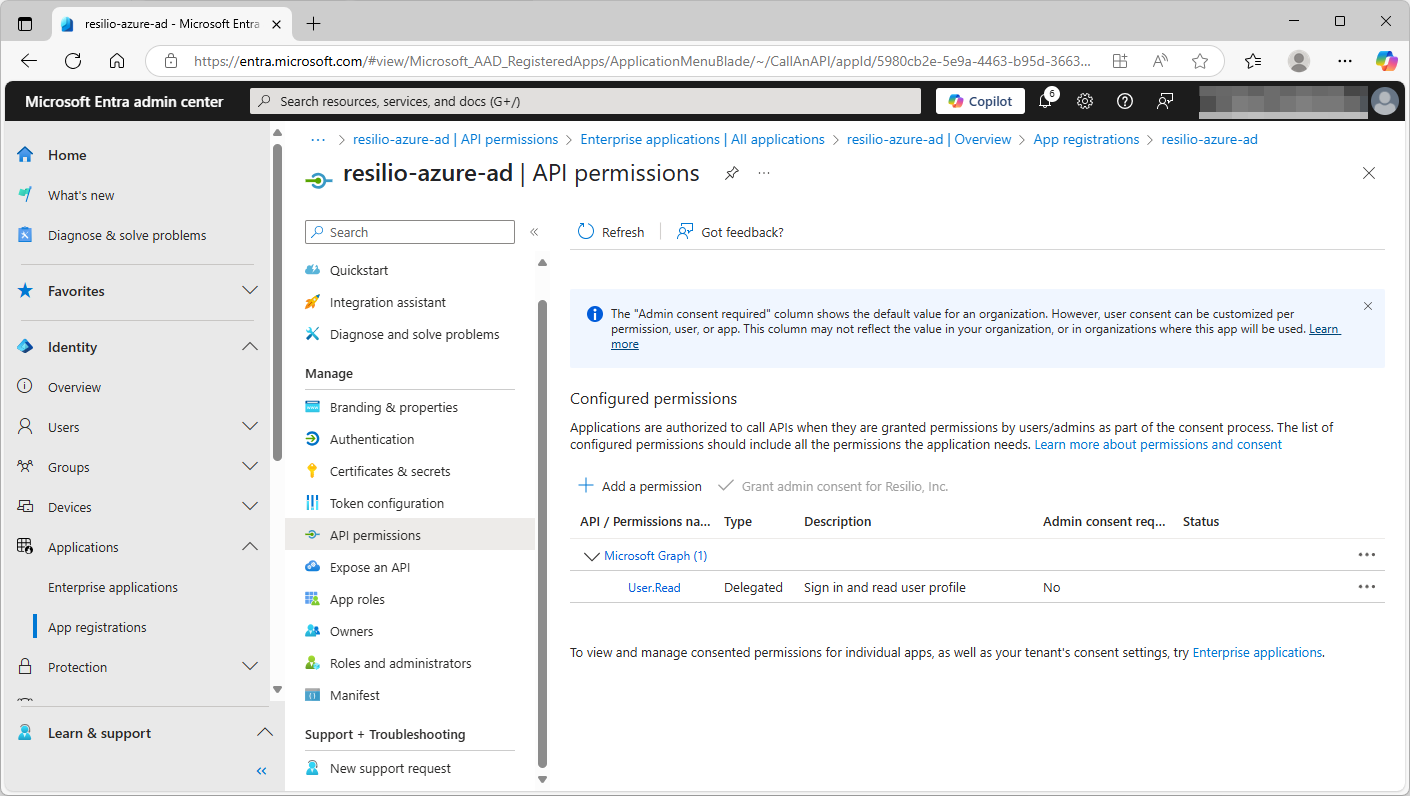
It should be granted automatically when creating the application. If it's not the case, click Add permissions > Microsoft Graph > Delegated permission , then in the Select permissions input field, enter
user.readand in the User section, select the User.Read permission.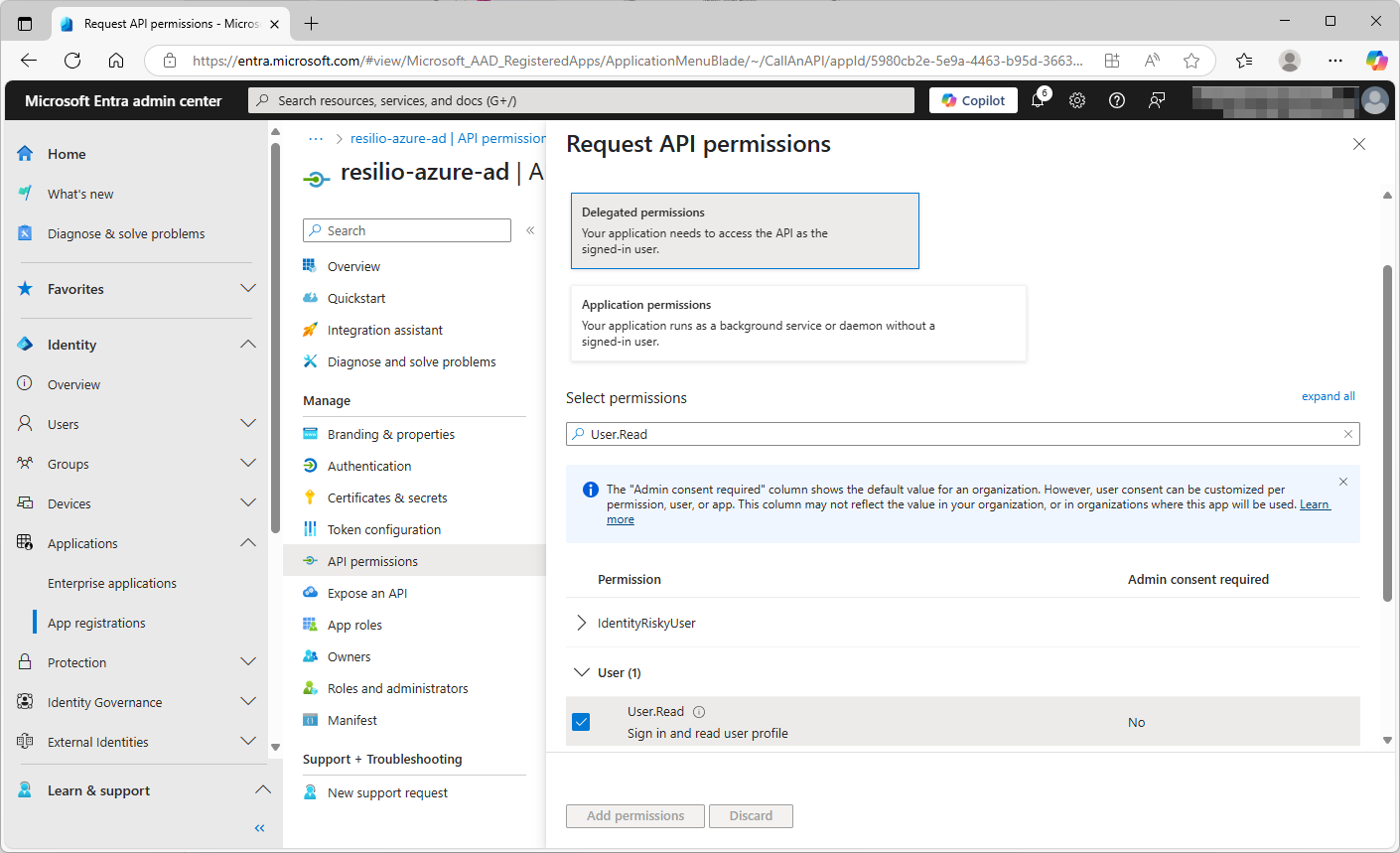
-
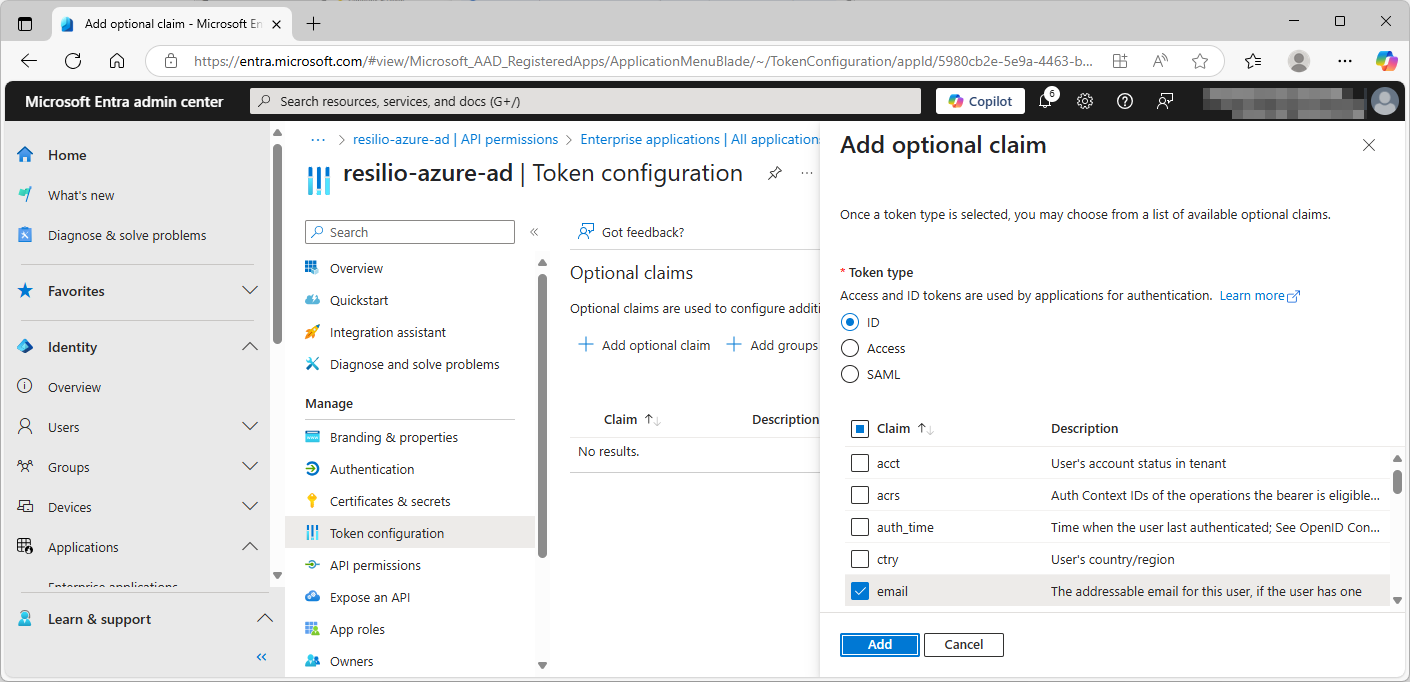
(Optional) Add the
emailclaim to Token configuration, which will allow you to enable e-mail notifications from Management Console for Entra ID users:- In the Manage section, select Token configuration.
- Click + Add optional claim.
-
Select the ID token type, then select email and click Add.
-
Select the Turn on the Microsoft Graph email permission option, then click Add.
-
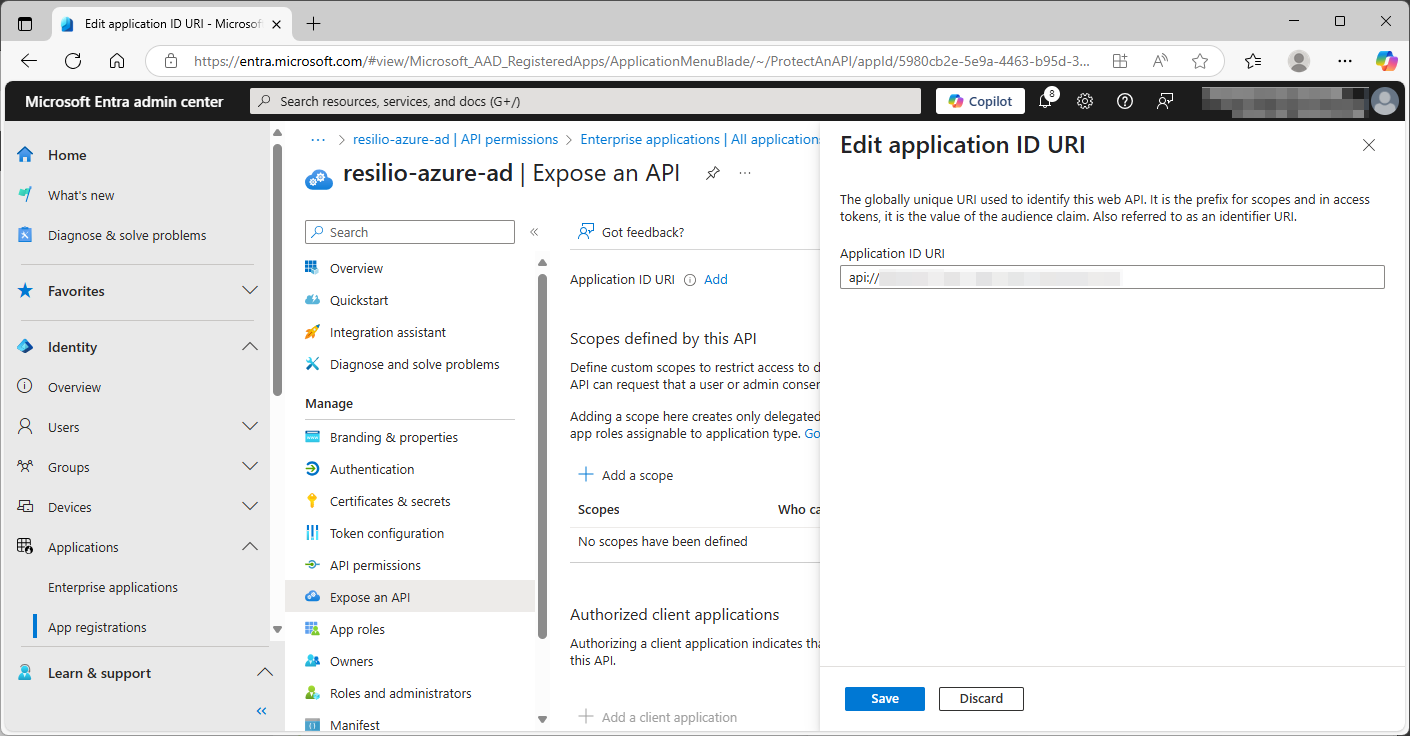
(Optional) Add an Application URI ID to expose an API if you plan to integrate with Resilio API:
- In the Manage section, select Expose an API.
- Next to Application URI ID, click Add.
- Click Save.
-
Configure connection to the Entra ID:
- In the Resilio Management Console, select Settings > General.
- In the MICROSOFT ENTRA ID AUTHENTICAITON section, click Configure.
-
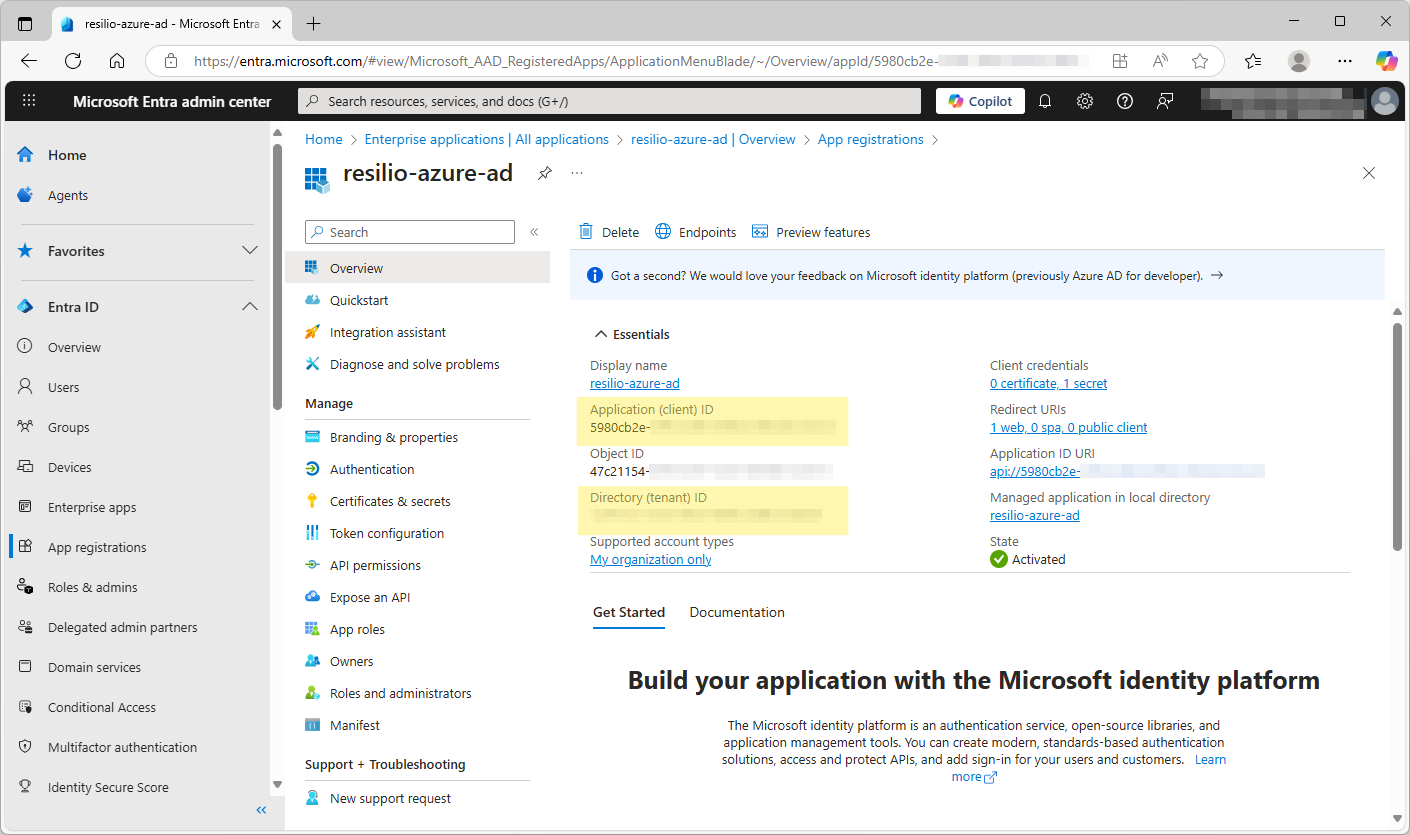
Provide Entra ID Authentication configuration parameters:
- Client ID - Application (client) ID of the registered Resilio application.
- Tenant ID - Directory (tenant) ID or the registered Resilio application.
-
Select Use Entra ID Authenticaiton for Users , then provide:
- Authority -
https://login.microsoftonline.com/<tenant>/ - Client secret - Application's secret key used for authorizing connection to Entra ID. You can find it under Certificates and secrets menu, but the value is available only when you initialize the secret.
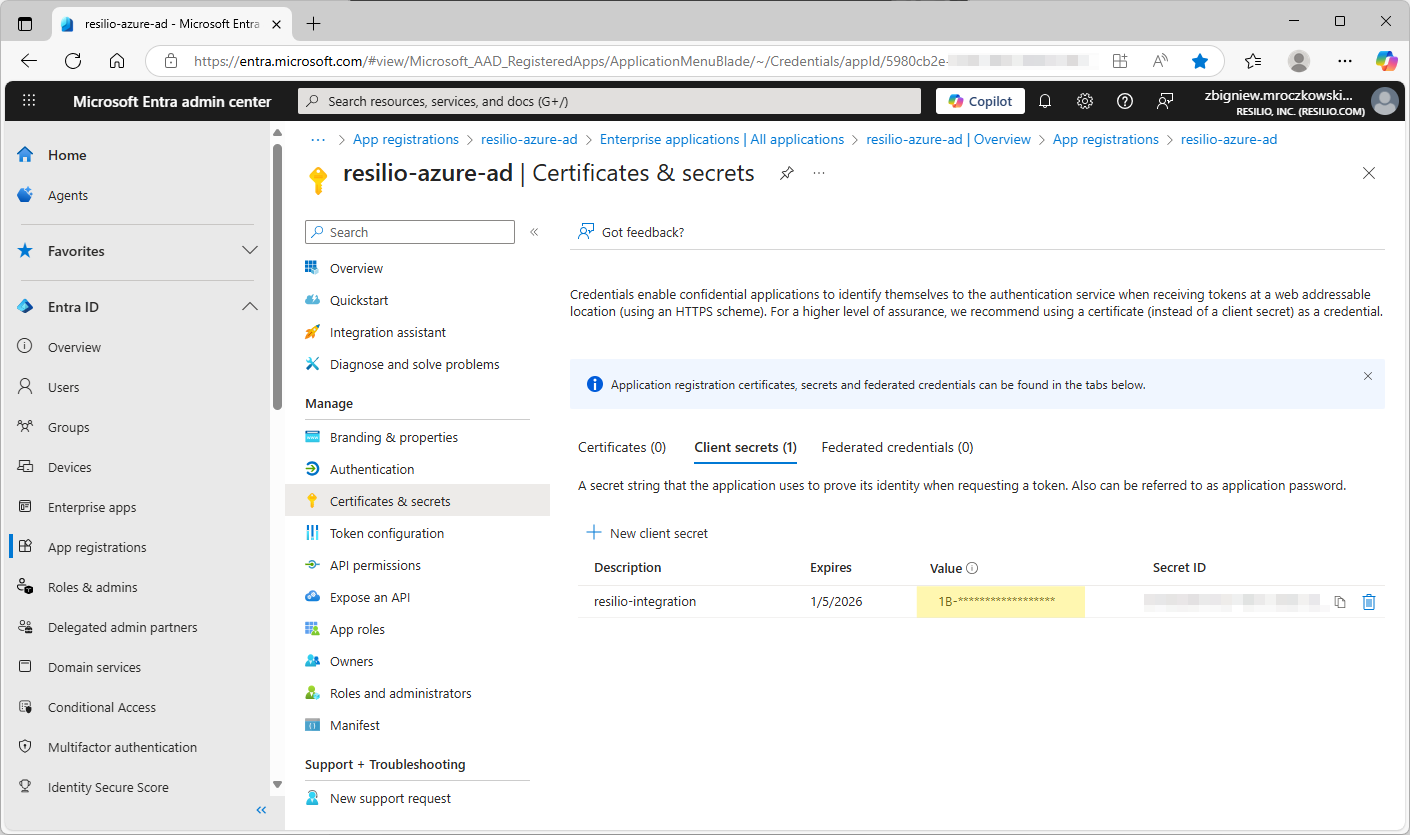
- Authority -
-
Click Save.
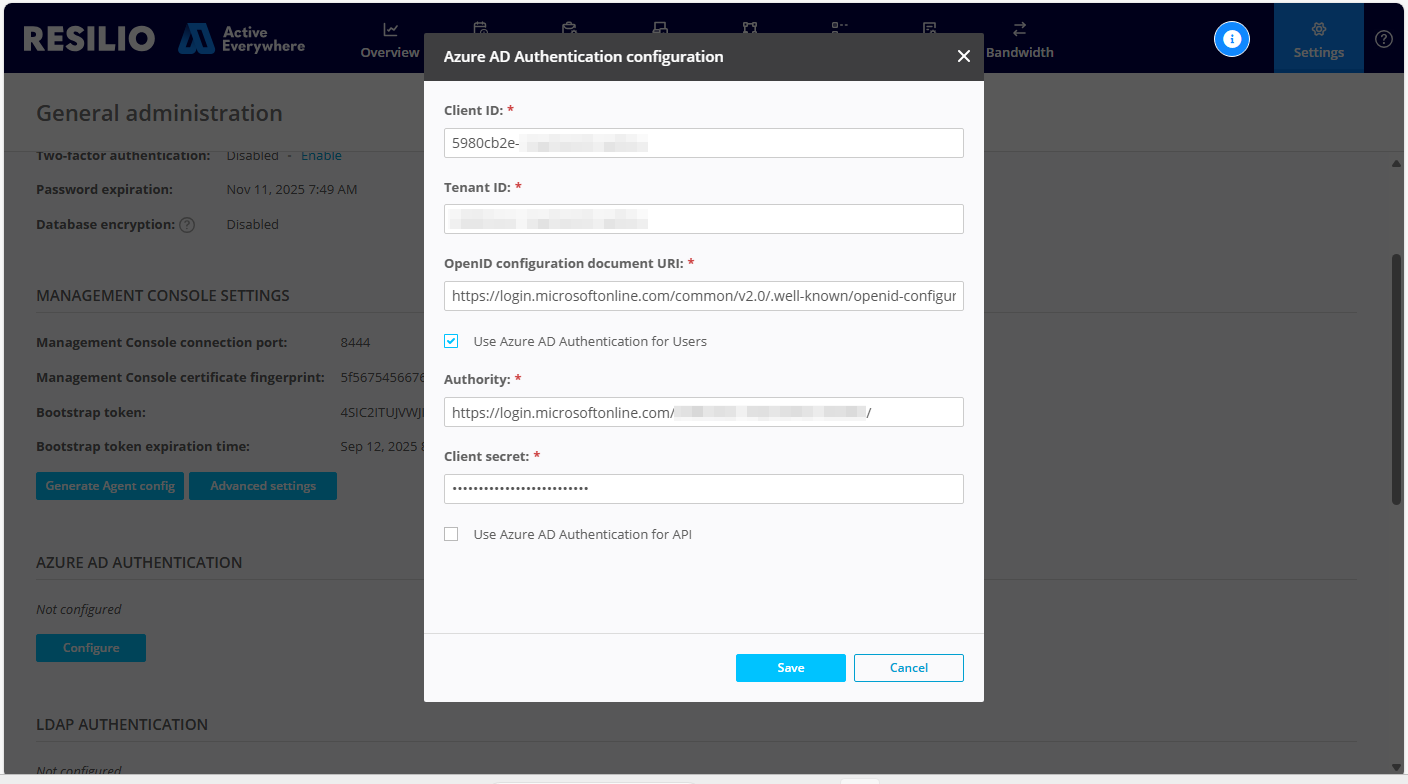
Note: The Management Console doesn't validate or test the connection based on the provided parameters.
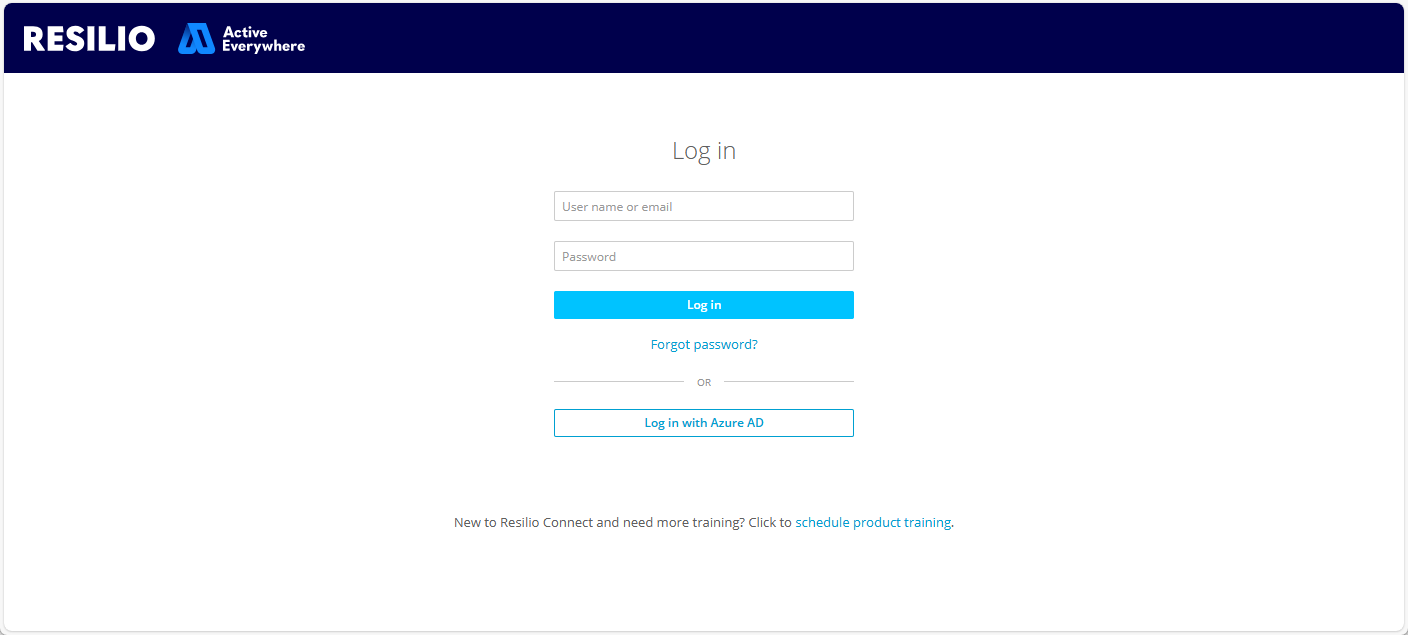
Once the Entra ID connection is configured, option to sign in with Entra ID will appear on the login screen.
A logged in Entra ID user will appear on the list of Management Console users. Such users cannot be edited using the Management Console.
Configure custom user roles
Custom roles also work, but are not guaranteed for all the roles. Custom role name must be all lowercase with spaces replaced with underscore. Single-word roles are not supported.
- Create a custom user group on the Management Console, for example
Test Group. - Transform its name: replace spaces with underscore (_) and make all letters lower case. In the example it will be
test_group. - In Microsoft Entra admin center, create a role with such value and assign it to the users.
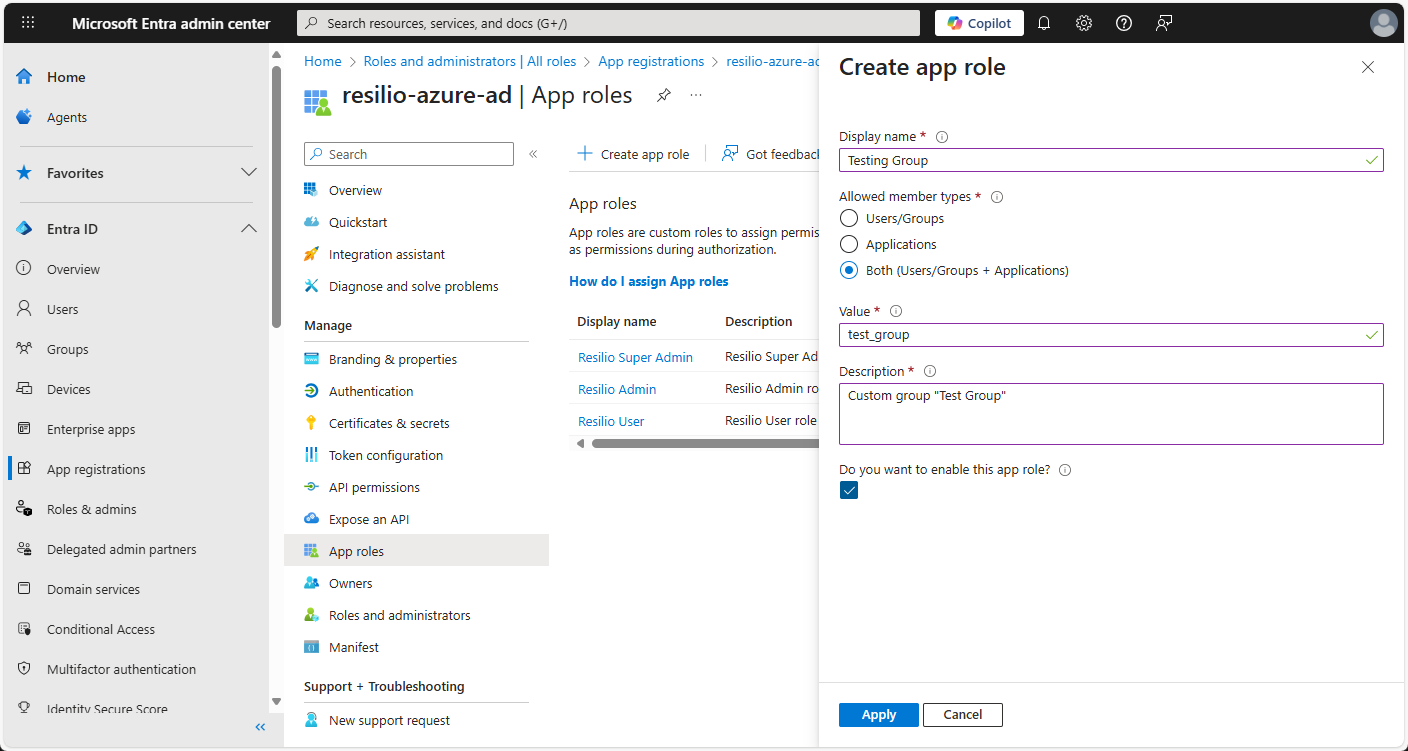
The logged in user will appear in the corresponding group on Management Console.
Configure API integration with Entra ID
Feature availability
Available in Resilio 3.5.1 and newer.
You can use Entra ID to generate tokens to authorize API requests to the Management Console. To set up API integration with Entra ID:
- Register an application as instructed above. Ensure that an API URI is set in Expose an API for that application.
-
In the Management Console, configure Microsoft Entra ID authentication:
- Select Settings > General.
- In the Microsoft Entra ID Authentication section, click Configure.
-
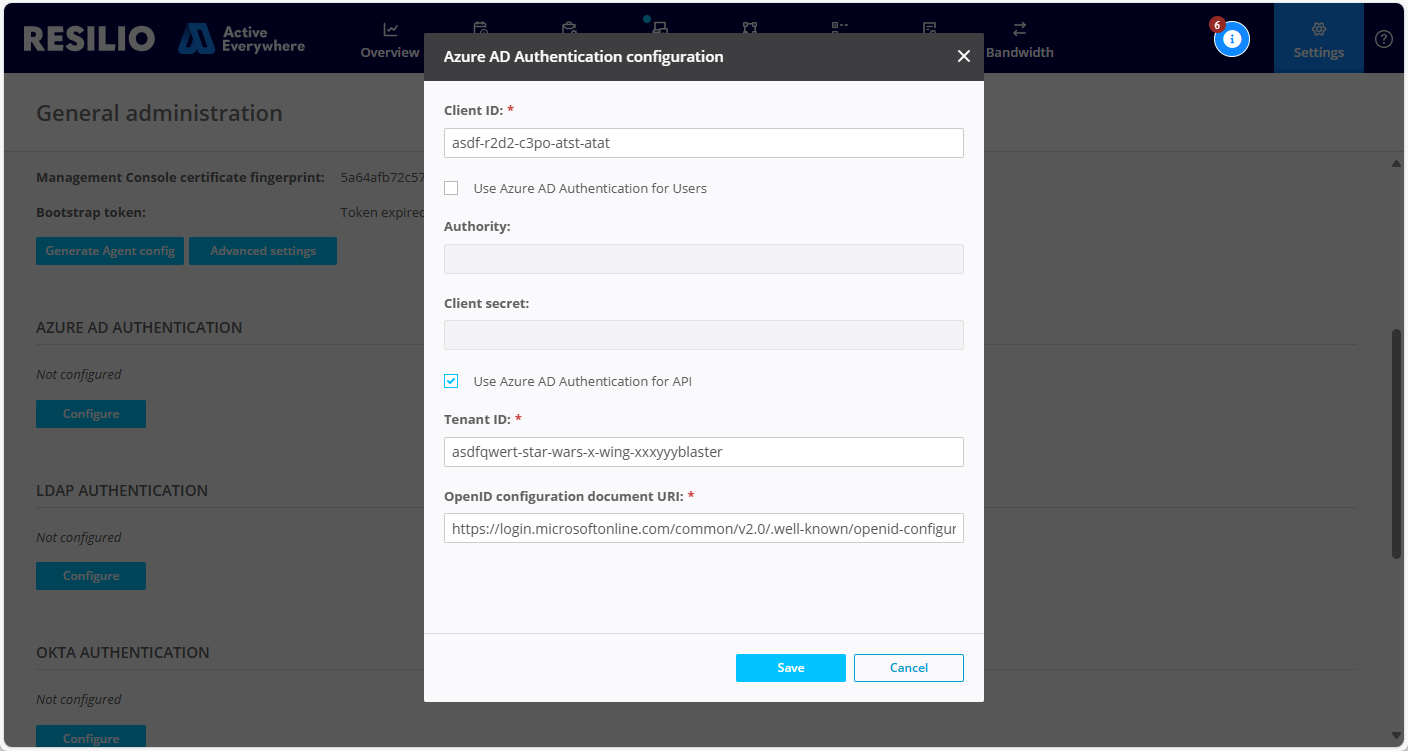
Provide Entra ID Authentication configuration parameters:
- Client ID - Application (client) ID of the registered Resilio application.
- Tenant ID - Directory (tenant) ID or the registered Resilio application.
- OpenID configuration document URI -
https://login.microsoftonline.com/common/v2.0/.well-known/openid-configuration
Note
You may need to remove
v2.0, depending on the supported API token version. For details, see step 8 below. -
Select Use Microsoft Entra ID Authentication for API.
Note
API integration is not dependent on authentication for users and can be configured separately.
-
Register a new application - API client daemon that will be calling the Resilio API. The client API app must be in same tenant as the main application. Leave redirect URI empty.
-
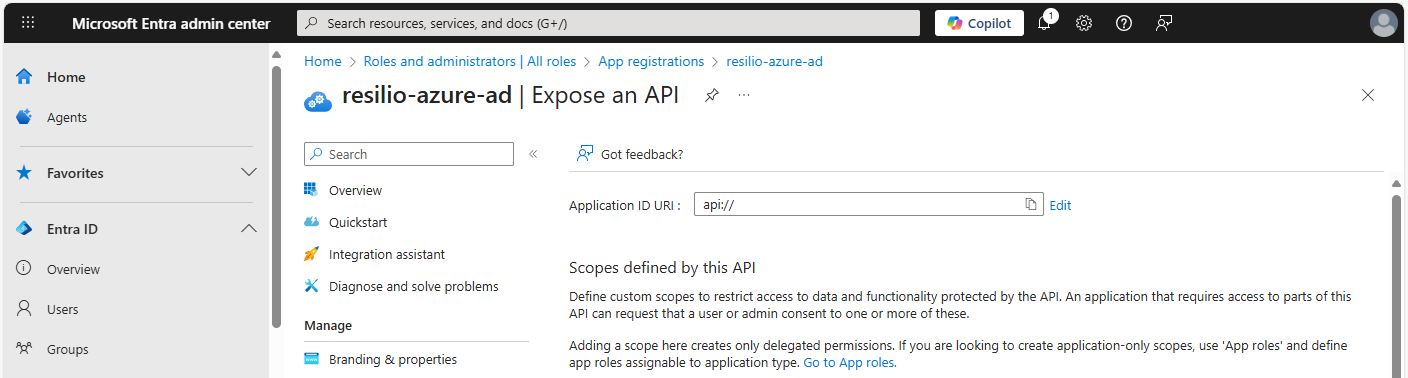
Select Expose an API and set API URI.
-
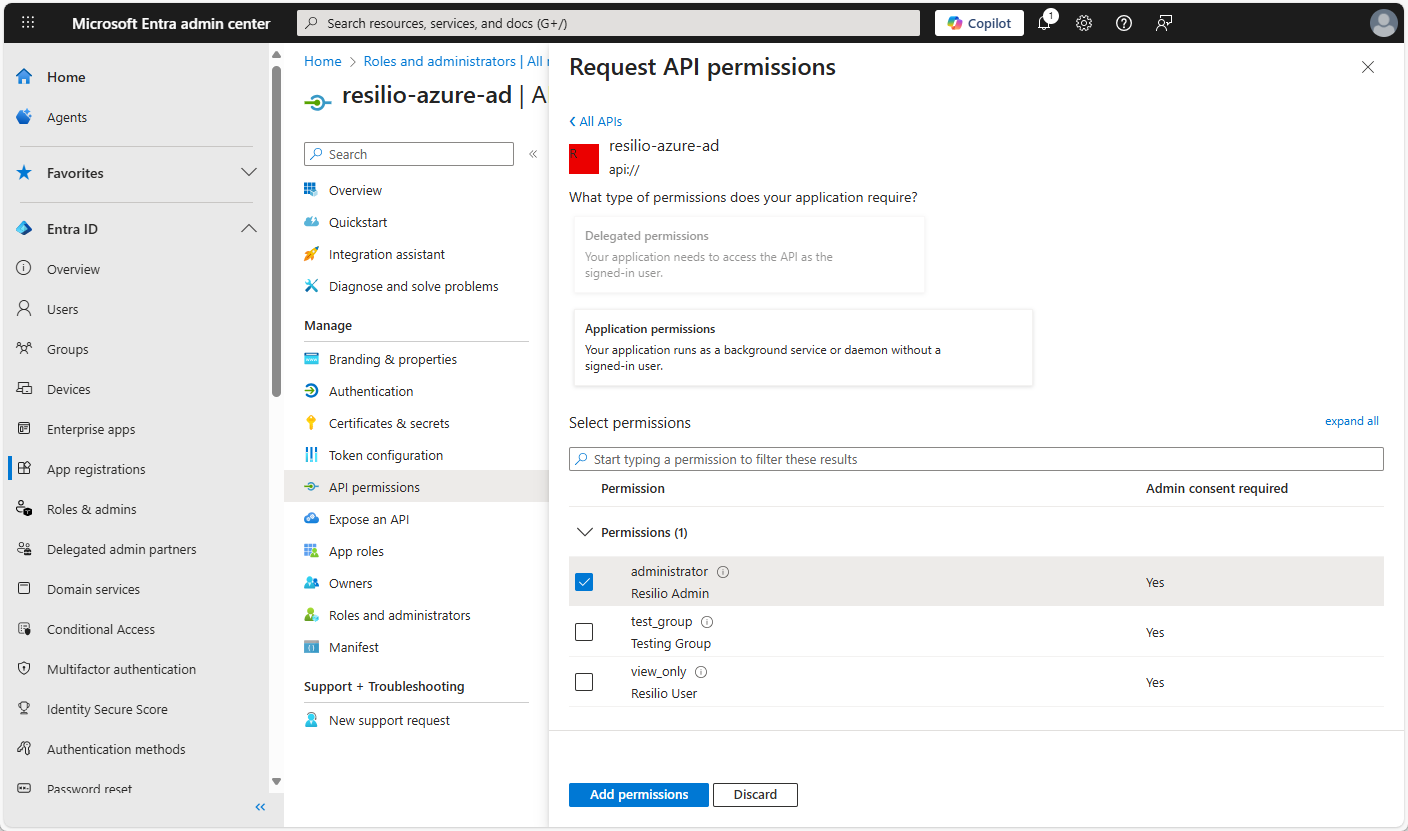
Select API permissions > Add a permission > My APIs.
-
Select the main application and one of the groups -
super_administrator,administratororview_only- from the groups created in the main application. That will be the access level that will be used when calling API.No app in the My APIs list
You may not find your application in the list. In such a case, navigate to Manage > Owners and check that your user has been added as the Owner of your application.
-
Select Certificates and secrets and create a new client secret. Give it some name and copy its value right away as it will be unavailable for copying later.
-
Recheck the supported token version.
By default, Resilio supports token versions1and2. Verify theaccessTokenAcceptedVersionparameter value in the main application's manifest to determine which of the versions is used, see Microsoft Entra app manifest for more details.Note
If only version
1is supported, removev2.0from OpenID URI in the Management Console in Entra ID configuration.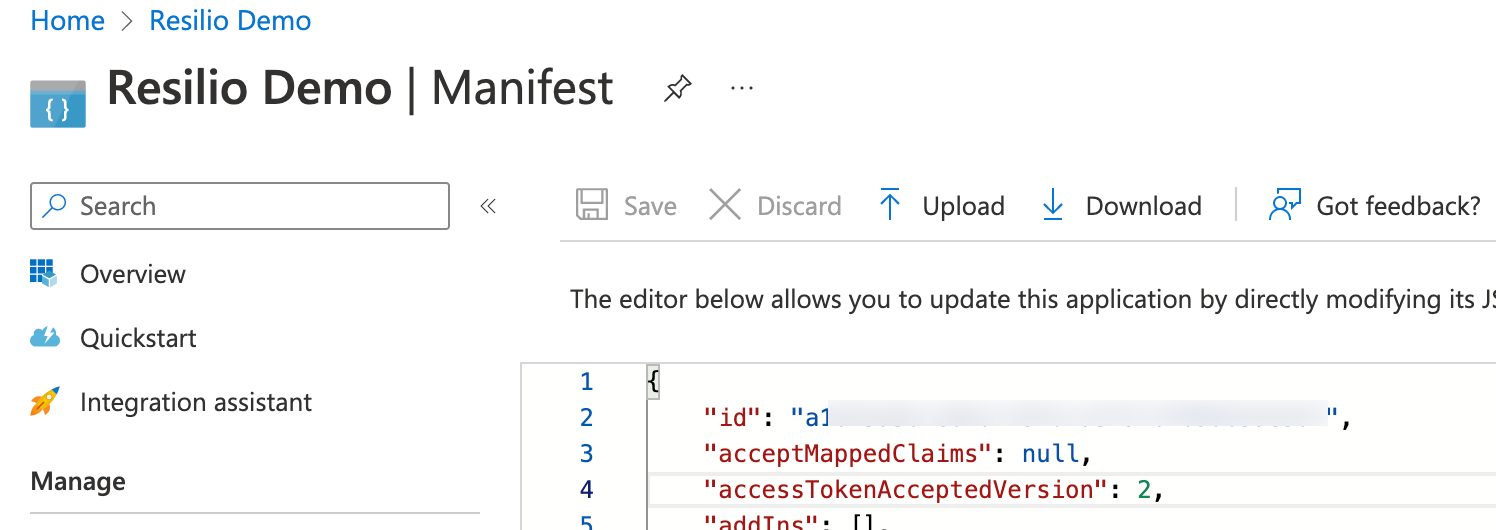
-
Generate the token itself.
You can use any well known script or tool to generate your token, or follow Access token request with a shared secret guide. Replace the parameters from example as follows:client_id- Your API client application identifier.scope- Main application's API URI with/.defaultsuffix. Make sure to properly encode special characters in the URI, for examplescope=api%3A%2F%2F2e9f....%2F.default. If you're using v1.0 token, don't includeapi://in the scope.client_secret- Your API client application secret.{tenant}- Make sure to include a valid tenant ID in the request URL. If you're using token version 1.0, removev2.0from the URL.
-
Use the JWT token you receive in the response to authorize API calls to the Management Console. Put the token in the header
Authorization: Bearer _token_.
Peculiarities and limitations
- Management Console does not validate the configured connection and does not test connection to the endpoint.
- Only these roles are officially supported:
super_administrator,administrator,view_only. Custom roles also work, but are not guaranteed for all the roles. Custom role name must be lowercase with spaces replaced with_. - Entra ID user will be forcibly logged out from the Management Console if its role is changed in the Entra ID.
Authenticating end user Agents connecting to the Management Console
Note
Applicable to Resilio 6.0 and newer.
To authenticate end user Agents connecting to the Management Console to participate in Enterprise Hybrid Work Jobs:
-
In Microsoft Entra admin center, register an application. For details, see Register an application.
Important
When registering an application, make sure to provide a Public client/native (mobile & desktop) type redirect URI:
http://localhost/rlsagent/callback.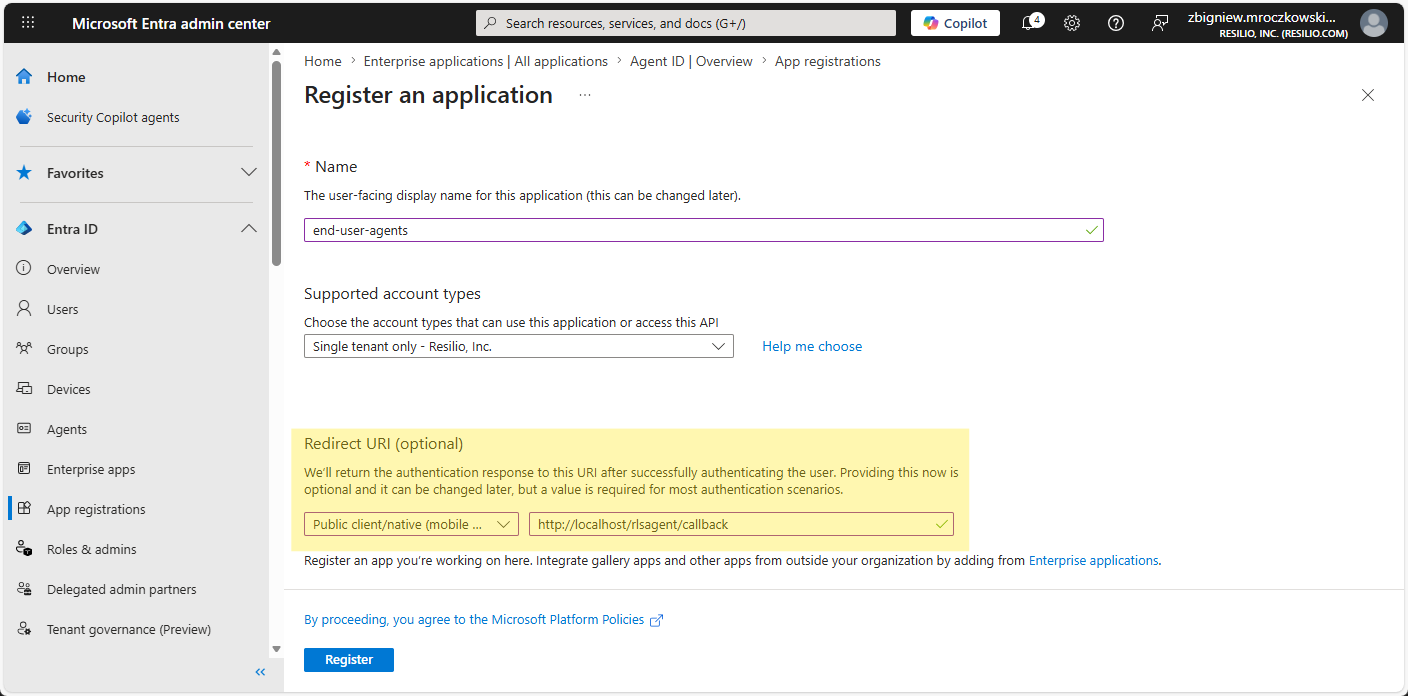
-
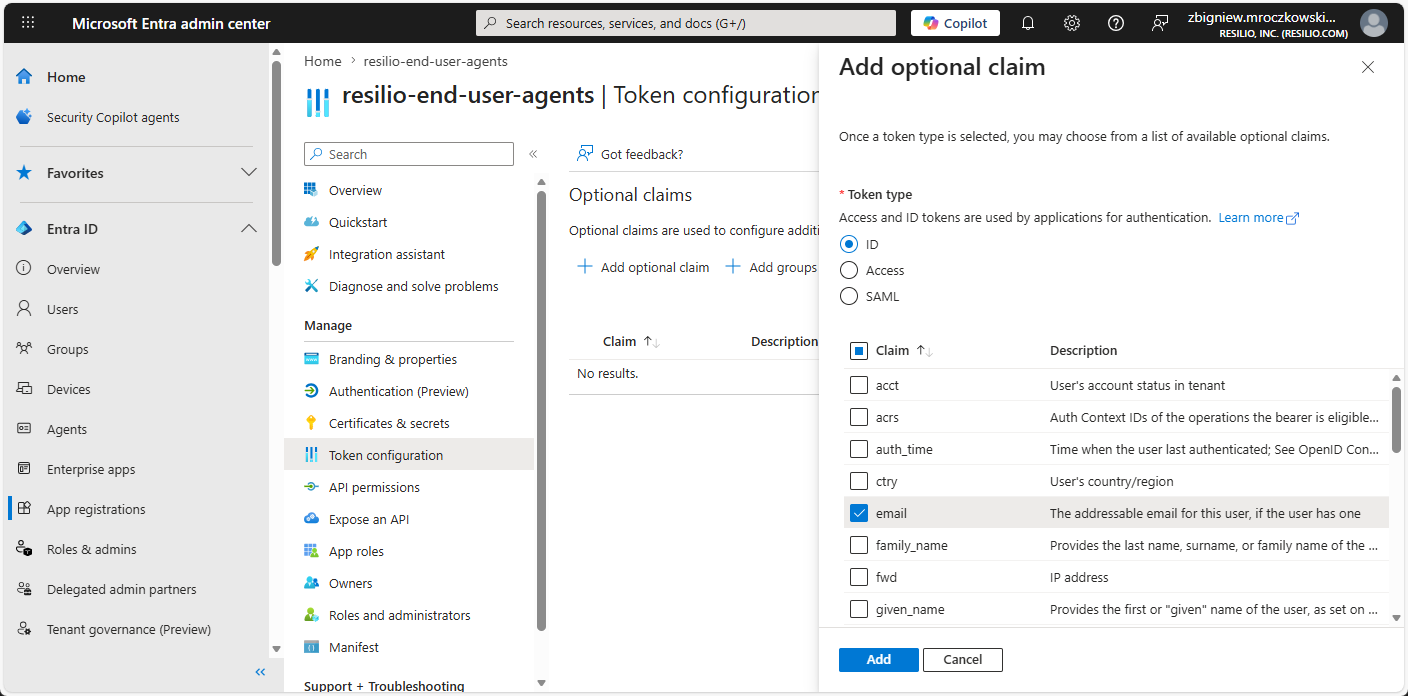
(Optional) Add custom token claims to the registered application:
- In the registered application, select Token configuration > Add optional claim.
- In the opened pane, choose the ID token type, select desired claims and click Add.
-
In Management Console, select Settings > Agent Authentication.
- In the Microsoft Entra ID section, click Configure.
-
Provide your application's Client ID and Metadata URL, then click Save.
- Client ID – Your enterprise application ID, that you can find in Microsoft Entra ID center on the application overview page.
- Metadata URL – The URL to the OpenID Connect metadata document for your enterprise application, which can be found in the Endpoints section of the application overview page.
Related topics: