Transparent Selective Sync (TSS) on Windows
Transparent Selective Sync (TSS) allows end-users to work with files in a job folder without downloading them first. It provides a seamless experience where files appear as if they are present locally, but they are actually downloaded on-demand when accessed.
Important
-
Don't run two Agents with TSS on the same computer
Running two Agents, with at least one of them in Transparent Selective Sync mode, on the same computer is not supported. -
Possible conflict with OneDrive
Configuring Agent to synchronize a OneDrive folder with 'on demand' files won't work - these files won't be uploaded and the job won't be completed. -
Deployments on VMware virtual machines
When using Transparent Selective Sync (TSS) on Windows 10, 11, or Server 2022+ running inside a VMware virtual machine, make sure the virtual disk is configured as Thick Provision Eager Zeroed. This disk type ensures that all disk blocks are fully allocated and initialized at creation time, which is critical for reliable file system behavior expected by the operating system. Other provisioning types, such as Lazy Zeroed or Thin Provision, may cause unexpected I/O errors when working with placeholder files created by TSS. These errors are specific to VMware environments and do not apply to physical machines or other hypervisors.
System and configuration requirements
System requirements
Transparent Selective Sync (TSS) works only on:
- Windows 10 20H2 (OS build 19042) and newer
- Windows Server 2022 (21H2) or newer with desktop experience (from release channel LTSC)
For Agents 5.0.9 and older, to verify if your Windows supports TSS, check for the existence of the C:\Windows\System32\cldapi.dll file.
TSS supports local NTFS file system, which can be accessed via SMB. It does not work on FAT32 and exFAT volumes.
Configuration requirements
Transparent Selective Sync (TSS) requires:
- Archiving feature enabled on Agents participating in File Caching and Hybrid Work Jobs.
- Max archive file age parameter value in the Agent Profile set to at least 1 day.
Managing files and placeholders
All files and subfolders are seen in a file manager with the availability attributes and context menu items mentioned below.
| Icon | Description |
|---|---|
| Always available on this device A file set to be always available on this device is stored locally at all times. If a file is updated on a remote Agent, the updates are automatically downloaded to this device and the previous version is placed in the Archive folder. In case of folders, the flag is propagated to its contents and applied to new files and folders. Note:
|
|
| Current version available on this device The version of the file available locally is its current (most up to date) revision. If the file is updated on a remote Agent, the file is automatically dehydrated and the currently stored revision is moved to the Archive folder (applicable to Resilio 4.0 and newer). Right-click the file and select Always keep on the device to have it automatically synchronized and available locally at all times. Note:
|
|
| Dehydrated A file placeholder, taking up only 1KB of storage, that can be be downloaded from remote Agent on demand. Note:
|
|
 |
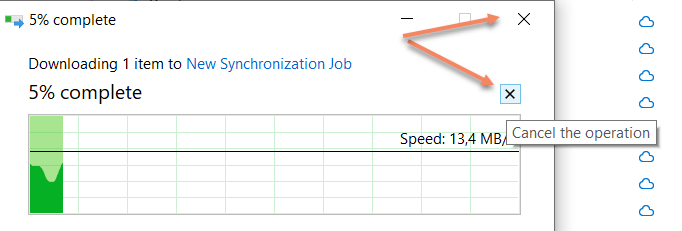
Synchronizing File is being downloaded and opened in an application. Cancelling download depends how the file download has been initiated:
|
| Pending synchronization File is being processed in any of the following ways:
|
|
| Ignored File has been excluded from synchronization via ignore rules. Note: Applicable to Resilio 6.0 and newer. |
Files can be managed through an application, or a file manager using context menu.
Note
These options are not available for files stored on Microsoft OneDrive shares when their full path exceeds 260 characters.
-
Always keep on the device – Makes the file always available on the device and automatically downloads any updates from remote Agents.
Note
- This option may fail to work if there's a non-Windows Agent participating in the Job and the Job has been configured to synchronize NTFS permissions.
- A false positive error Cannot finish file download - problem moving it to its location may occur if a small file is attempted to be downloaded right after appearing in the Job folder; the file should be downloaded automatically a few seconds later.
-
Free up space – Transitions the file to dehydrated state to minimize the space it occupies.
Note
- The file is not moved to the recycle bin.
- When the request to free up storage space is being processed, the file's remains in state. Once it's processed, it changes to .
- If Free up space is performed on a folder, all items in it are offloaded but browsing its contents is still possible.
- The file won't be dehydrated if it's opened in an application and will keep showing until the application is closed and the request has been processed.
- The file won't be dehydrated until it's uploaded to one of the Priority Agents participating in the Job. For more information, see File will be reverted to placeholder automatically once it is synced to at least one of the configured main servers.
- Files free up space if the cleanup timeout is configured in the Agent profile, but do that only when the folder is rescanned periodically or manually. Files with the status "Always available on this device" are not cleaned up.
Double-clicking on a file a placeholder file initiates file download. Once the file has been downloaded, it transitions to the state.
Resilio 5.0.9 and older
In Resilio 5.0.9 and older, file download may be delayed by up to 60 seconds due to a peculiarity of Microsoft's Cloud Filter API.
Deleting a hydrated file moves it to the Recycle Bin and propagates this deletion to remote Agents which move the file to the Archive folder.
Important
- Deleting a file does not change it to a placeholder .
- Placeholder files are removed from the file system without being moved to the Recycle Bin.
When the Job is deleted, all placeholder files are removed from the file system, but the hydrated files are kept intact.
Network shares
A folder with enabled TSS is available over SMB and files are accessible, but with some limitations:
- Placeholders will be created in the TSS share and the user can download files by double-clicking them, but there will be no context menu for those placeholders.
- If the file is not available for download and gives an error shortly after Job creation until the Agent completes the initial scan.
Resilio 5.0.9 and older
Resilio Agent 5.0.9 and older cannot create a TSS folder on a network share, it must be stored on the local file system.
Peculiarities and limitations
- Changed file attributes (timestamps, permissions) are not synced from a placeholder to remote Agents until the file has been downloaded and it's available locally. To propagate those changes to remote Agents, attributes must be changed after you download the file. Otherwise, changes will be overwritten after the file download completes.
- The Archive folder does not store file revisions for files that have been changed locally. Only remote Agents process file deletion by moving them to the Archive folder (applicable to TSS folders in Resilio 4.0 and newer deployments).
- Due to Archive limitations, file edit collision detection does not work on TSS shares on Windows Agent older than 4.0.
- Options to always keep files or free up space are not available for files stored on Microsoft OneDrive shares when their full path exceeds 260 characters.
-
It's not possible to use apply TSS on a root of a mounted network share (
Z:\foo), Agent will report a corresponding error
Note
For other TSS related errors, see Transparent Selective Sync: file system extensions errors.
-
TSS folder inherits attributes from a previous Job or an application that uses Microsofts Cloud Filter API (applicable to Resilio 5.0.9 and older). In other words, if an attribute was set on a folder (Always available on this device, Available on this device, or Available when online) when a job is being created, the agent won't overwrite them and will follow those attributes. This may result in and unexpected behavior, for example, the files might be synchronized automatically. Check the existing flags using an elevated Command Prompt with the command
attrib. For more information, see Files are automatically synced in a newly created TSS job folder on Windows. - False positive error
Cannot finish file download - problem moving it to its locationmay appear if a small file is attempted to be downloaded right after appearing in a TSS folder; the file should be downloaded automatically a few seconds later.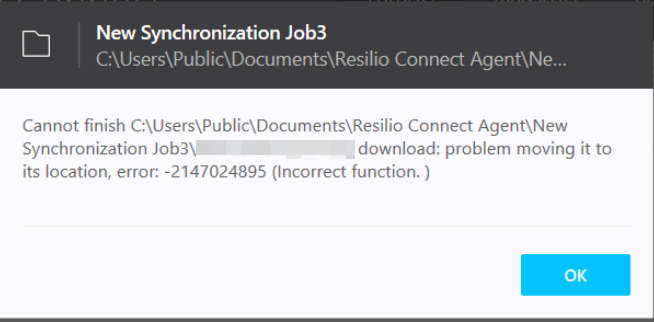
- In Enterprise Hybrid Work Jobs, file's
mtimeupdate on the Primary Storage Agent triggers dehydration of the file on end user Agents participating in the Job, even if the file is not modified. The file won't be rehydrated automatically until the end user Agent accesses the file.