Analytics
Feature availability
Available in Resilio 6.0 and newer.
Advanced analytics is a new framework for storing and processing events data that provides improved performance and scalability. It allows you to perform more complex queries and analysis on the events data that the Management Console receives from Agents.
Note
The events that Agents send to the Management Console are controlled by the Event filter parameter in the Agent profile.
UI Overview
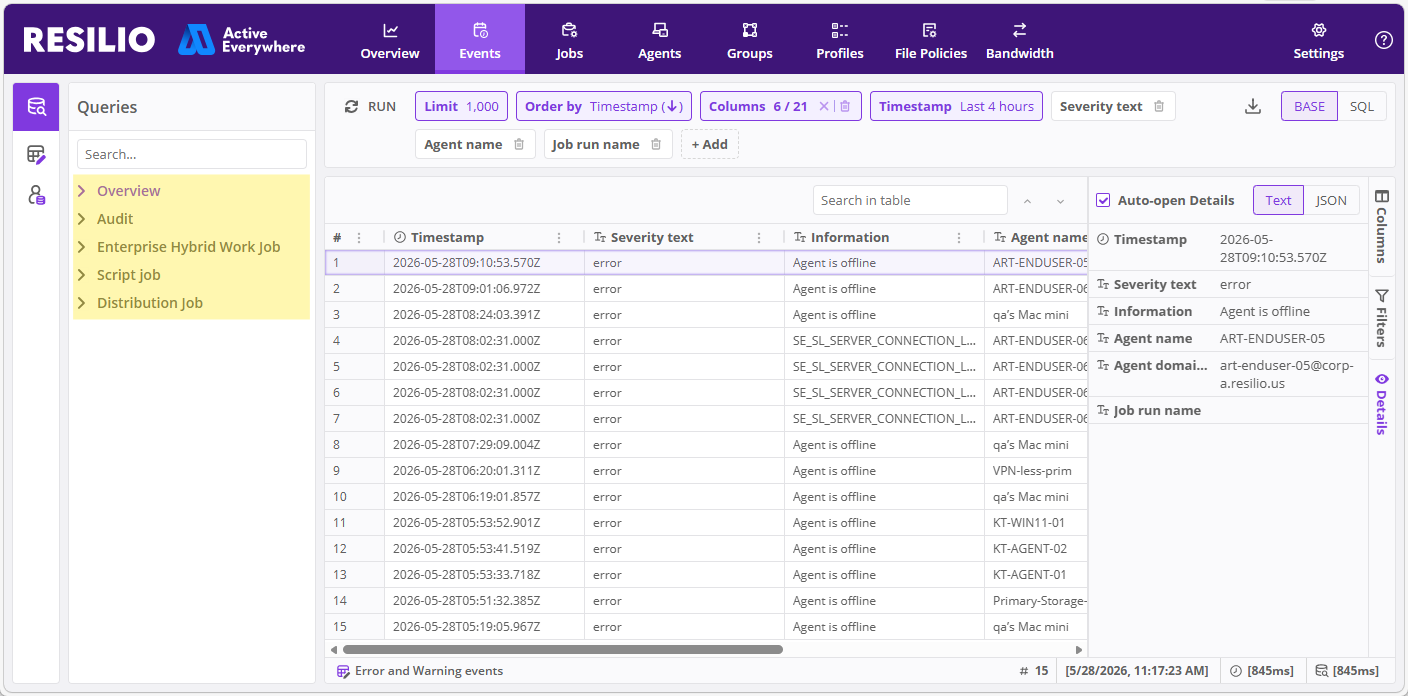
Queries
Run predefined audit queries about your Resilio deployment.
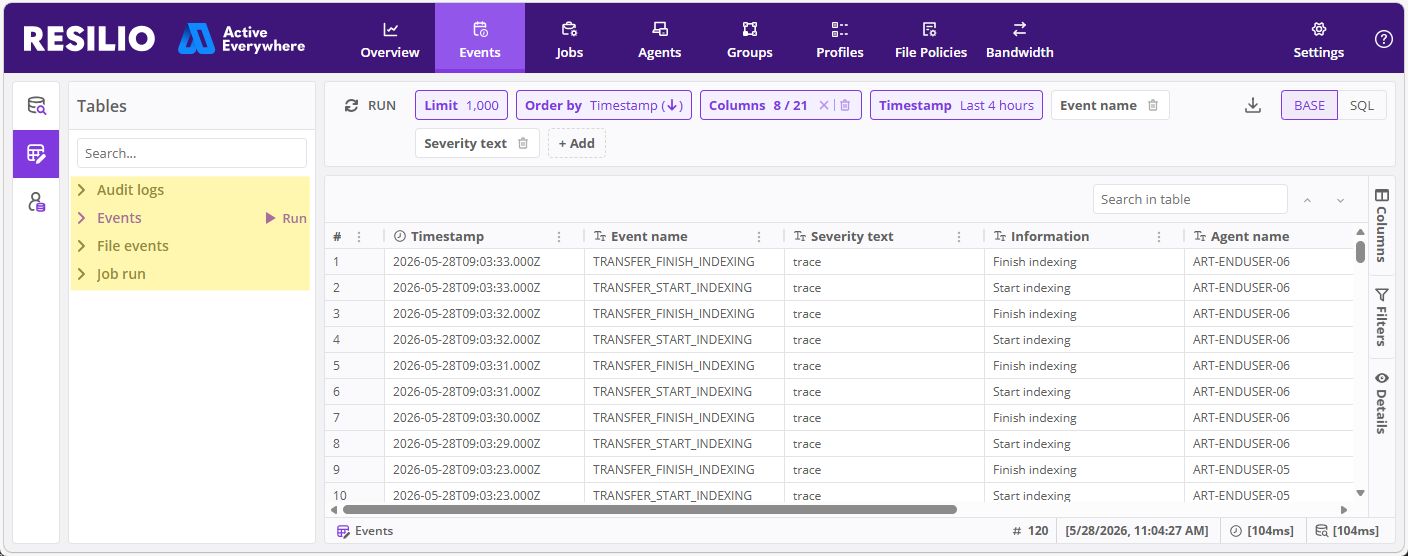
Tables
Retrieve Audit logs, Events, File events and Job run information.
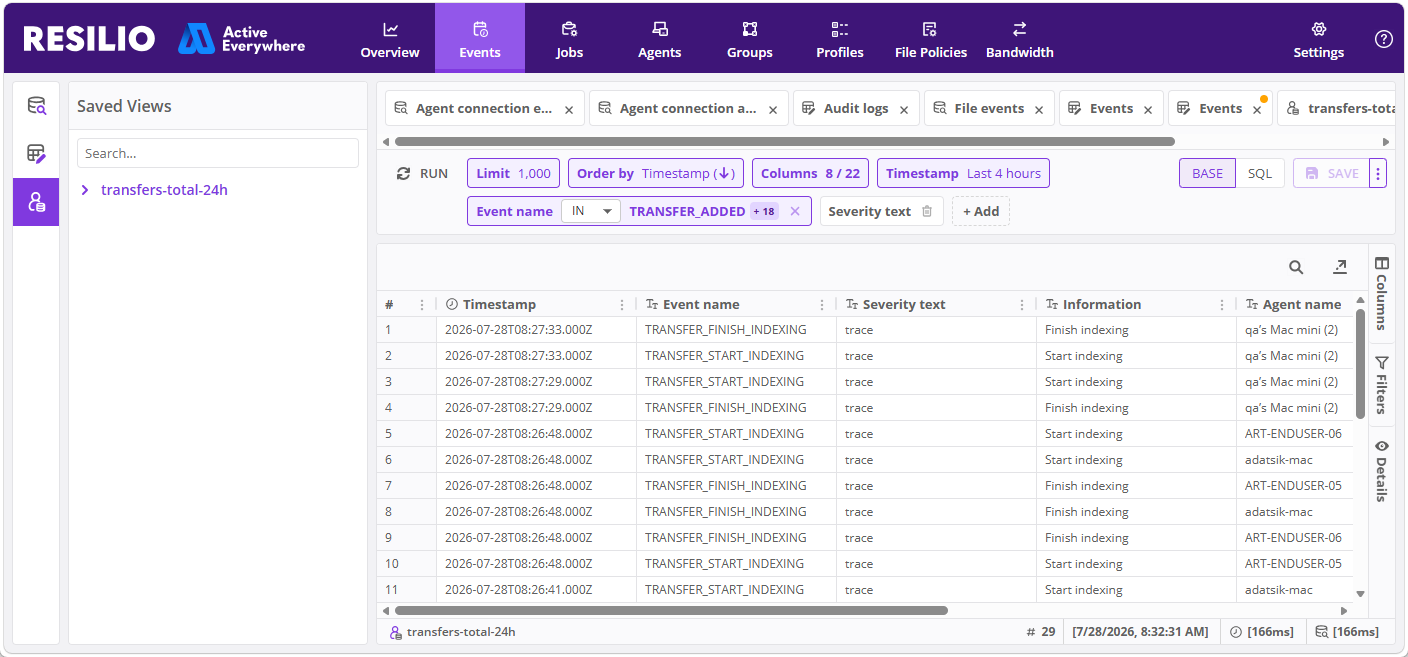
Saved Views
Define custom views to save filtering and column settings for future use.
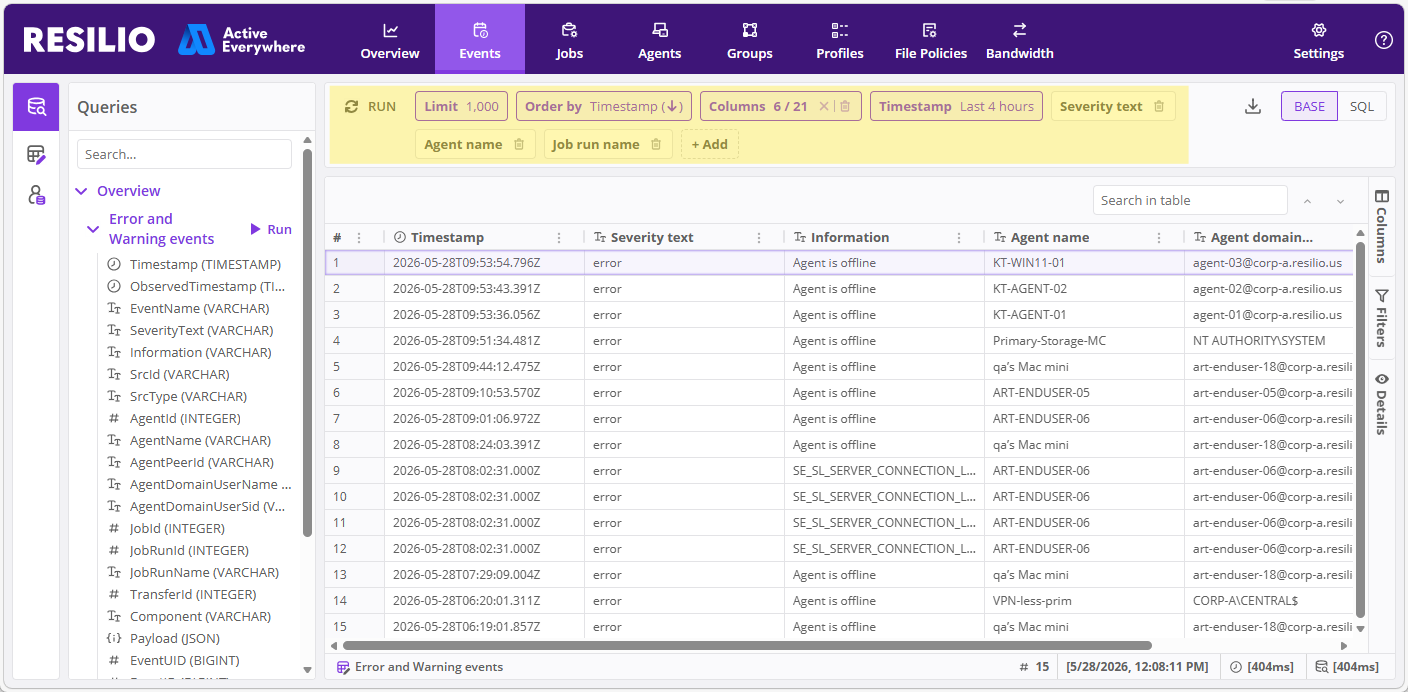
Filtering
Use built-in filters to narrow down the events data based on specific criteria.
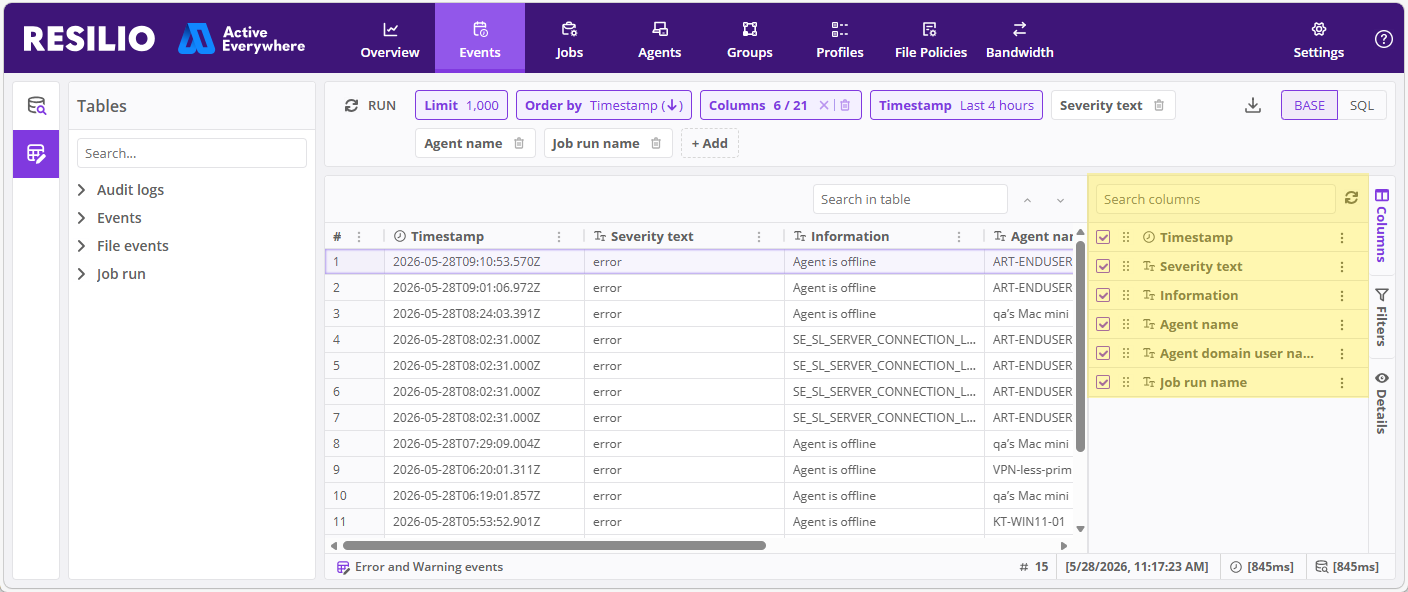
Columns, Filters and Details panels
Click Columns to customize the columns displayed in the events table.
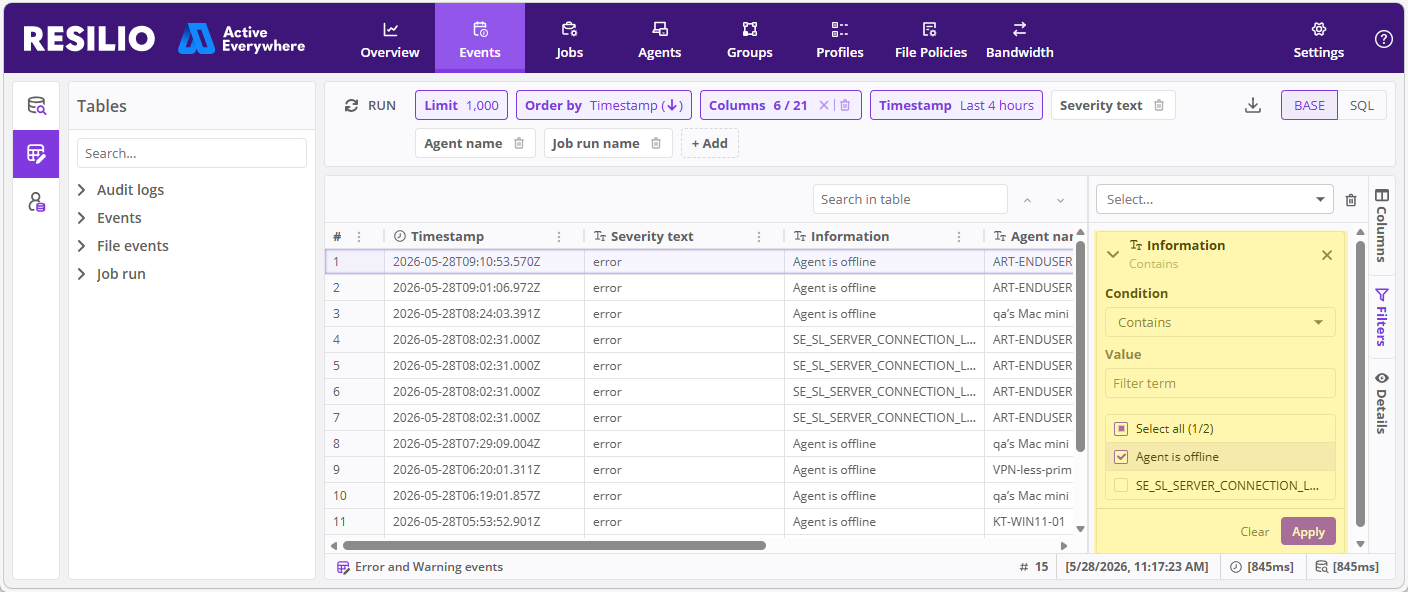
Click Filters to access built-in filtering options and create custom filters to narrow down the events data.
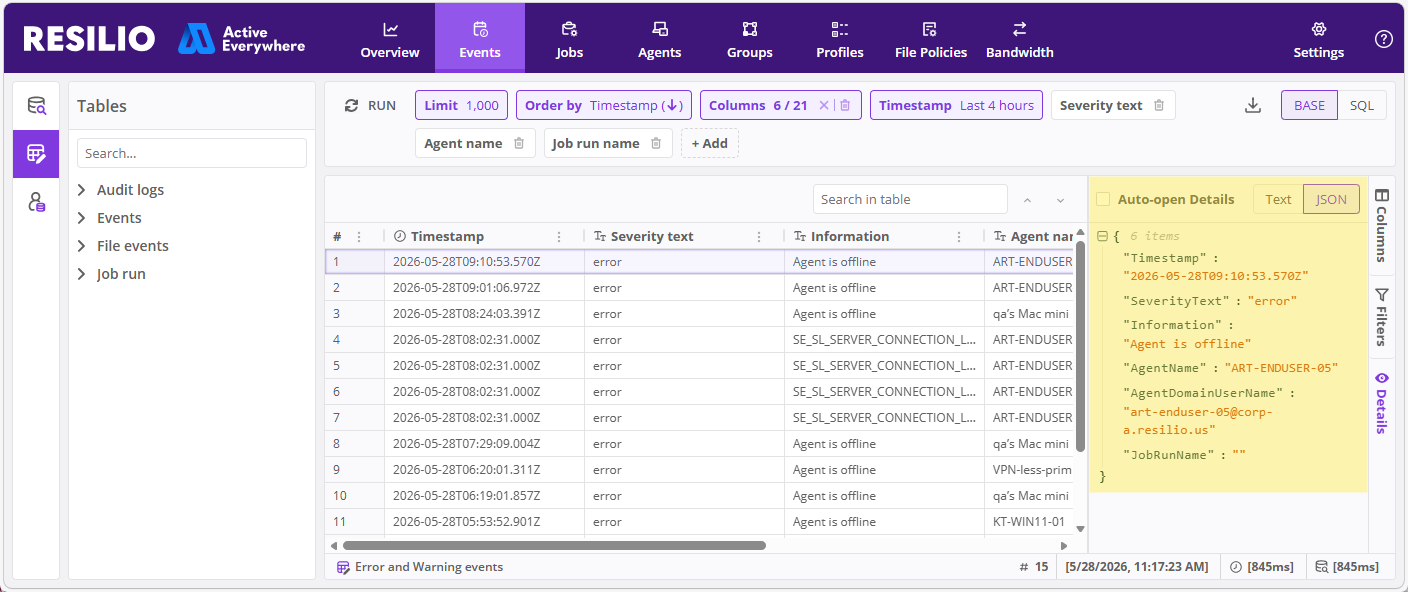
Click Details, then click a row or a cell to view detailed information about a specific event, in text or JSON format.
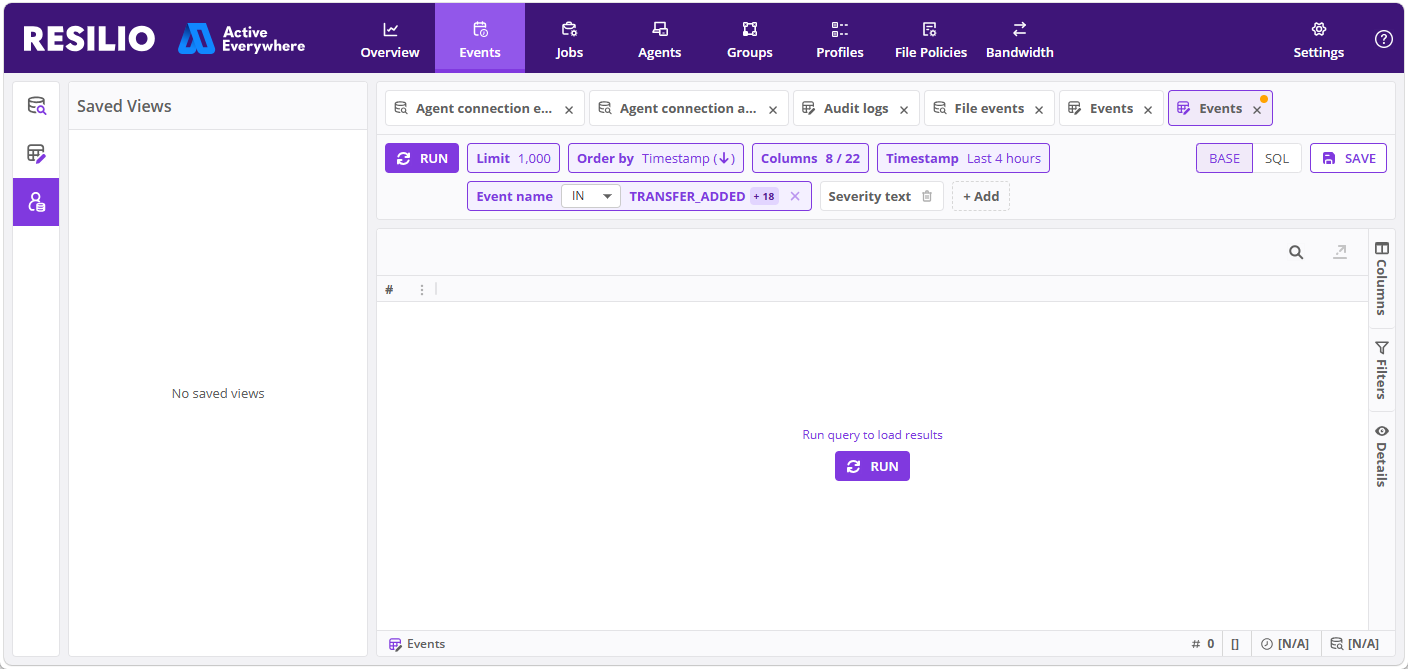
Define custom views
To define a custom view:
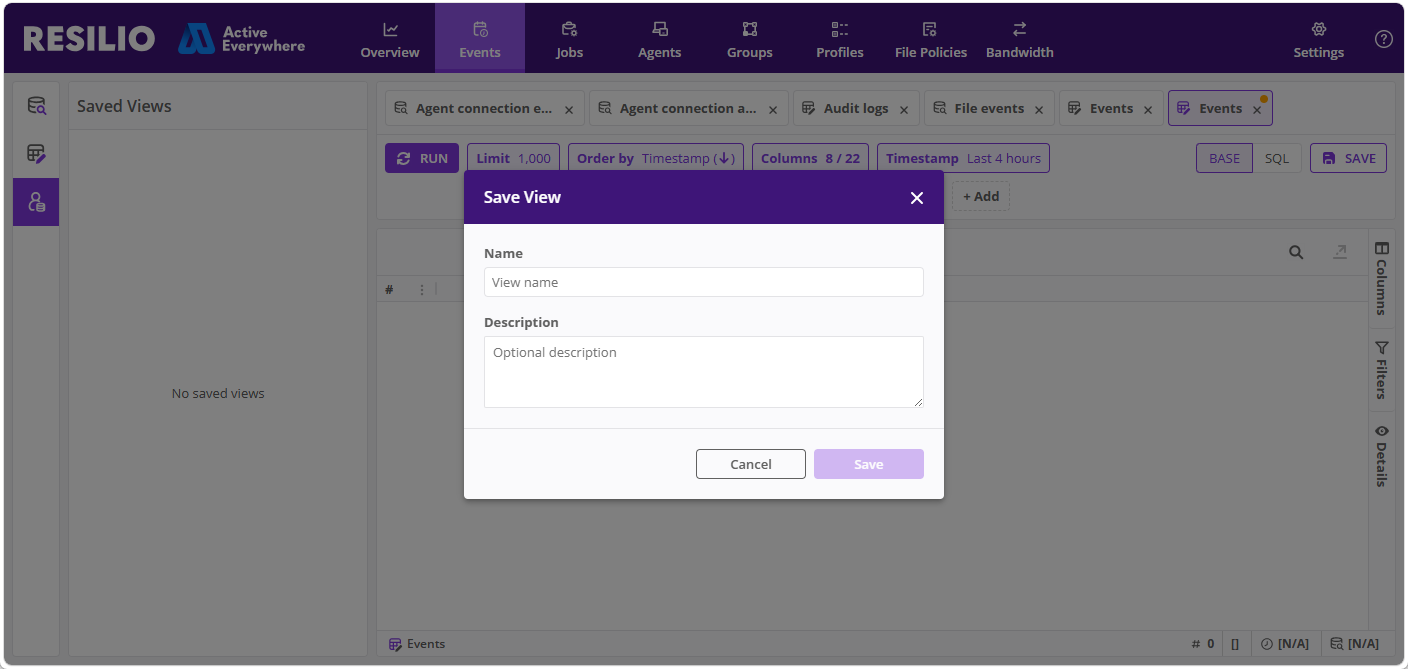
- In Management Console, select Events > Saved Views.
-
Define search conditions, then click Save.
-
Enter a name for the view and click Save.
Use cases
Determine who deleted a file and when
To determine who deleted a file and when:
- In the Events view, select File events.
-
Define filtering conditions:
- Event name:
FILE_DELETED - File path: name of the file that you want to retrieve
- Event name:
-
Click Run.
-
Analyze data in the following columns:
- Timestamp - Find out when the file was deleted.
- AgentName - Find out which Agent deleted the file.
Determine the list of files in a Job that has been deleted
Prerequisites:
- The name of the Job that has been deleted.
To determine the list of files in a Job that has been deleted:
- In the Events view, select File events.
-
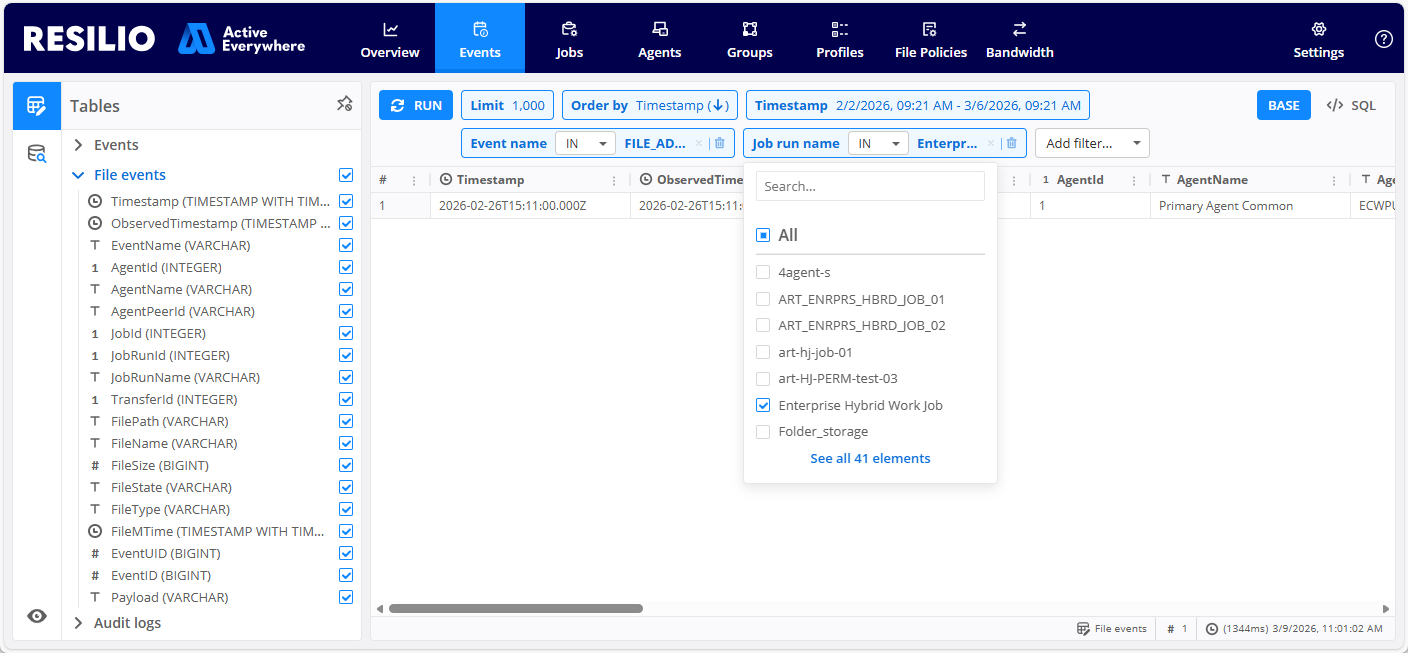
Define filtering conditions:
- Event name:
FILE_ADDED -
Job run name: name of the Job
Tip
Select the Job from the list.
- Event name:
-
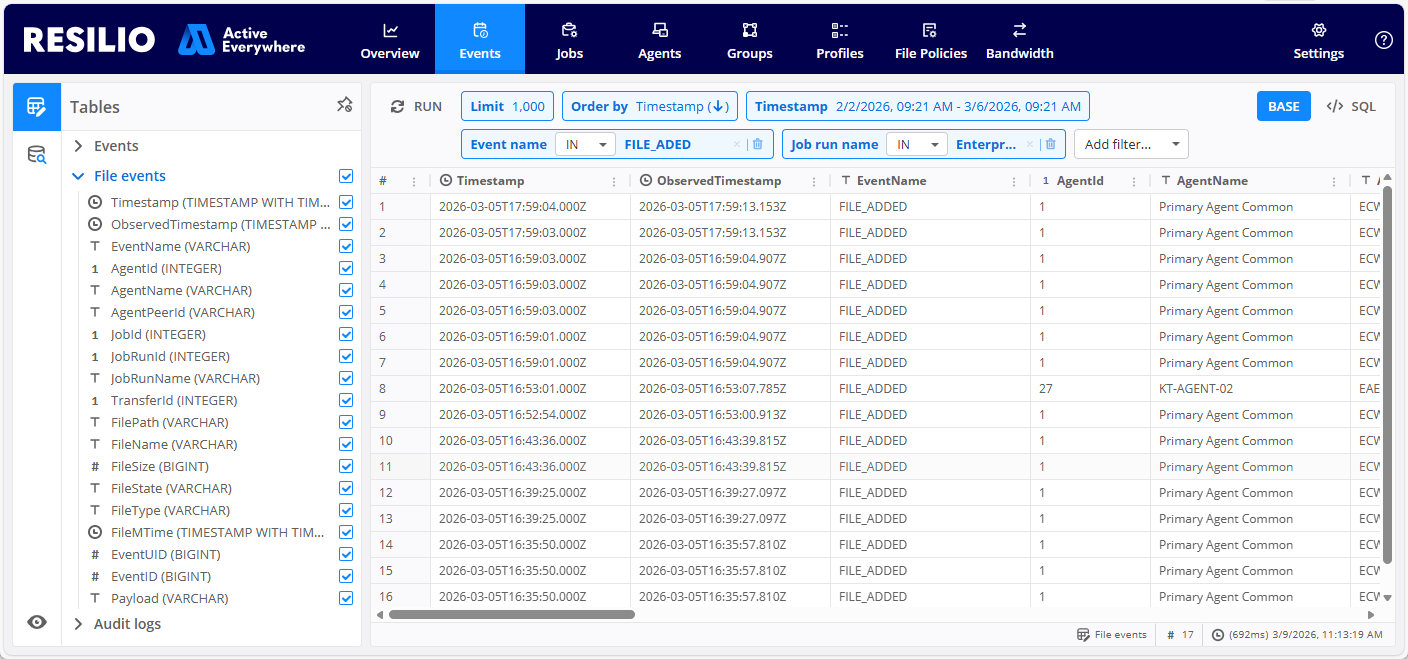
Click Run.
- Assemble the list of files that have been added to the Job in question based on the FilePath and FileName columns.
Determine the list of files that have been synchronized in a specified time period
To determine what files have been synchronized in a specified time period:
- In the Events view, select File events.
-
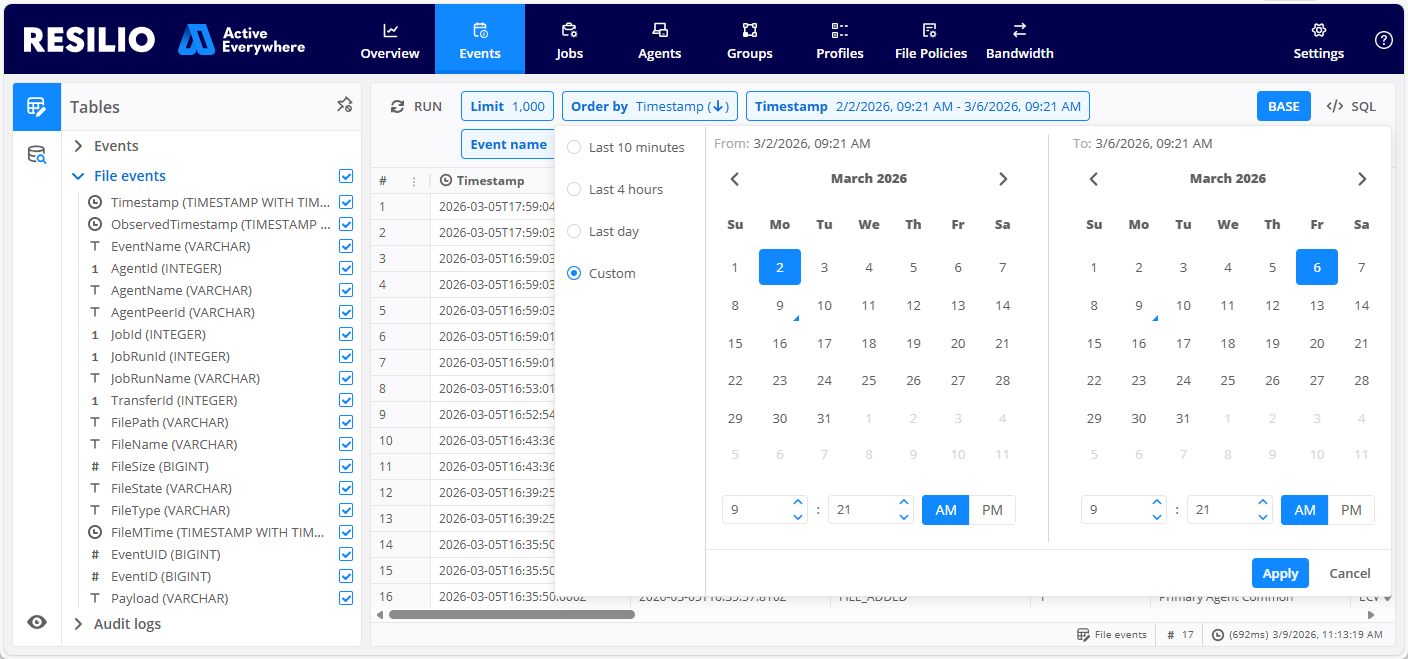
Define filtering conditions:
-
Event name:
FILE_UPDATED,FILE_PRE_SEEDED,FILE_DOWNLOADEDNote
FILE_UPDATEDFILE_PRE_SEEDED- Indicates that the file was not transferred over network but was pre-seeded on the Agent, for example, by copying the file to the Job folder.FILE_DOWNLOADED- Indicates that the file was transferred over network and downloaded to the Agent.
-
Timestamp: custom time interval
-
-
Click Run.
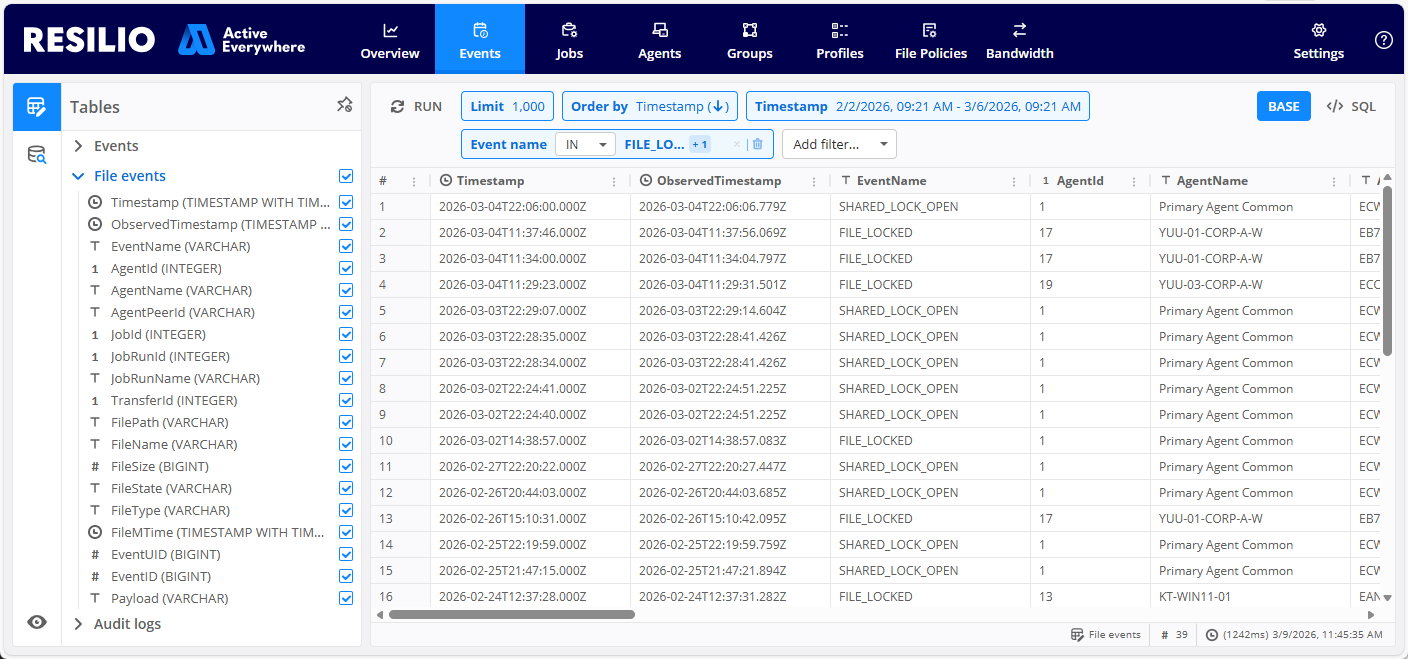
Find out what files have been locked and by whom
To determine what files have been locked and by whom:
- In the Events view, select File events.
-
Define filtering conditions:
- Event name:
FILE_LOCKED,SHARED_LOCK_OPEN
- Event name:
-
Click Run.
- Analyze the list of locked files and the Agents that locked them.
Investigate filename conflicts
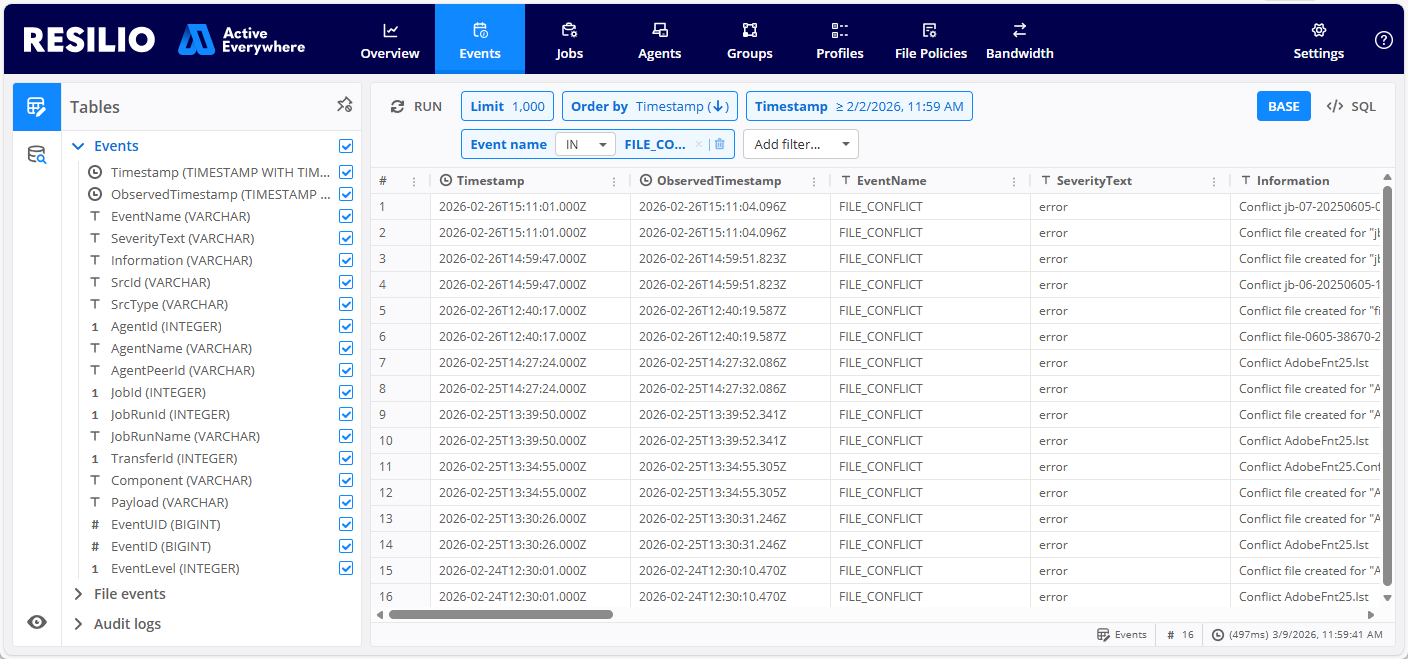
To determine why a filename conflict has occurred:
- In the Events view, select Events.
-
Define filtering conditions:
- Event name:
FILE_CONFLICT
- Event name:
-
Click Run.
- Analyze the results.
Troubleshoot high network and storage utilization
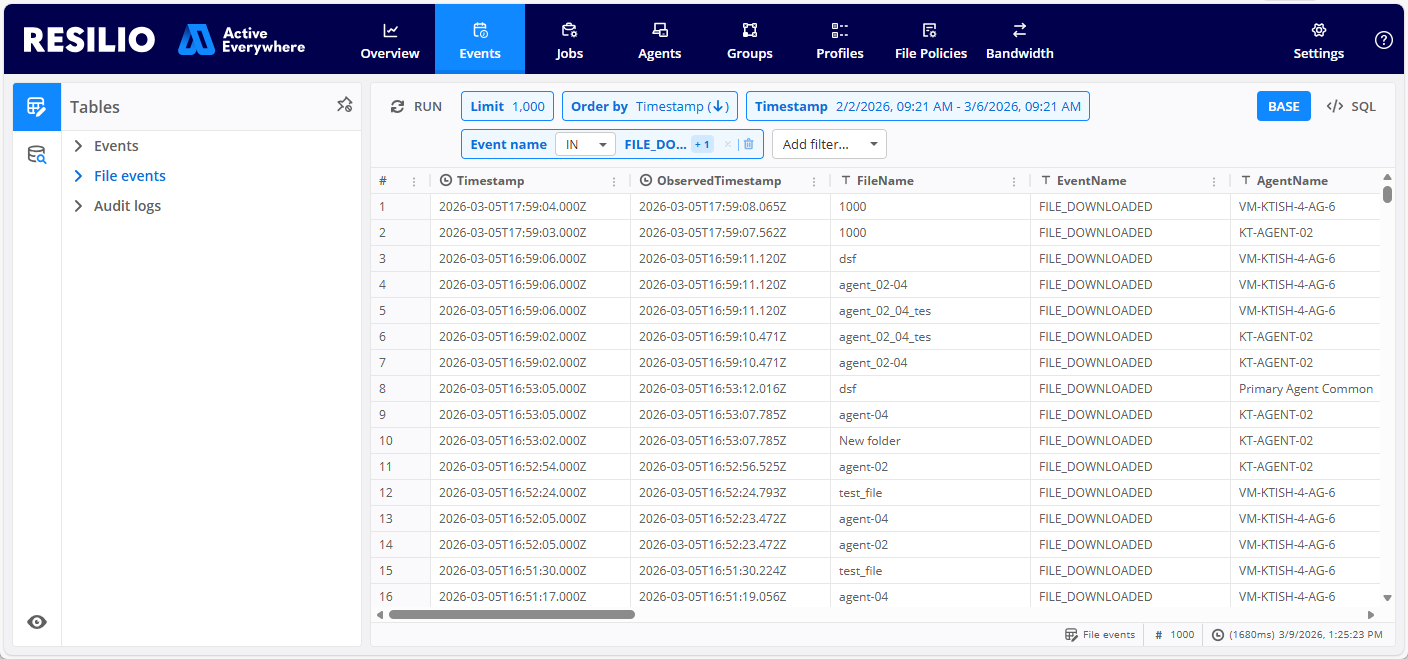
High network and storage utilization are usually caused by frequently updated and downloaded files. To troubleshoot high network and storage utilization, determine the most frequently updated and downloaded files:
- In the Events view, select File events.
-
Define filtering conditions:
- Event name:
FILE_UPDATED,FILE_DOWNLOADED - Timestamp: custom time interval
- Event name:
-
Click Run.
- Analyze instances where these events occur multiple times for the same file.
Track down the latest version of a specific file
To find the latest version of the file:
- In the Events view, select File events.
-
Define filtering conditions:
-
Event name:
FILE_UPDATED,SHARED_LOCK_OPEN,FILE_LOCKEDNote
Apply the
NOT INoperator for these events to exclude them from the results. -
File path: name of the file that you want to retrieve
-
-
Click Run.
- Analyze
FILE_DOWNLOADEDevents to determine which Agent has the file in question.
Find information on a specific file
To find information on a specific file:
- In the Events view, select File events.
-
Define filtering conditions:
- File path: name of the file that you want to retrieve
-
Click Run.
- Analyze the results.
Determine if a file was deleted
To determine if a file was deleted, identify the Agent that deleted the file, and find out when it happened:
- In the Events view, select File events.
-
Define filtering conditions:
- Event name:
FILE_DELETED,FILE_ARCHIVED - Job run name: name of the Job
- Event name:
-
Click Run.
-
Analyze data in the following columns:
- Timestamp - Find out when the file was deleted.
- AgentName - Find out which Agent deleted the file.
- FilePath and FileName - Find out which file was deleted.
Retrieve events history for a specific file
To retrieve events history for a specific file for troubleshooting purposes:
- In the Events view, select File events.
-
Define filtering conditions:
- File path: name of the file that you want to retrieve events for
-
Click Run.
- Analyze events to determine what and when has happened to the file in question, including when it was added, updated, downloaded, locked, and by whom.
A file has not been downloaded due to insufficient permissions
To retrieve files that have not been downloaded due to insufficient permissions:
- In the Events view, select File events.
-
Define filtering conditions:
- Event name:
CANT_MOVE_SUFFIX,FILE_NO_PERMISSIONS
- Event name:
-
Click Run.
- Analyze events to determine the files that Agents cannot download due to insufficient permissions.
Audit Agent connection attempts
To retrieve information on Agent connection attempts:
- In the Queries view, select Audit, then hover over Agent connection attempts and click Run.
- (Optional) Define filtering, then click RUN to retrieve the results that match the filtering conditions.
Known issues and limitations
- There's no option to limit the size the analytics database takes up on the Management Console host.