Resilio Agent UI
Overview
Resilio Agent UI is a desktop application for Windows and macOS that enables monitoring of Jobs that the end user Agent participates in.
Enabling the Agent UI
Using configuration file
Enable Agent UI on already deployed Agents
To enable the Agent UI on already deployed Agents, locate and open the Agent configuration file, then add the "use_gui":true parameter.
Example: sync.conf Agent configuration file
Tip: Mass-update Agent configuration file
You can use a Distribution or a Run Script Job to mass-update Agent configuration file. For details, see Updating Agent configuration file.
Enable Agent UI on new installations
- Generate the configuration file, make sure to select the Enable Agent UI option.
- Download and place the Agent’s configuration file in the same folder as the MSI installer, then run the installer.
-
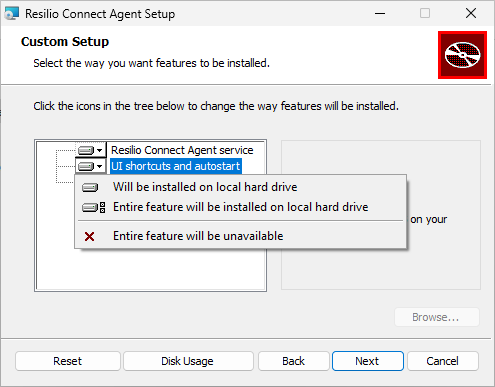
When selecting options, make sure to select the UI shortcuts and autostart option.
Windows Active Everywhere Agent characteristics
Note
Applicable to Active Everywhere 5.0 and older.
- Agent installs and runs as a Windows Service. It also creates a desktop shortcut that launches the user-interface. Agent icon also appears in tray.
- On Windows, the user-interface is just an additional feature to the Windows Service, and spawns a separate process from the
C:\Program Files\Resilio Connect Agent\Resilio Connect Agent.exefile, same as the service itself. - It runs only in current user's session and not available for others. Trying to launch another UI process in a different user session will give the corresponding error.
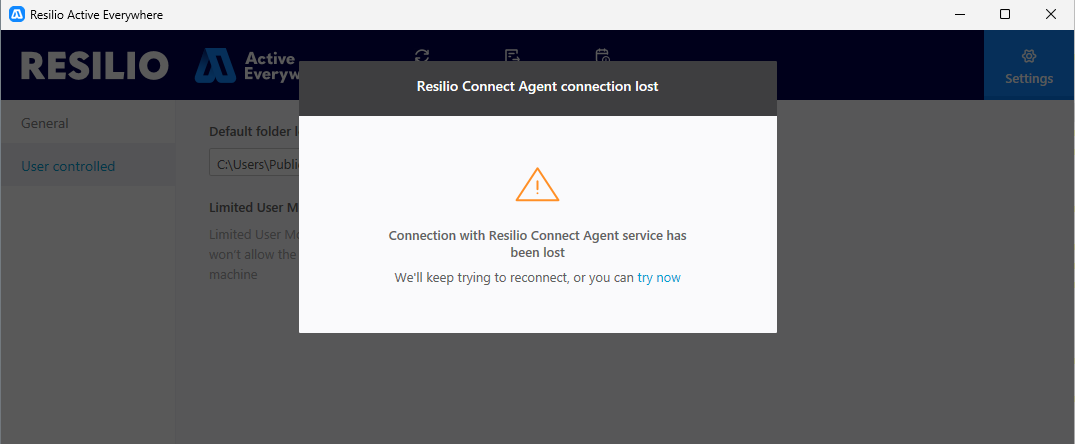
- The Agent UI does not work if the Agent service is not running. Trying to open the Agent UI without the Agent service running will result with the following error message.
- The Agent service is not dependent on user-interface module. Even if you quit the user-interface, the Agent service will continue working and syncing files.
Using simple mode
Applicable to new installations, connecting to the Management Console using its hostname or IP address.
Agent UI in Resilio 6.0 and newer
In Resilio 6.0 and newer, Agent UI is enabled by default for the End-User Agent installation.
To enable Agent UI on Active Everywhere Agents 5.0 and older:
-
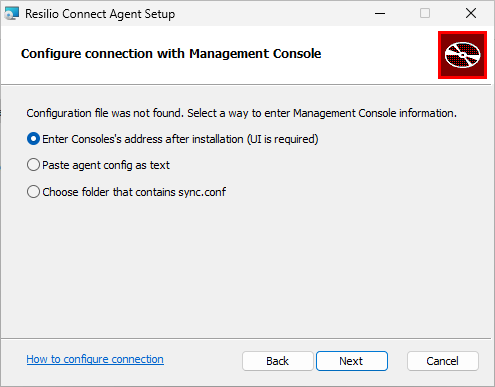
In installation wizard select option to enter Console's IP address manually, and the Agent UI will be enabled automatically.
-
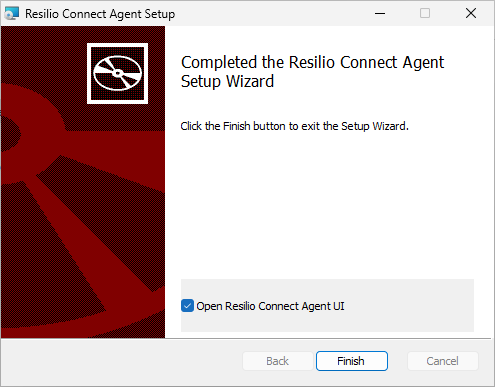
Proceed with installation. On Windows, keep the Open Resilio Connect Agent UI option enabled.
Agent UI overview
Resilio 6.0 and newer
Folders
The Folders tab shows the list of folders based on the Jobs that the Agent participates in.
- Folder name – Job folder location on the local file system.
- Status – Current Job status.
- Size – Total size of the Job folder, or size of cached files in the Enterprise Hybrid Work Job, including partially downloaded files.
- Speed – Current upload and download speed.
- ETA – Estimated time to complete active data transfers.
Tip
- Click the folder name to open the folder in file browser.
-
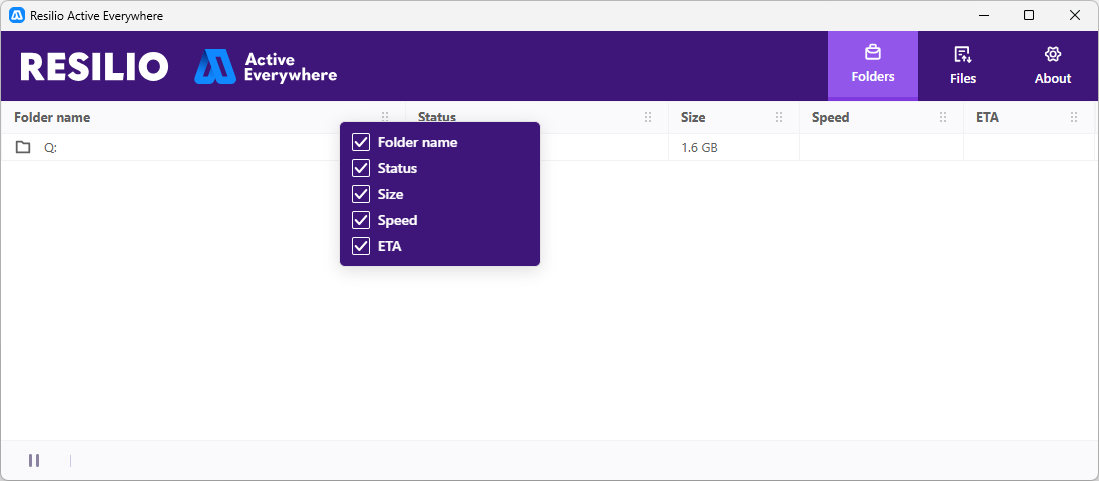
Right-click the table header to select the columns to be shown.
-
Drag and drop the columns to change their order.
- Click the error status to see the details.
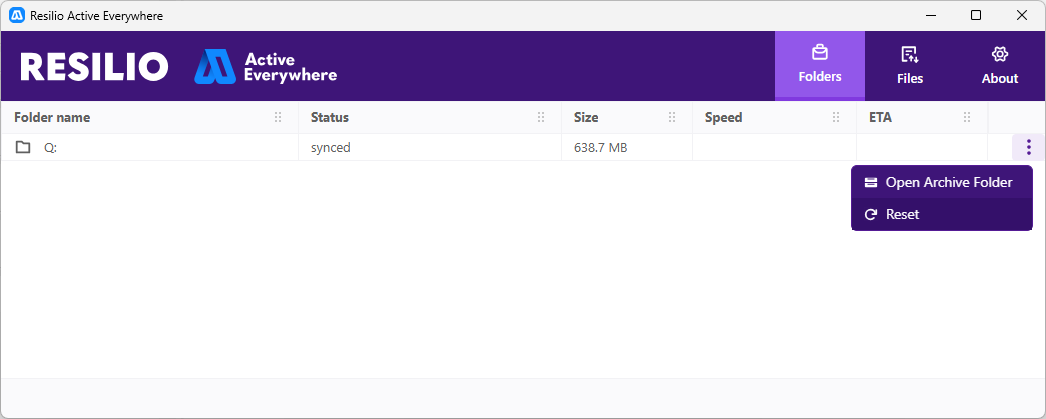
- Click to access the options to open the Archive folder, or reset the Enterprise Hybrid Work Job.
Files
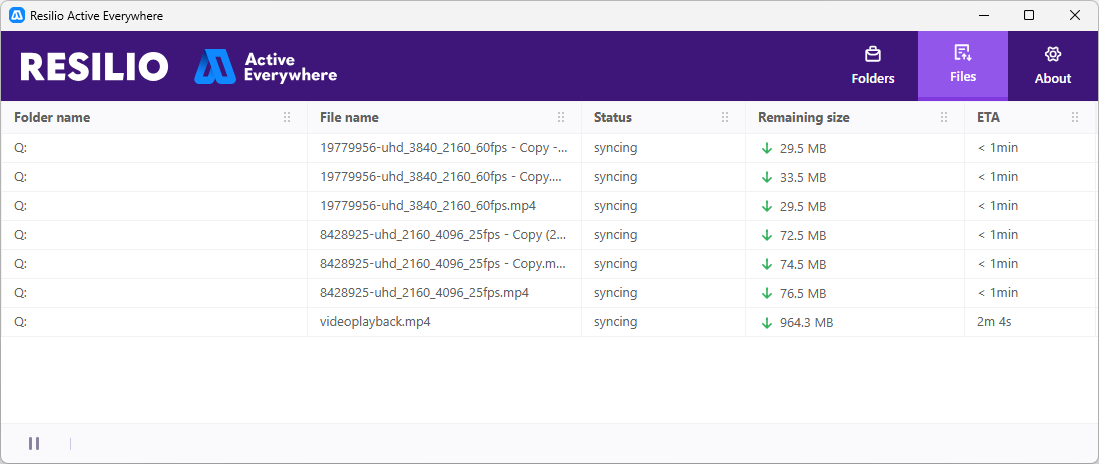
The Files tab shows the list of files that are being transferred in the Enterprise Hybrid Work Job. It also shows the list of files that are pending for transfer in the upload and download queues.
- Folder name – Job folder location on the local file system.
- File name – Name of the file being transferred.
- Status – Current file transfer status.
- Remaining size – Remaining size of the file.
- Speed – Current upload and download speed for the file.
-
ETA – Estimated time to complete the file transfer.
Note
Small files may be transferred too quickly to estimate their ETA.
About
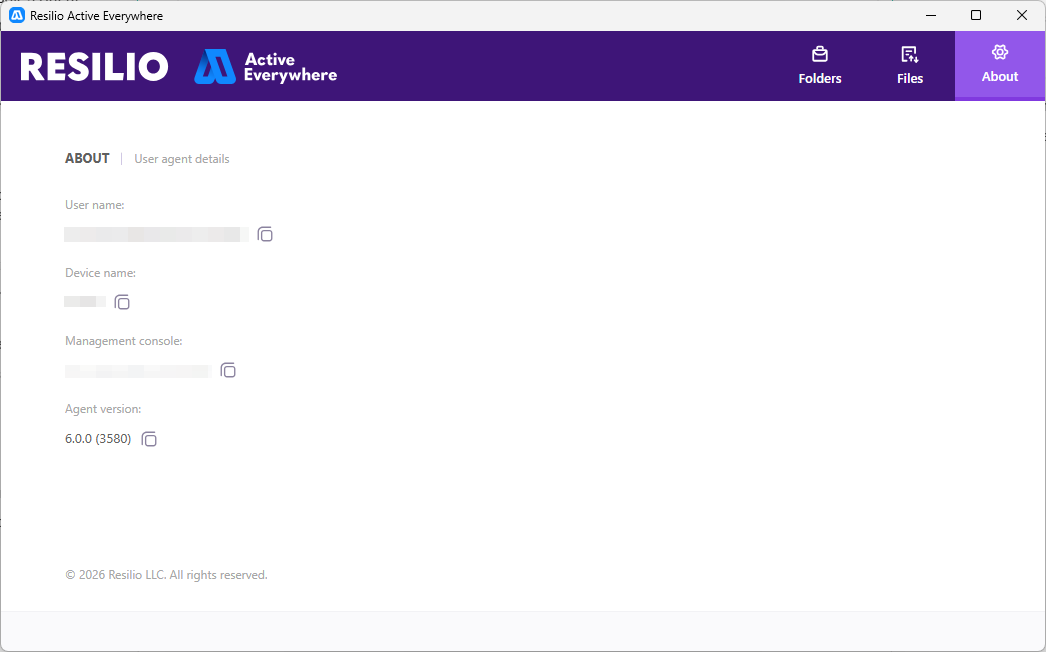
The About tab contains the end user Agent information, including the name of the user account that was used to connect to the Management Console, name of the device, Management Console address and the Agent version.
Active Everywhere 5.0 and older
Agent user-interface is html based. It has tabs: Folders, Transfers, History and Options. Folders tab lists the sync shares and shows their status. Transfers tab shows transfer job runs (Distribution and Consolidation) and Script jobs. History is the list of events for this Agent, it’s a good source to trace the syncing activity for the last 30 days (or last 20K of events). Options keep some of changeable settings: device name, connectivity to the Management Console, bandwidth scheduler, default folder location and permissions for the MC Admin.
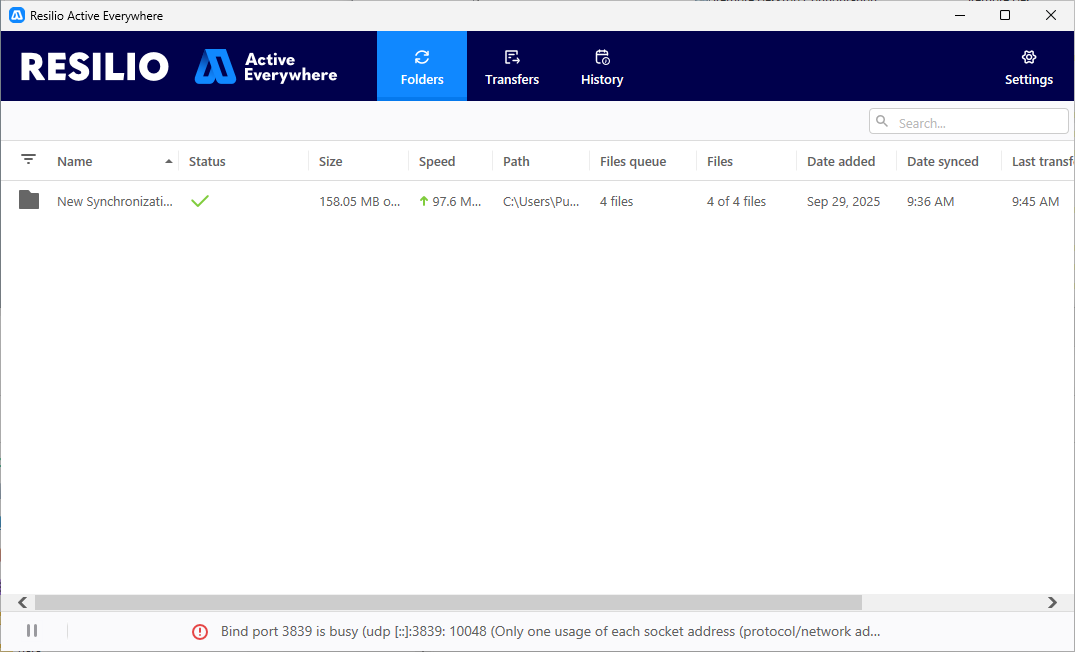
Folders/Transfers tab have the following columns:
-
Name – Name of the folder selected for synchronization on this device. Clicking on the folder name opens the folder in file browser. Right-click on the folder name gives option to open its Archive (works only for sync jobs). Folders with Transparent Selective Sync (on Windows) or (on mac OS) enabled don’t have background filling.
-
Status – All these reflect status toward the Priority Agent if it's selected for the job. Synchronization errors and file warning appear in this columns. The File warning are only kept for active job runs on tab transfers, and are removed from Agent UI once the job run is completed or aborted.
- Size/Local Size – Total size of the share, and the size of files present on this Agent. For shares with TSS enabled, it usually differs from total Size.
- Sending/Receiving – The current upload and download speed respectively.
- Path – Full path to the directory on the workstation.
- Upload queue/Download queue – The number of files pending in upload/download queue. Clicking on it opens the list of file that are being uploaded or downloaded. Only 10 currently active files are shown in the queue.
- Files/Local Files – The count of files in the share, total vs present on the Agent. For Selective Sync shares the count may differ even if status is ‘Synced’.
- Date added – Time when the job was created for this Agent and appeared here.
- Date synced – The date when Agent verified and confirmed that it’s synced up. Agent does it periodically every 10 minutes and upon restart. If status is ‘Synced’, it’s also duplicated at the bottom of user-interface and in tray icon menu.
- Last transferred – Date when file bits were actually transferred. Unlike “Date synced”, it only shows actual data transfer time. Thus it may be behind “Date Synced” if nothing has been actually transferred since then.
History tab shows synchronization events by event type for this Agent. By default the Agent keeps up to 20k of events but no more that for 30 days.
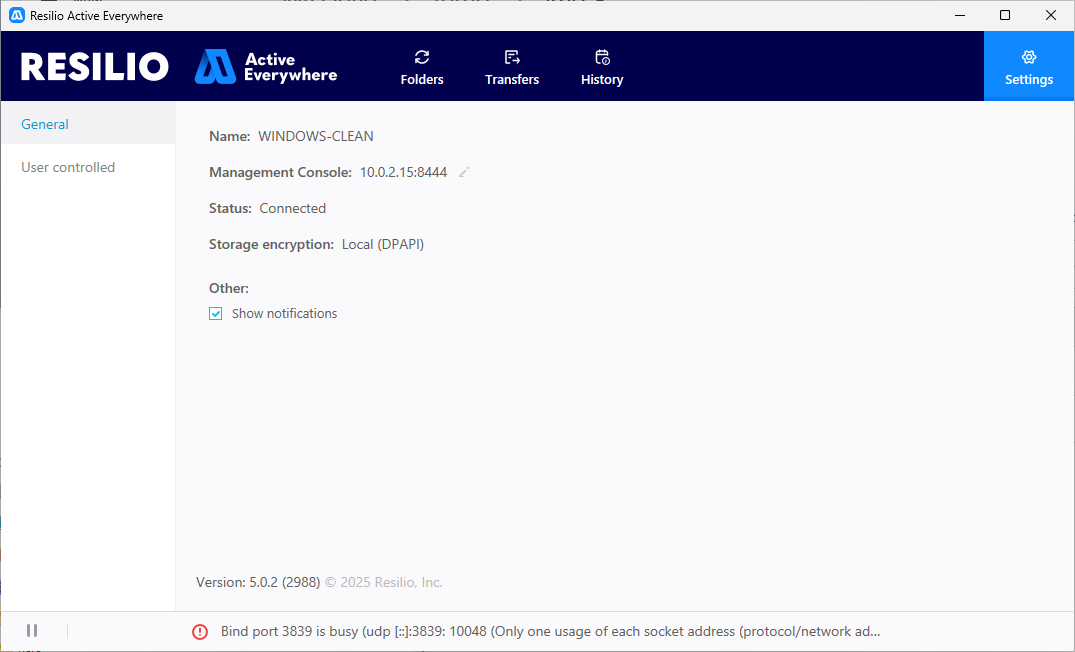
Options tab shows the following information
General: shows the Agent's name, version and status of connection to the MC.
It's possible to change MC address only if the Agent was initially connected without a configuration file. Show notifications, if enabled, let Agent show system events notification to the user about the Agent's activity.
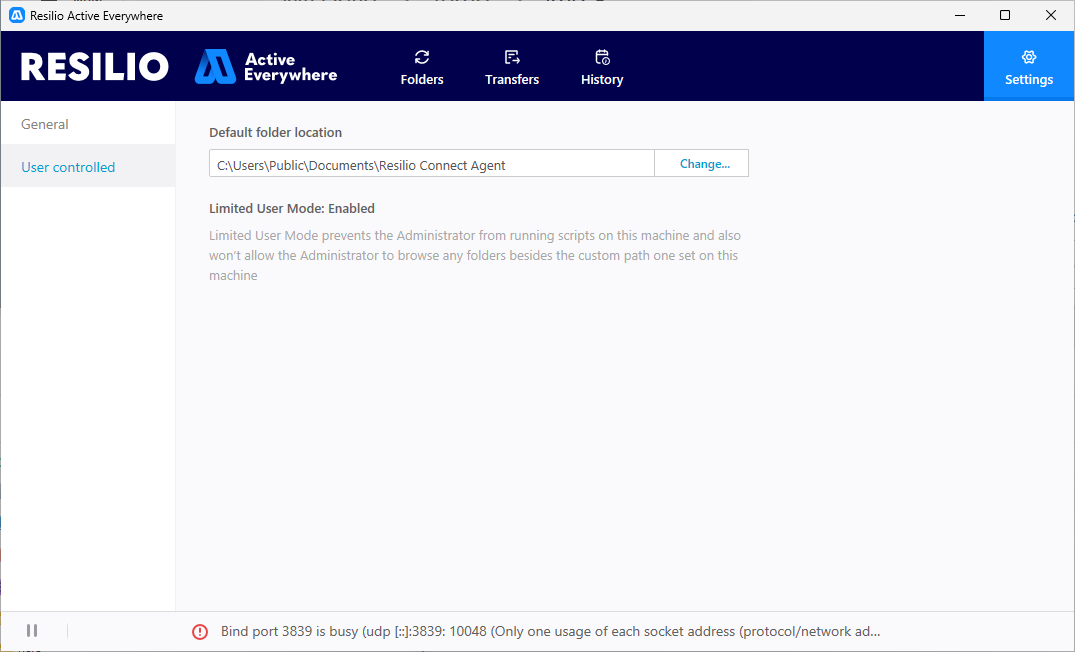
User controlled: allows to manage the behavior of the Agent independently of Resilio Admin. However, this is only if allowed from the Agent's Profile. For more information on bandwidth scheduler, see Bandwidth scheduler and pausing in the Resilio Agent UI. For more information on default folder location, see Limiting Admin Access To The Agent .
Pause data transfers
Feature availability
Not available in Resilio 6.0 and newer.
Option to pause the data transfers appears only if the administrator allows it in the Agent profile by enabling the Allow pause from Agent UI option. To pause data transfers, click in the bottom left corner of the user-interface.
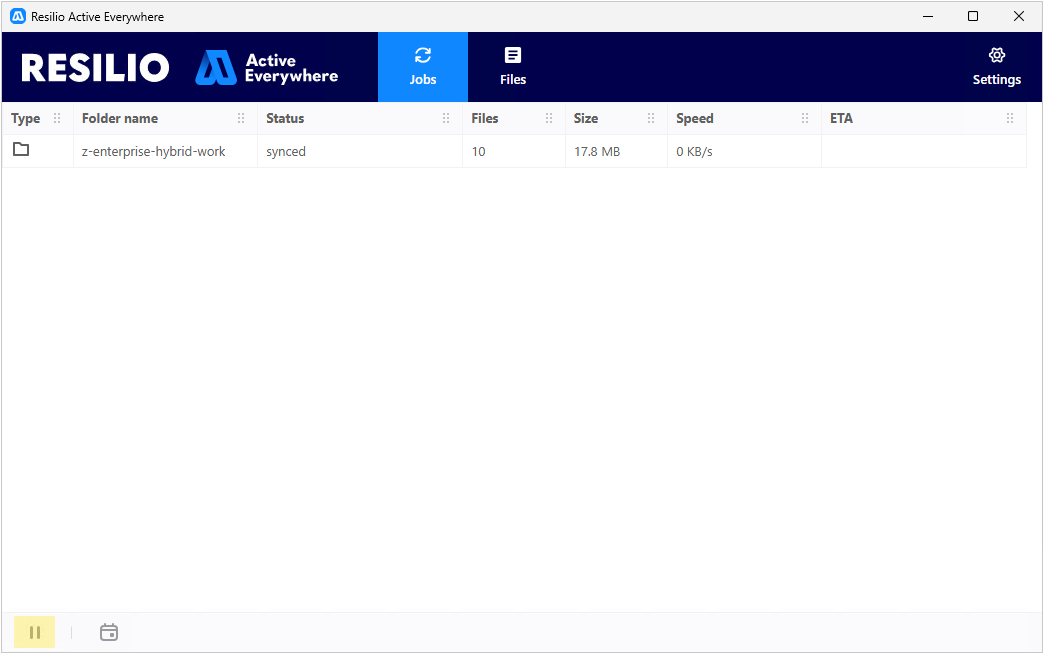
When the Agent is paused, the icon changes to providing the option to resume data transferring.
Agent paused by user vs admin
If the user pauses the Agent via the user-interface, the pause tooltip says Paused by user. If Agent pause has been scheduled in the Management Console, the tooltip says Paused by admin. These two pauses can overlap. For more information, see Bandwidth scheduler and pausing in the Resilio Agent UI.
Tip
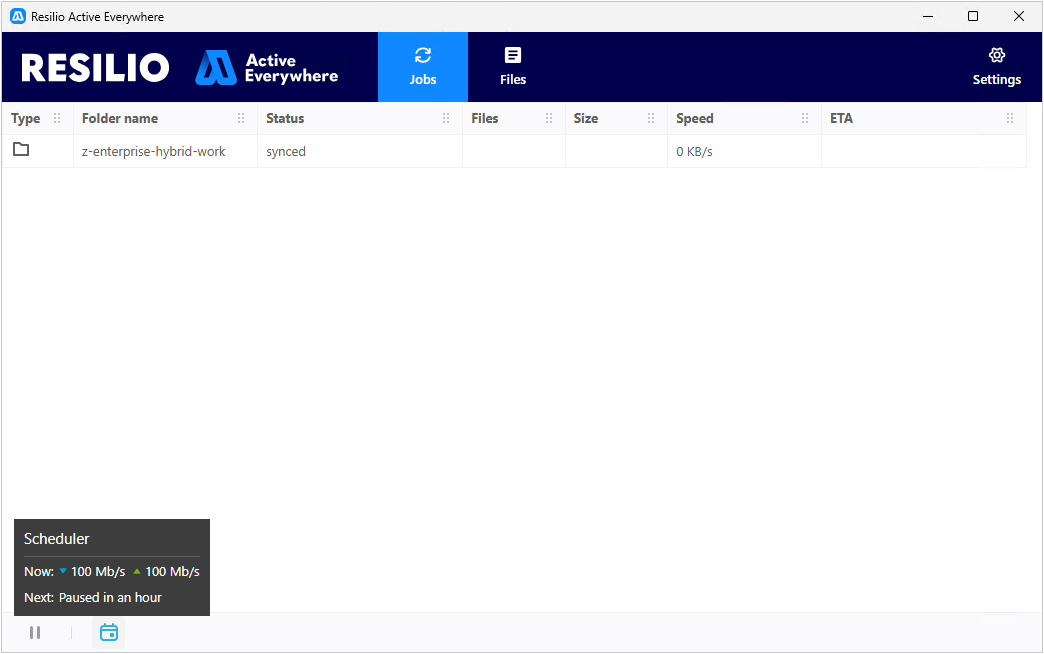
Hover over to see current schedule status and next scheduled time window.
Reset Enterprise Hybrid Work Job
Feature availability
Job reset is available for Enterprise Hybrid Work Jobs in Resilio 6.0 and newer.
Resetting a Job reinitializes it from scratch. It involves unmounting the Job folder, clearing the associated cache and mounting the Job folder again. Job reset procedure is useful when the Job is in an inconsistent state or if you're having issues synchronizing the contents of the Job folder.
Note
- The job folder cannot be reset if the end-user Agent is not connected to the Management Console.
- Clearing cache requires
tss_rotate_cache_locationto be enabled in the Agent profile. Without this option enabled, resetting a Job will only unmount and mount the Job folder, without clearing the cache, which may be ineffective if you're trying to resolve issues with Job folder contents synchronization. - Job reset on end-user Agents can also be initiated via the Management Console. For more information, see Restarting Jobs on Agents.
Warning
- Make sure to close applications that are using files in the Job folder before resetting the Job.
- Job reset interruptes active file transfers and clears previously cached files from the end-user device.
To reset a Job:
- In Agent UI, navigate to the Folders tab.
-
Locate the Enterprise Hybrid Work Job you want to reset, click , then select Reset.
-
Click Proceed to confirm and proceed with resetting the Job.
Send support request
Feature availability
Sending a support request is available in Resilio 6.0 and newer.
Note
Support request sent from the Agent includes only the Agent's debug logs. It does not include Agent crash dumps or the contents of any of its Job folders.
To send a support request:
-
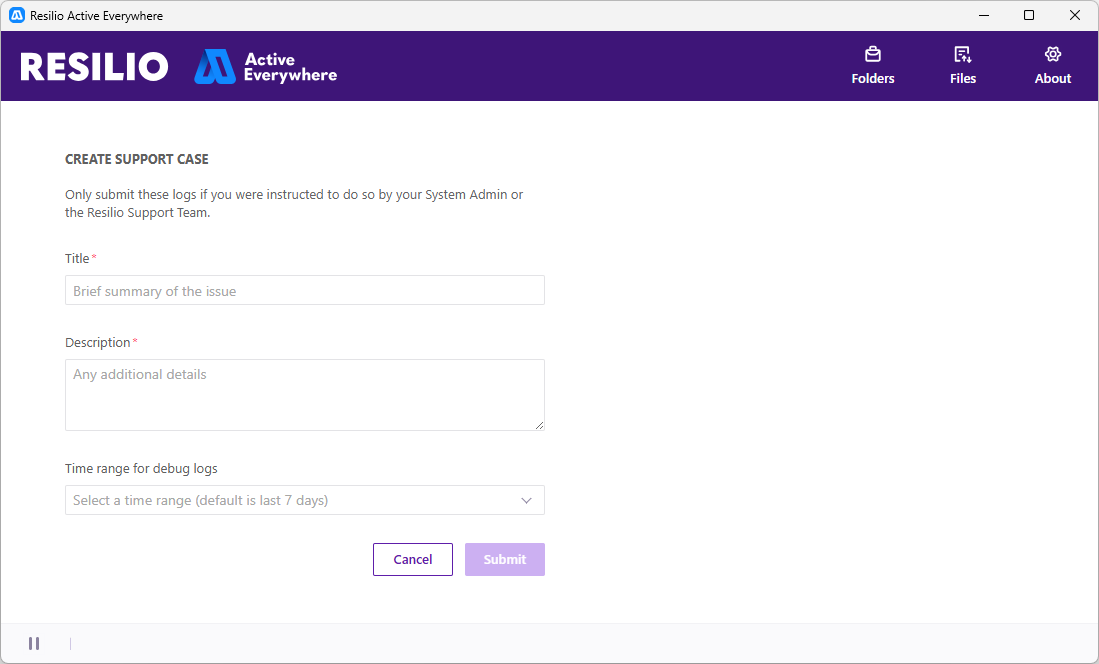
Access support case submission form:
- Windows: Press and hold [Shift] key, then right-click the Agent UI icon in the system tray and select Send support request.
- macOS: Press and hold [Option] key, then click the Agent UI icon in Menu Bar and select Send Support Request.
-
Provide a brief summary of the issue along with additional information.
-
Select time range for which you want to collect logs, then click Submit.
Offline state with Job folder in Read-Only mode
Feature availability
Applies to Enterprise Hybrid Work Jobs in Resilio 6.0.4 and newer.
The end-user Agent requires a stable connection to the Management Console and Primary Storage Agent that serves files to end users.
- If the connection to the Management Console is lost, the end-user Agent continues to participate in the job, but it will not receive any job updates from the Management Console, and it will not report its current status or events to the Management Console.
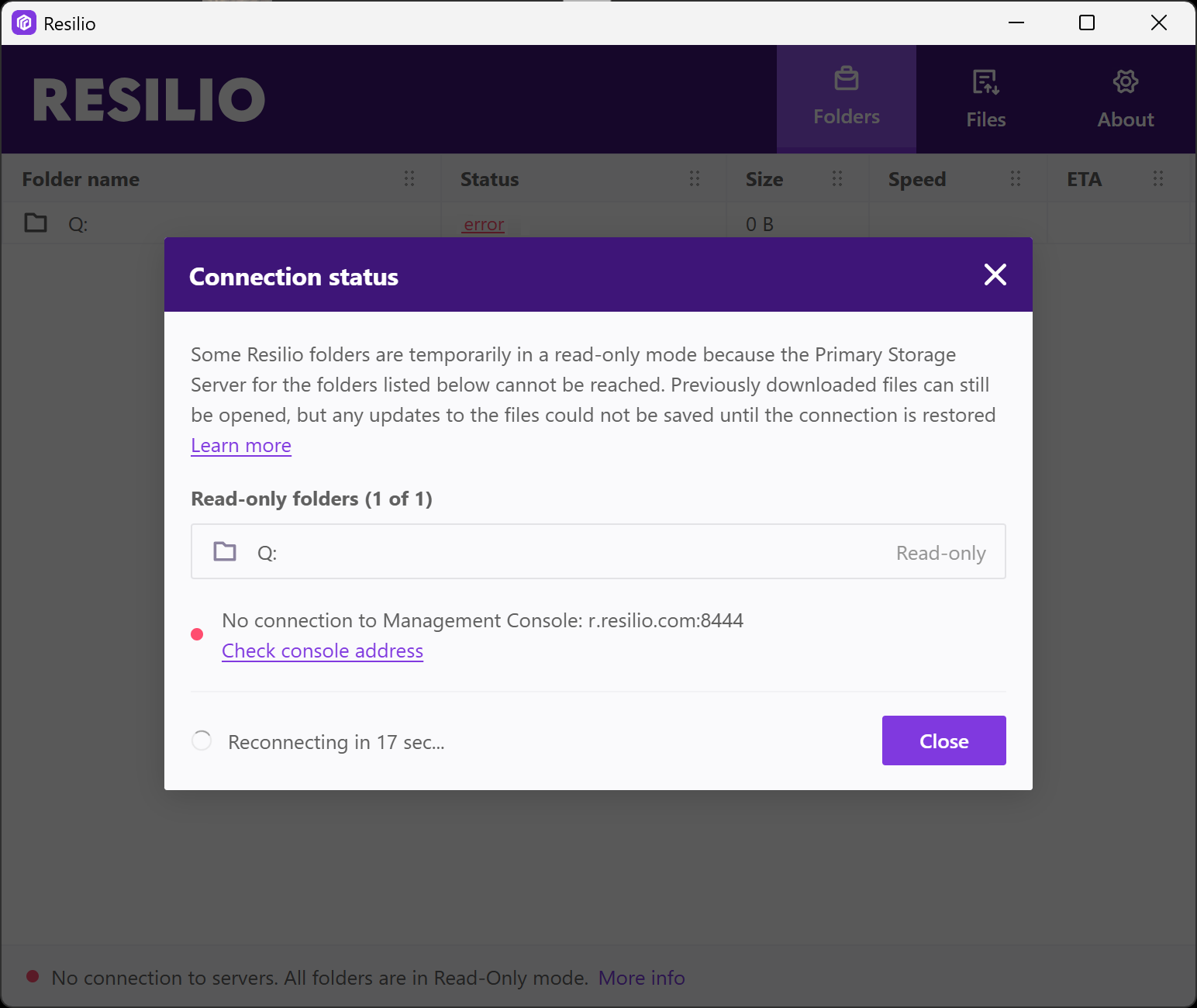
- If the connection to the Primary Storage Agent is lost, the end-user Agent reports the issue in the UI and sets the affected job folders to Read-Only. In this state, changes to downloaded files cannot be saved, and new files cannot be downloaded. For more information, see The Agent cannot reach the file lock server, file lock propagation is suspended.
Lost connections are reported in the end-user Agent UI.
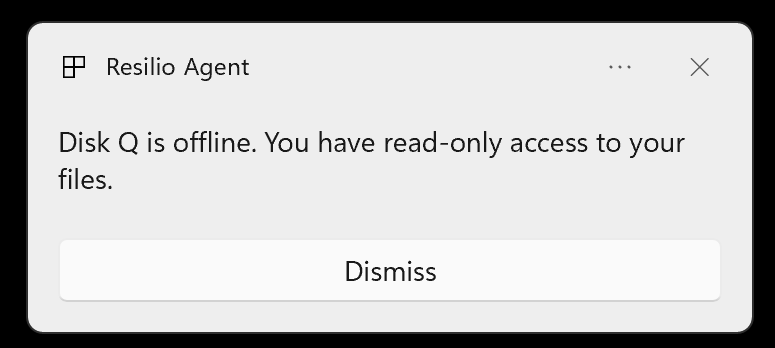
Also, a system notification appears in the bottom right corner.
Access Archive folder
The Archive folder is a special folder that contains files that have been deleted or moved from the Job folder on other Agents. The Archive folder can be used to recover files that have been accidentally deleted or moved.
Note
The Archive folder is available for Agents with Use archive option enabled in their Agent profile.
To access the Archive folder:
- In Agent UI, navigate to the Folders tab.
-
Locate the required job folder, click , then select Open Archive Folder.
Agent UI errors
Non-job related errors are reported at the bottom of the user-interface in Resilio Agent v5.0 and older.
- Bind port busy – The port required by the Agent is already in use.
- No connection to tracker server – The Agent cannot connect to the tracker server.
- No network connection – The Agent has lost network connectivity.
- No connection to Management Console – The Agent cannot connect to the Management Console.
- Failed to connect to Management Console: invalid certificate fingerprint – The Agent cannot connect to the Management Console due to an invalid certificate fingerprint.
Uploading to priority peer
Priority peer is a specific peer that the Agent prioritizes for uploading files. This is essential for ensuring that your data is safely stored on another Agent and available for other Agents participating in the Job.
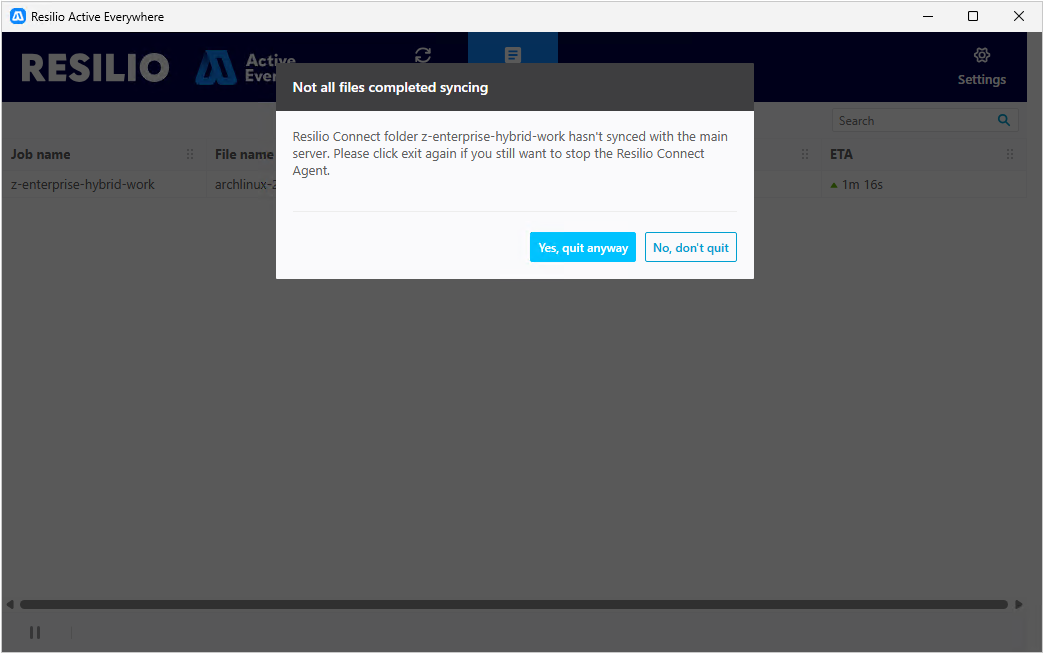
When closing the Agent UI, you may be prompted to confirm closing the application if the Agent has not finished uploading files to the Priority peer.
System taskbar notifications
Agent UI can show system notifications about the Agent's activity. To enable this option, check the Show notifications option in the settings of Agent UI v5.0 and older.
- Low disk space – Agent is running out of space on the drive where sync share’s located.
- Too large file detected – File size exceeds file system limitations, e.g. 4+GB on FAT32.
- File is locked – Agent does not have access to the file right now.
- Excessive time difference – UTC time difference between agents is more than 600 seconds.
- Not enough permissions to access "file/folder" – Agent does not have read-write permissions to the mentioned file/folders.
- Service files are not correct or missed – The identifier file .sync/ID of the share was deleted or got corrupt.
- Wrong location or folder was deleted – The folder itself was deleted from the drive.
- Finished uploading files to "Server" – If priority peer is set in the Management Console, Agent will notify user when files are uploaded to the priority peer.
- File editing conflict – If the Notify Agent of file collision threshold is set in the Agent Profile, Agent will notify user about file editing conflicts. The Notify Agent of file collision threshold parameter is the time between file modifications on different agents for them to be considered colliding. For more information, see Detecting possible file Collisions.
Agent UI overview video
Note
Applicable to Active Everywhere 5.0 and older.