Apply license and assign license packages to Agents and users
Your Resilio license contains Agent and users packages specification along with the licensed features. You can assign license packages to Agents and users manually or have the default packages assigned automatically. Out of the box, the default Agent/User package is the one with the most seats, but you can change it to a different one.
Automated license package assignment
- License package is automatically assigned when there's only one package in the license file.
- In Active Everywhere 5.0.9 and older, Agents that connect to the Management Console using the configuration file, have the default package assigned automatically.
- User packages are applicable to Resilio 6.0 and newer.
- Automated package assignment to Agents and users is processed in alphabetical order. If the number of pending package assignments exceeds the number of available seats, the remaining Agents/users will connect to the Management Console as unlicensed and you'll have to manage their package assignment manually.
Tip
For the missing features, click Request demo, trial or quote to send request for the given feature.
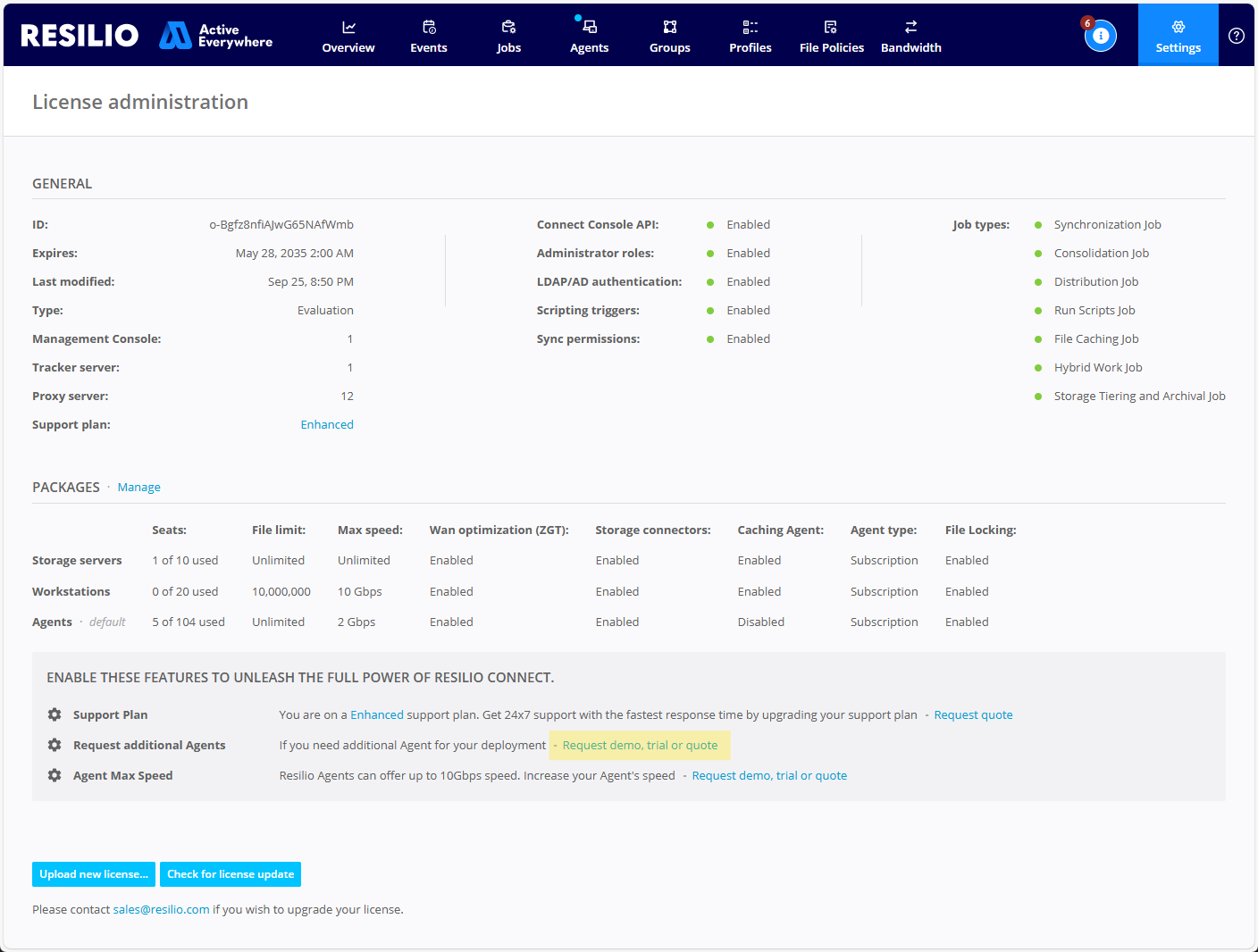
Apply product license
User permissions
You need Super Administrator permissions to manage Resilio license.
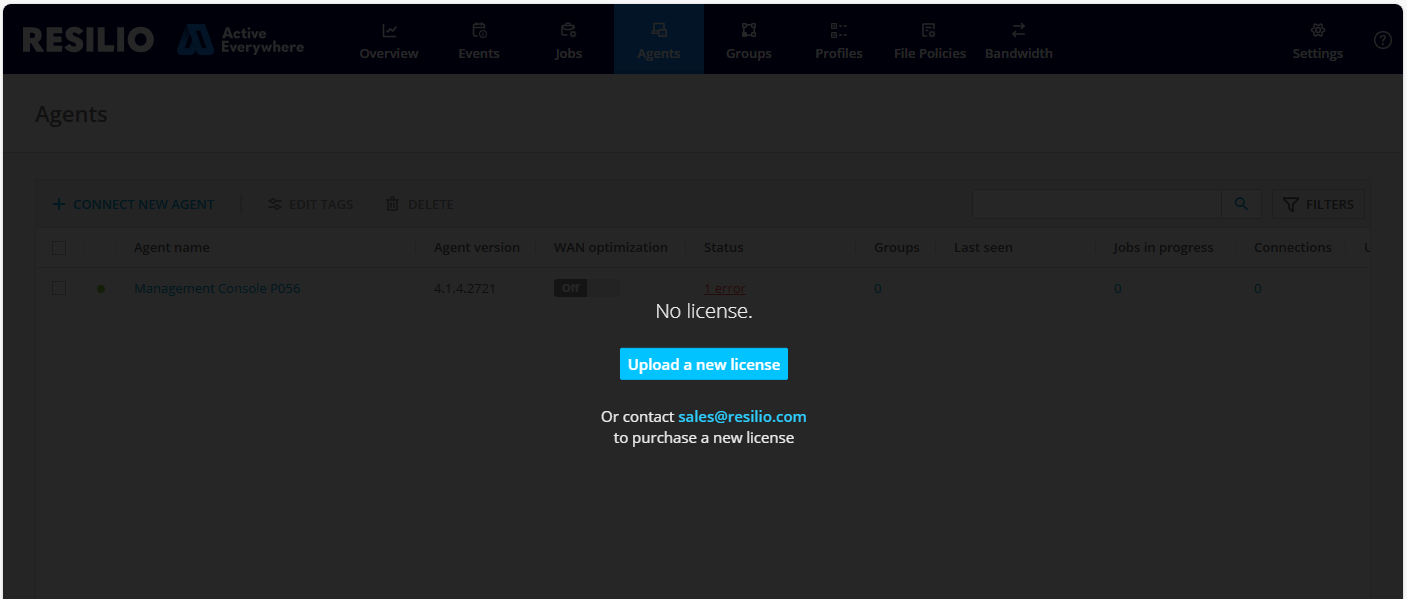
The fist time you start your Resilio Management Console, you must upload a license:
-
In a web browser, navigate to your Management Console's address.
-
Click Upload a new license, then browse the file system to find the license file.
License expiration
Management Console warns about trial period or the subscription license is about to expire: 45 days before expiration as a warning, 10 days before expiration as a warning in red.
Upload and apply a new license
To upload a new license:
- In Management Console, select Settings > Licensing.
- Click Upload new license..., then select and open the new license file.
- Review the license information and click Next.
- In the Agents tab, review the license package assignment for Agents and click Next.
-
In the Users tab, review the license package assignment for users and click Apply.
Note
- Users packages are applicable to Resilio 6.0 and newer.
- When replacing a license that did not include user packages, when prompted with a warning about unlincensed users, click Continue to proceed with the license upgrade. Your user license package will be applied automatically to all connected users.
Change the default license package
To change the default license package:
- Log in to the Management Console.
- Select Settings > Licensing.
-
In the PACKAGES section, click Manage.

-
Locate the license package that you want to make default, for Agents and users respectively, then click make default.

Note
User packages are applicable to Resilio 6.0 and newer.
-
Click Apply to save changes.
Manually assign license packages to Agents or Users
User permissions
You need the Administrator permissions to manage license packages assignments.
Agent packages
Agents tab
To manually assign a license package to an unlicensed Agent, or change the license package assignment:
- Log in to the Management Console.
- Select Agents.
-
Locate and select Agent(s), then click CHANGE LICENSE and select a license package.

Note
Not applicable to end user Agents in Enterprise Hybrid Work Jobs. End user Agents do not require an Agent package, they connect to the Management Console based on assigned User package seat.
Approve new Agents prompt
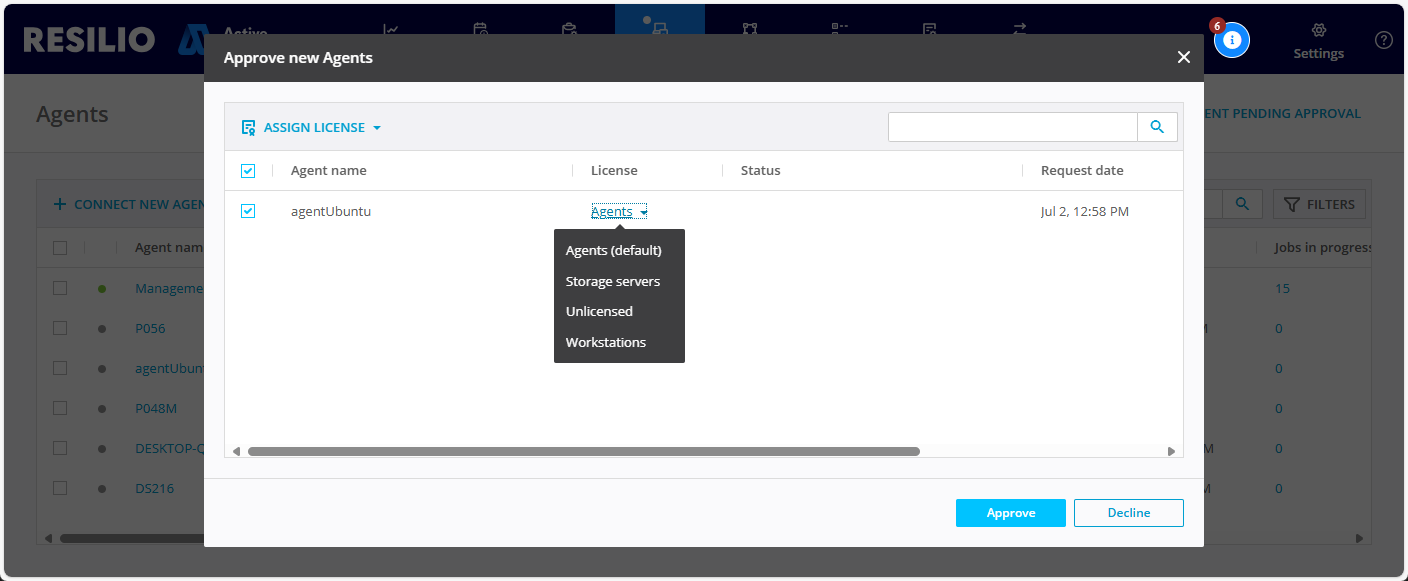
You can choose the license package assigned to an Agent when approving pending Agent connections.
Change Agent package in licensing settings view
To manually assign a license package to an unlicensed Agent, or change the license package assignment:
- Log in to the Management Console.
- Select Settings > Licensing.
- In the PACKAGES section, click Manage.
- Select the AGENTS tab.
-
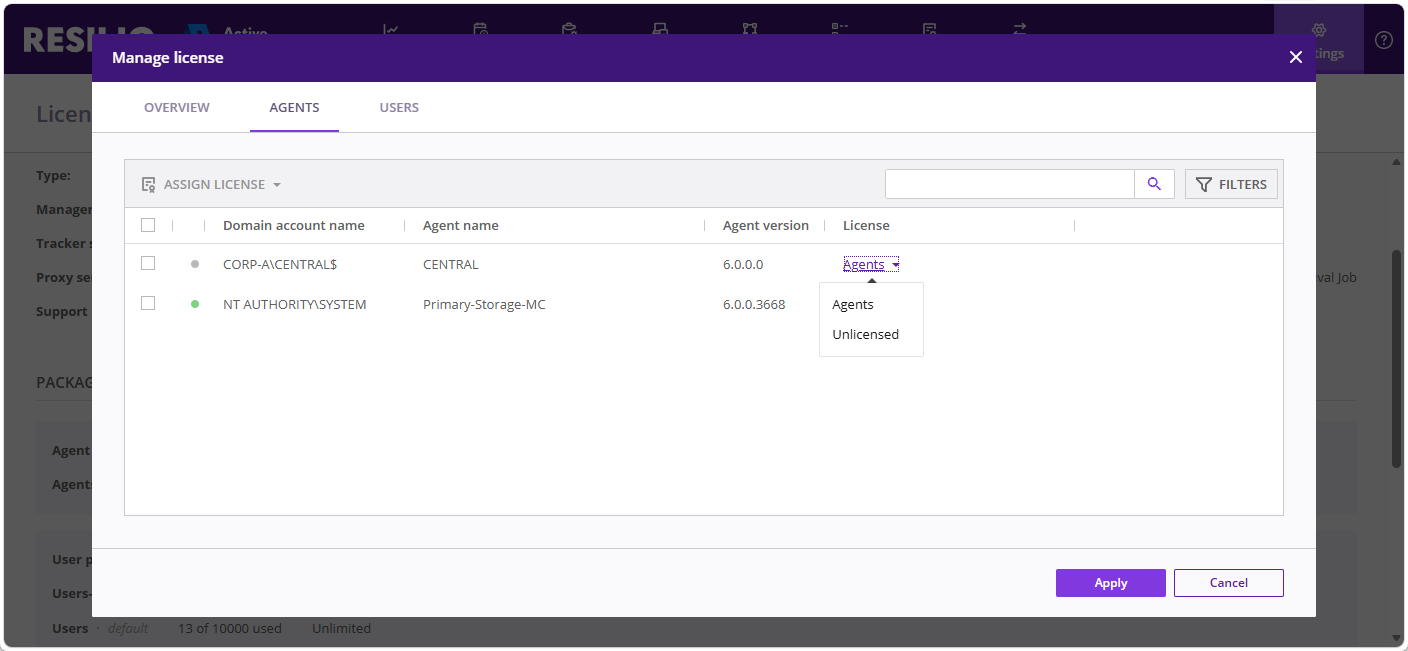
Change the license package for a single Agent or multiple Agents.
-
To change the license package for a single Agent, locate the Agent instance, then click the currently applied license package in the License column and select the new license package.
-
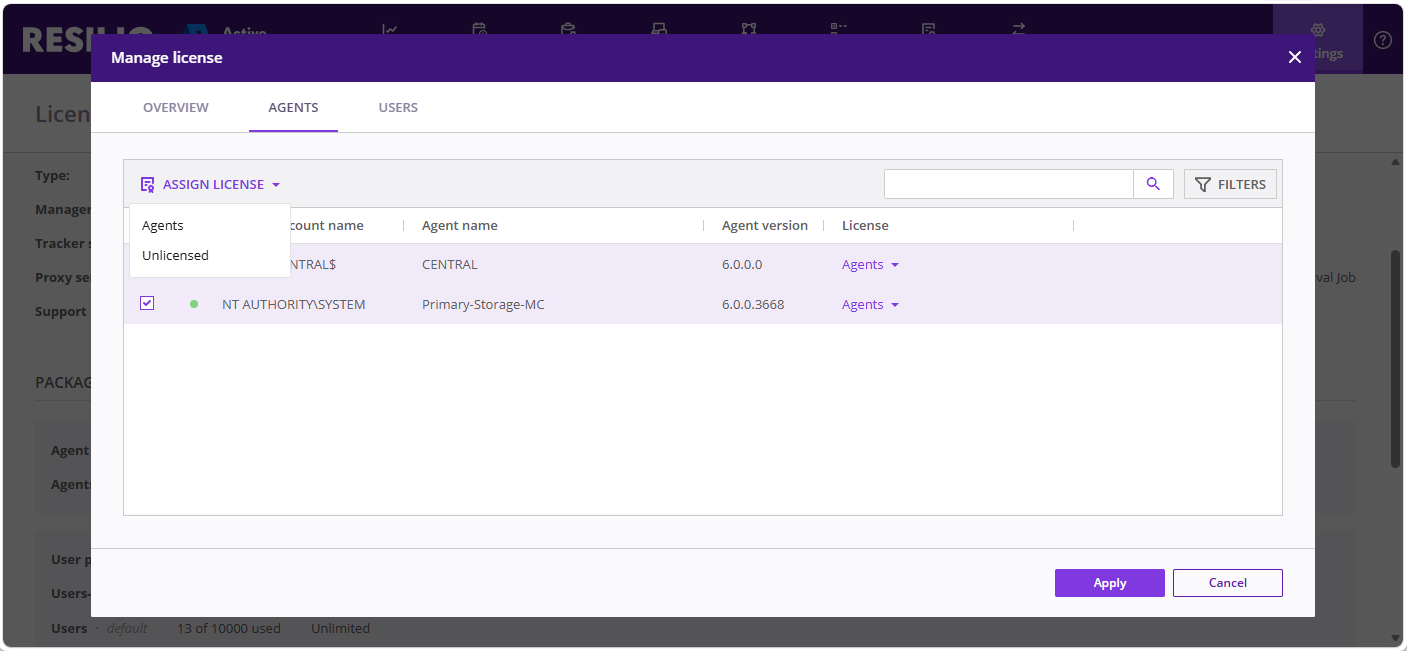
To change the license package for multiple Agents, locate and select Agents, then click ASSIGN LICENSE and select the license package.
-
-
Click Apply to confirm the license package assignment.
User packages
Note
User packages are applicable to Resilio 6.0 and newer.
To manually assign a license package to an unlicensed user, or change the license package assignment:
- Log in to the Management Console.
- Select Settings > Licensing.
- In the PACKAGES section, click Manage.
- Select the USERS tab.
-
Change the license package for a single user or multiple users.
-
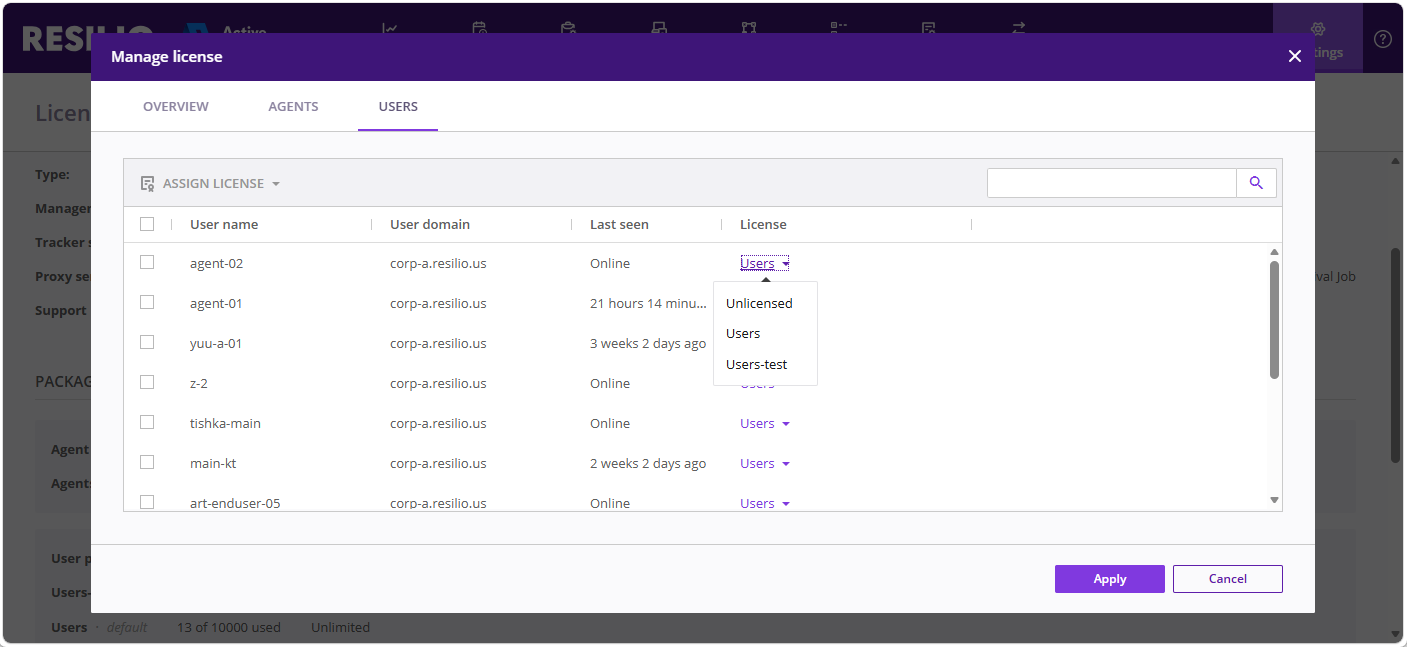
To change the license package for a single user, locate the user instance, then click the currently applied license package in the License column and select the new license package.
-
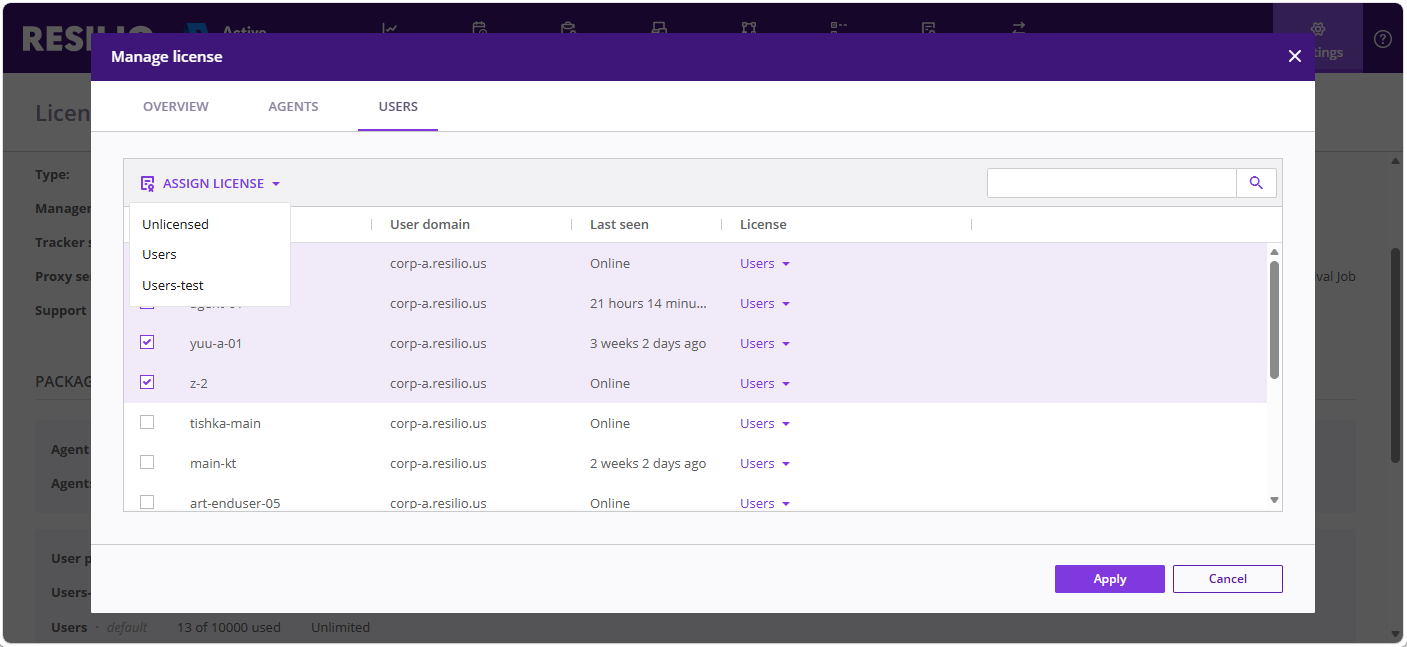
To change the license package for multiple users, locate and select users, then click ASSIGN LICENSE and select the license package.
-
-
Click Apply to confirm the license package assignment.
User packages vs Agent packages
End user Agents participating in Enterprise Hybrid Work Jobs are granted access based on the assigned User package seat. A single user can have multiple end user Agents connected to the Management Console, but only one User package seat is required for all of them. The User package seat is consumed when the first end user Agent connects to the Management Console. A user package seat is released automatically when the last end user Agent associated with the given user account has been disconnected from the Management Console for 7 days.
An end user Agent can connect to the Management Console only if there are user seats available in the default user package. In case there are no available user seats, the Agent will connect to the Management Console as unlicensed and you'll have to manage its package assignment manually once the user seats become available.
Agent packages are applied to all other Agents, including Primary Storage Agents or Caching Gateway Agents. Each Agent package seat is consumed when the Agent connects to the Management Console and released when the Agent is removed from the Management Console.
Legacy licensing
Management Consoles prior to 2.9.1 cannot apply the new license and will continue to use their legacy License. Management Console's 2.9.1 and newer, can continue to use their legacy license. The only new 2.9 Features that require the new License Key Type are the Zero Gravity Transport Protocol and Cloud Storage support.
Resilio Agents 2.8.x can have a new license package assigned, but they won't be able to use any of the new features.