Enterprise Hybrid Work Job
Overview
Enterprise Hybrid Work Job, available in Resilio 6.0, is a highly scalable data transfer workflow enabling VPN-less access to SMB shares in Windows domain environments.
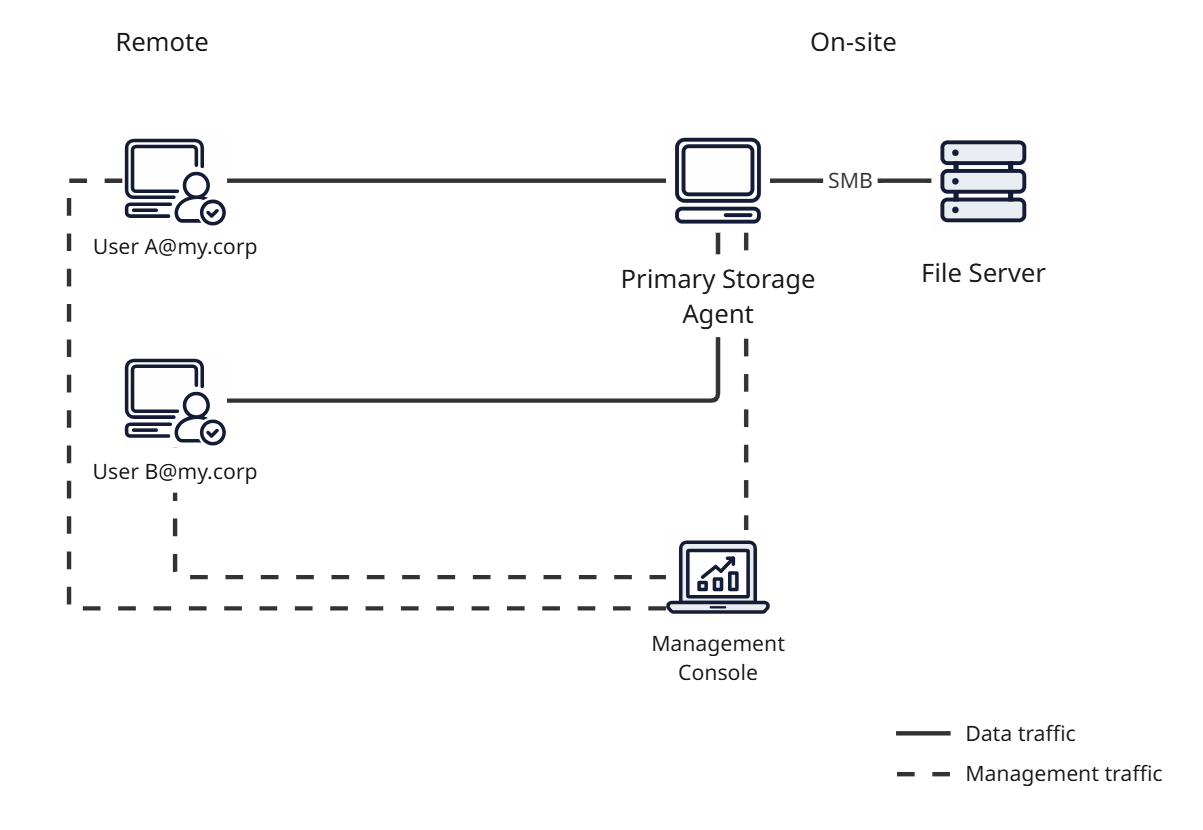
The Enterprise Hybrid Work Job type benefits include:
- Ability to access volumes with billions of files - On-demand scanning fetches metadata of top-level file system items while the end user browses the Job folder. This reduces the volume of data required to serve files to all participating Agents.
- Synchronous locking - The Primary Storage Agent serves as a lock server to provide synchronous locking for files in the Job folder. This allows preventing data corruption when multiple end users access the same files either remotely or from the local network.
To get started:
- Review system requirements and complete preliminary setup steps.
- Set up the Management Console
- Set up the Primary Storage Agent
- Set up user Agents
- Create a Domain group
- Create an Enterprise Hybrid Work Job
Set up Management Console
To set up the Management Console for Enterprise Hybrid Work Job:
-
Install Management Console version 6.0 or newer.
Note
- Install and run under
Local Systemaccount. - Install Resilio Connect Tracker.
- Install and run under
-
(Optional) Enable authentication for Management Console administrators via Active Directory, Entra ID, Okta or Open ID Connect identity provider.
Set up Primary Storage Agent
Primary Storage Agent provides remote access to shared file storage resources.
To set up Primary Storage Agent, see Install Agent - Primary Storage Agent.
Set up User Agents
User Agents are installed on end users' machines to provide them with access to the shared storage resource via the Primary Storage Agent.
To set up User Agents, see Install Agent - End User Agent.
Create a Domain group (Optional)
In Management Console, create a Domain group that matches the Active Directory group that end users belong to.
Note
This step is optional. You can add individual end user Agents or Domain groups during Job creation.
Create an Enterprise Hybrid Work Job
To create an Enterprise Hybrid Work Job:
-
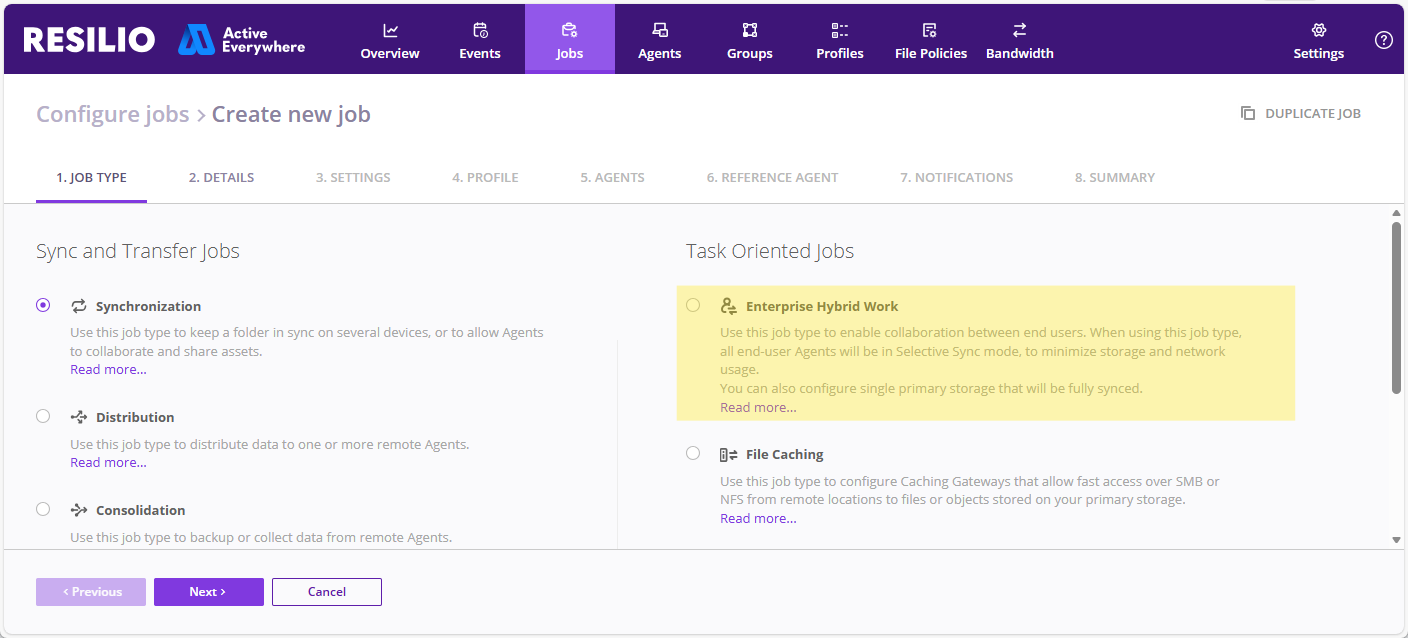
In the Management Console, select Jobs > Configure Jobs, then click + CREATE NEW JOB and select Enterprise Hybrid Work.
-
On the DETAILS tab, provide the Job name and, optionally, a description.
-
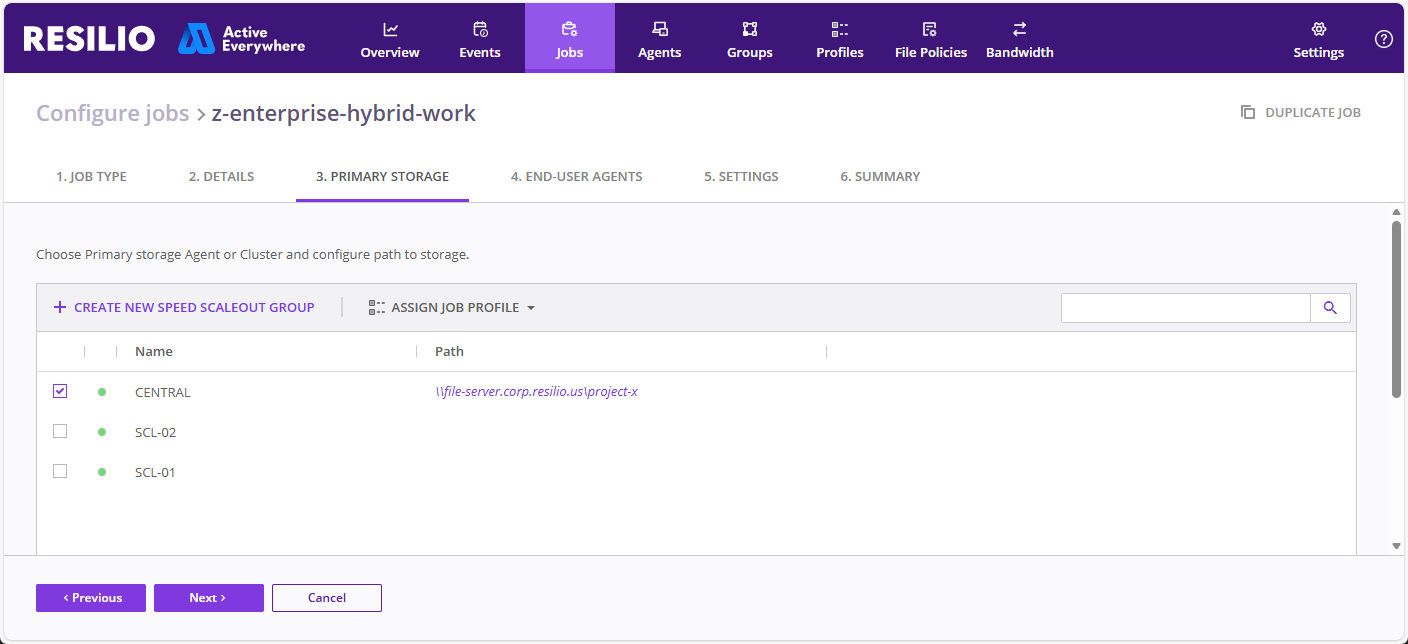
On the PRIMARY STORAGE tab, add your Primary Storage device:
Note
- Only server type Agents running on domain joined machines under Local System (machine) accounts are shown at this step.
- Only one Primary Storage instance can be selected.
- Once the Job is created, you cannot change the Primary Storage instance.
- The Primary Storage instance serves as a Lock server and the Reference Agent.
-
Select your Primary Storage Agent, then specify Job folder path:
- Click Specify path.
- Provide an SMB share or Nasuni DFS namespace path, then click Save.
Nasuni DFS namespace
When using Nasuni DFS namespace, make sure that the Primary Storage Agent's Job Profile has:
- The Follow symlinks option enabled.
- The
preserve_logical_pathcustom parameter has been added and set totrue.
Important: Primary Storage Agent Job folder path
You cannot change the Job folder path on the Primary Storage Agent once the Job is created. If you need to change the Job folder path, you will have to create a new Job.
-
Click Assign Job Profile and select Primary storage default profile.
-
(Optional) Change the service principal name fetched from the Active Directory:
Select Input SPN manually, then provide the Primary Storage device SPN.Note
Computers in Active Directory can have multiple SPNs assigned. If the SPN fetched by the Management Console is incorrect, specify the correct SPN value manually.
-
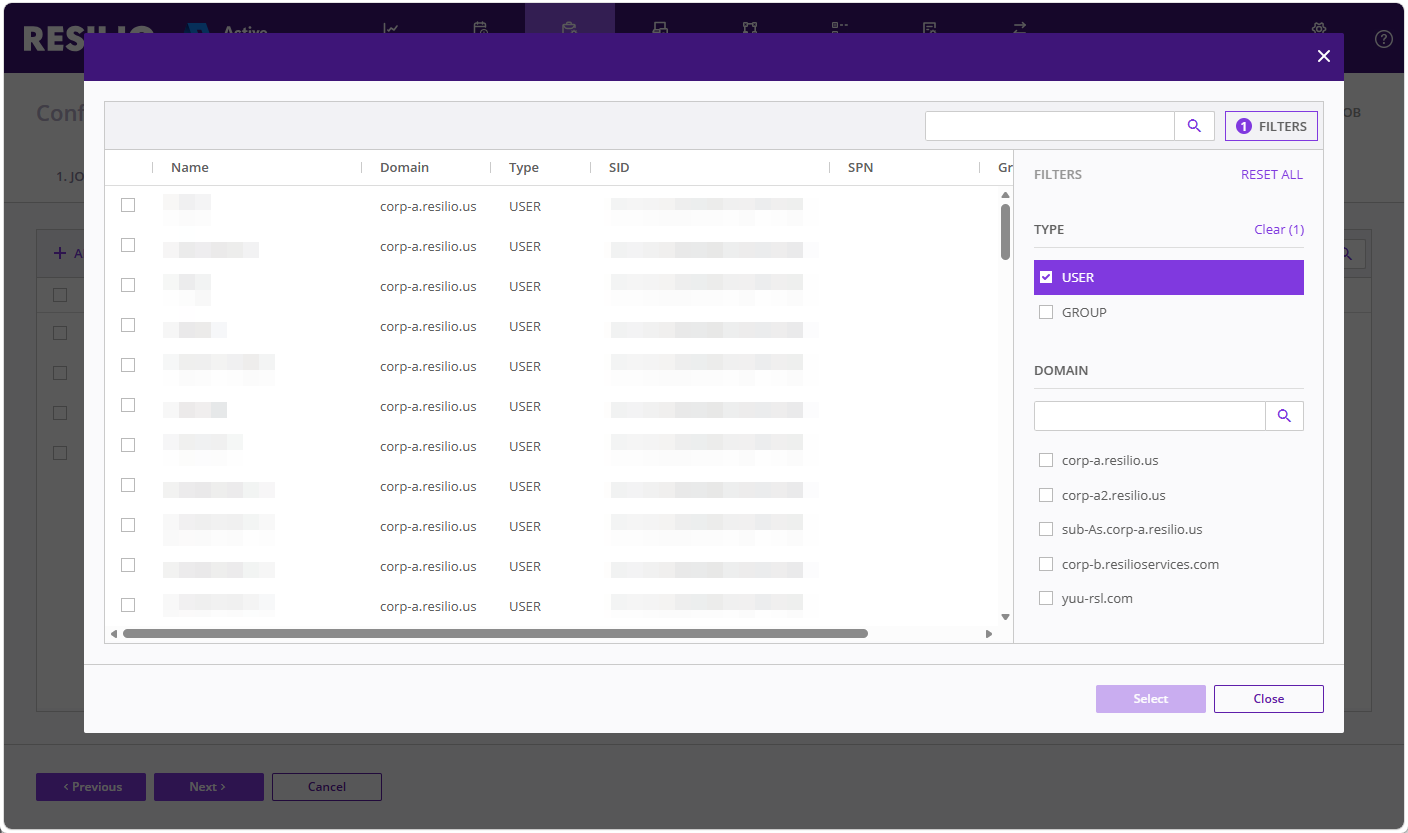
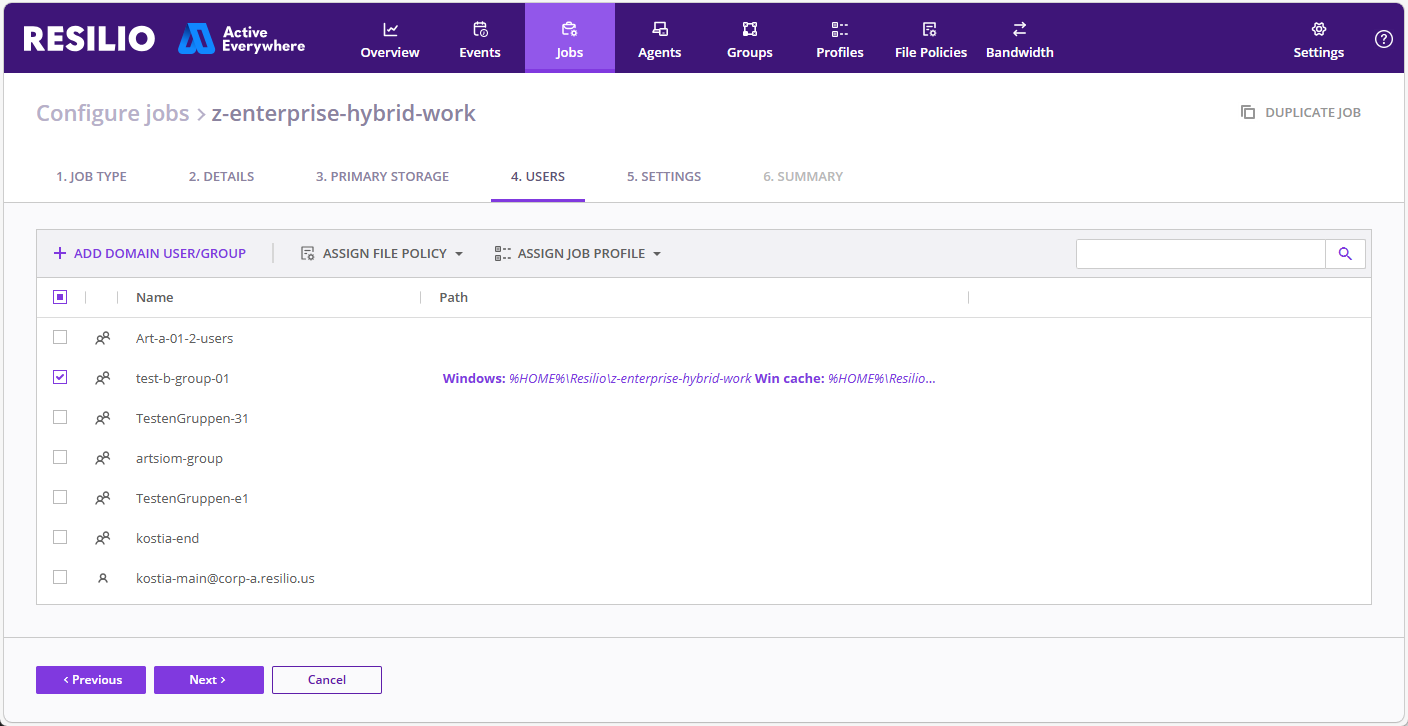
On the USERS tab choose from previously added domain groups and individual users , or add new ones.
Note
User accounts in Active Directory must have
UserPrincipalName(UPN) property assigned. For more information, see System Requirements and Prerequisites - User accounts properties.- Click + ADD DOMAIN USER/GROUP and search for a user or a group.
-
Select a user or a group, then click Select.
Tip: Multiple domains
If you cannot locate a user or a group, make sure they are in the same domain as the Management Console or a two-way trust relationship exists between the domains.
-
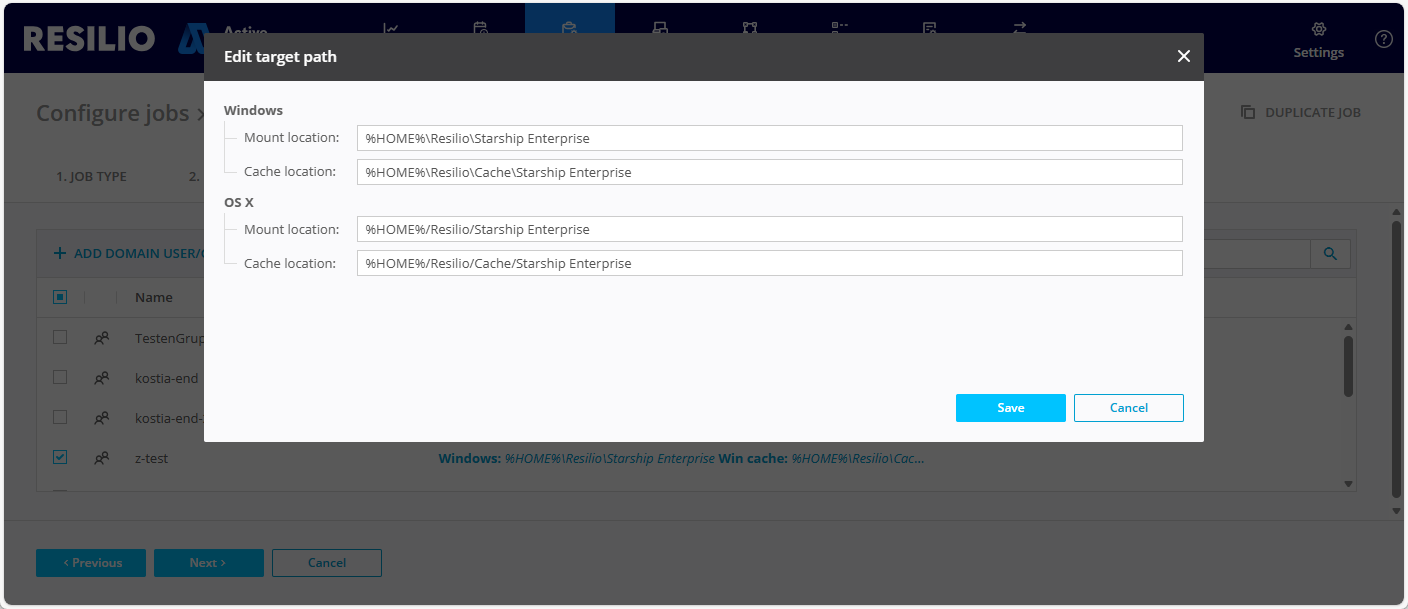
(Optional) Click the default Job folder path to change it, provide paths for mount and cache locations for end user devices, then click Save.
Tip: Map Job folder to a drive letter
Define the Mount location as
<drive_letter>:to map the Job folder to a specific drive letter, for example,M:. The drive letter must be in uppercase and not already in use by another drive.Important: External storage devices
External storage devices are not supported.
-
(Optional) Click Assign File Policy and choose a file policy, that defines how Agents manage file caching depending on available storage space.
-
Click Assign Job Profile and select End-user default profile.
-
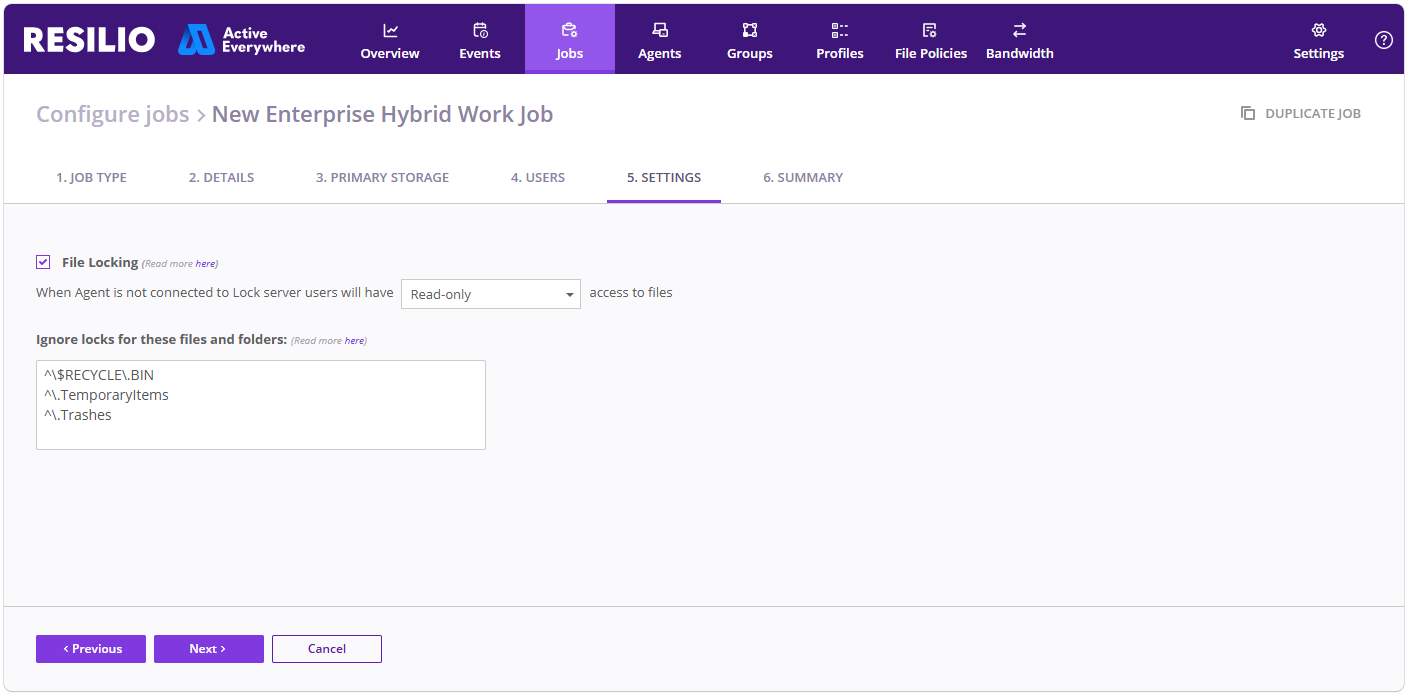
On the SETTINGS tab, adjust File Locking parameters.
Important: File locking
- Do not disable file locking.
- You cannot enable or disable file locking after the Job is created.
- Do not clear the default Ignore locks for these files and folders entry. Instead, add each new regular expression rule in a separate line.
- When Agent is not connected to Lock server - Access level to shared files when the locking server is unavailable.
- Ignore locks for these files and folders - A regular expression (PCRE2 syntax) to match files and folders that you want to exclude from locking.
-
On the SUMMARY tab, verify your Job's configuration, then click Save.
Known issues and limitations
Existing Resilio deployments
- You cannot upgrade your existing 4.x or 5.x deployment to Resilio 6.0.
IT environment
- Proxy servers are not supported.
- Management Console cannot list Foreign Security Principal (FSP) objects within a group in an Active Directory domain. If you have a group, containing users from other trusted domains as Foreign Security Principal objects, Management Console won't be able to access those users and add them to the Job. You must assign users and groups from each domain separately.
Analytics
- There's no option to limit the size the analytics database takes up on the Management Console host.
- When upgrading from version 6.0.0.3622 or older, delete the
mchost\UserData\userdata.sqlitedatabase file in the Management Console storage folder. Note that this will delete all existing Saved Views but it is necessary due to changes in the analytics framework.
Enterprise Hybrid Work Job
- Speed Scaleout Groups are not supported.
- File locking must remain enabled.
- Impersonation does not apply to highly privileged accounts, e.g. Domain Admins or Enterprise Admins.
- You cannot create and manage Enterprise Hybrid Work Jobs via API.
- You cannot change the Primary Storage Agent after the Job is created.
- You cannot change the Job folder path on the Primary Storage Agent after the Job is created.
- You cannot enable or disable file locking after the Job is created.
End user Agents
- External drive support is not available for end user Agents.
- Windows 11 Enterprise multi-session is not supported.
- Cache folder cannot be located on an SMB share on a ReFS volume.
- Download and upload time estimates can be inconsistent - Job ETA may be missing while ETA for individual files could be available.
- Agent UI may be blank if there are thousands of files in the active queue.
- Some errors can remain for some time, even after they have been resolved.
- If there is a connection problem or invalid MC address was applied, user can see a pending attempt to connect to the MC.
- Minor UI glitches and inconsistencies.
- Running executable files from the Job folder may fail due to a bug in Windows WebDAV client. For details, see Cannot access executable binaries.
- Windows end user Agents don't lock files if the Job folder path is specified as a UNC path.
- Overloading an Agent with too many file operation requests within the Job folder may result in the Agent reporting the
SE_RECHECK_FILE: Cannot check file blocks, error=transfer key invalid, system error: The cloud operation is invalid. (380)error. - File's
mtimeupdate on the Primary Storage Agent triggers dehydration of the file on end user Agents participating in the Job, even if the file is not modified. The file won't be rehydrated automatically until the end user Agent accesses the file. - Applying a file policy after the Job is created may result in issues with browsing files in the Job folder on end user Agents. To avoid this, create a file policy before creating a Job and apply it during Job creation.
- For apps-specific issues and limitations, see Resilio 6.0 Applications Compatibility.